
General Assist Technical Reference
anywAiR App Connection Error
FG140P, FG42, FG43 or FG45
Correcting the anywAiR tablet time zone and restoring app connectivity
Common resolution: FG140P, FG42, FG43 and FG45 errors can occur when the time zone configured on the anywAiR tablet is incorrect. A common issue is the tablet being left on Australian Western Standard Time instead of the time zone applicable to the installation location.
1. Error codes
This procedure should be completed when the anywAiR application is displaying one of the following connection or remote-access errors:
| Error | First action |
|---|---|
| FG140P | Check and correct the time zone settings on the anywAiR tablet. |
| FG42 | |
| FG43 | |
| FG45 |
Important: The time zone must be changed on the anywAiR wall tablet, not just on the customer's mobile phone.
2. Correct the time zone on the anywAiR tablet
| 1 | Exit to the tablet home screen. Press the TRIANGLE navigation button at the bottom of the tablet. 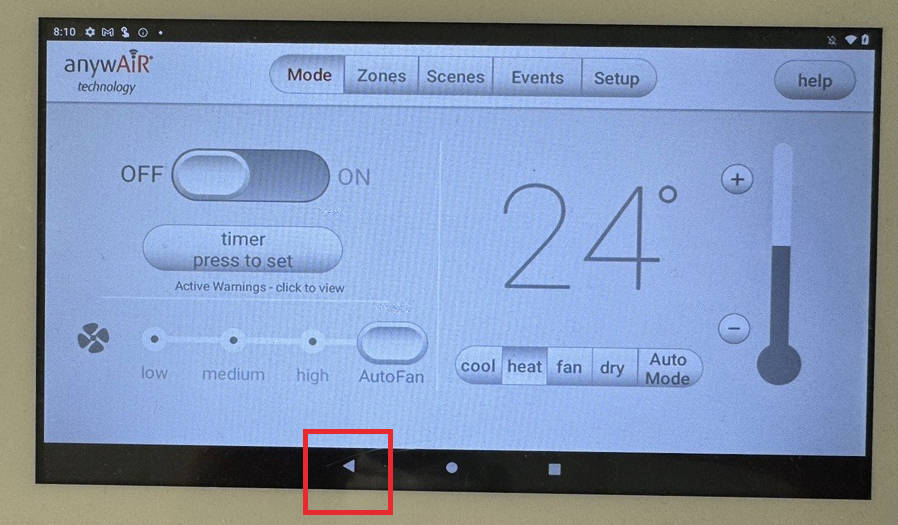 |
| 2 | Open the tablet application screen. Swipe upward from the home screen to access the main application page. 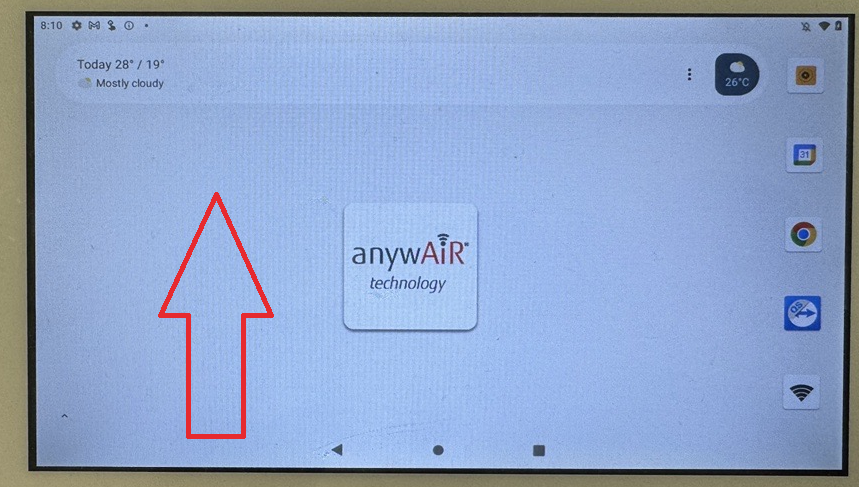 |
| 3 | Open Android Settings. Tap the SETTINGS icon. 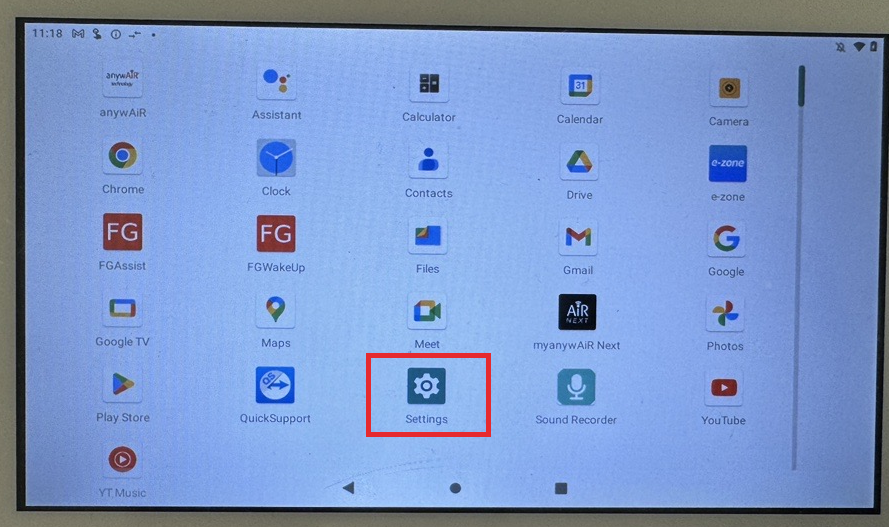 |
| 4 | Search for the time settings. Type TIME into the Settings search field. 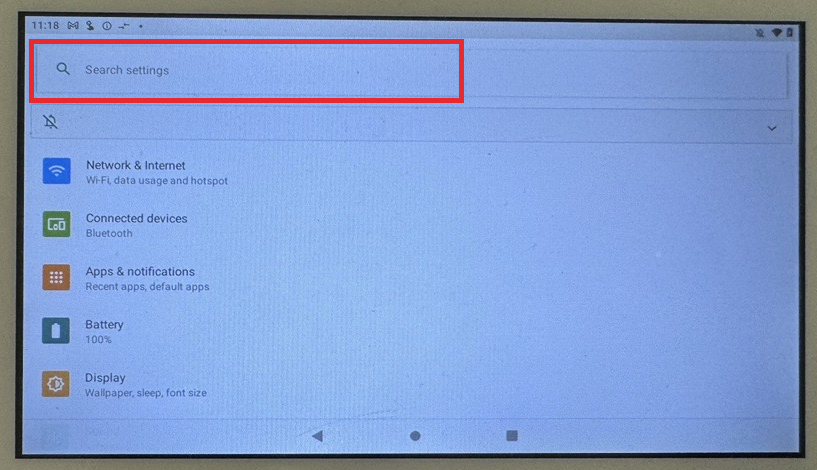 |
| 5 | Select TIME ZONE.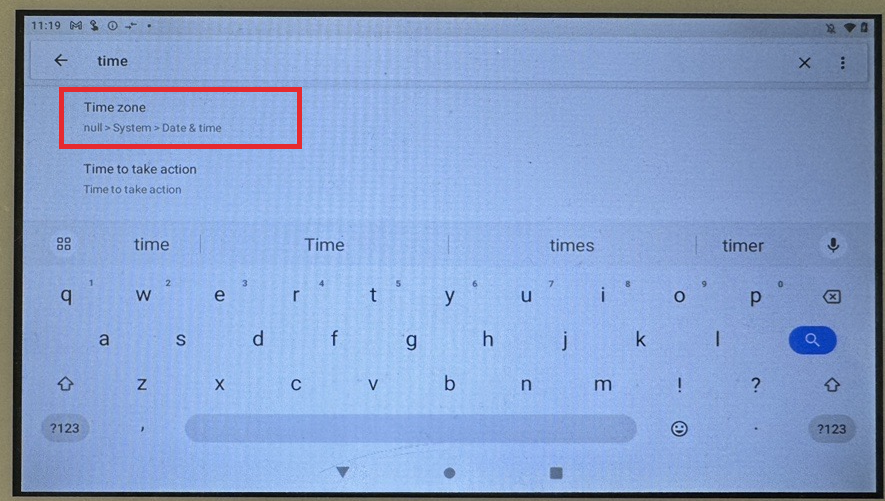 |
| 6 | Select SELECT TIME ZONE.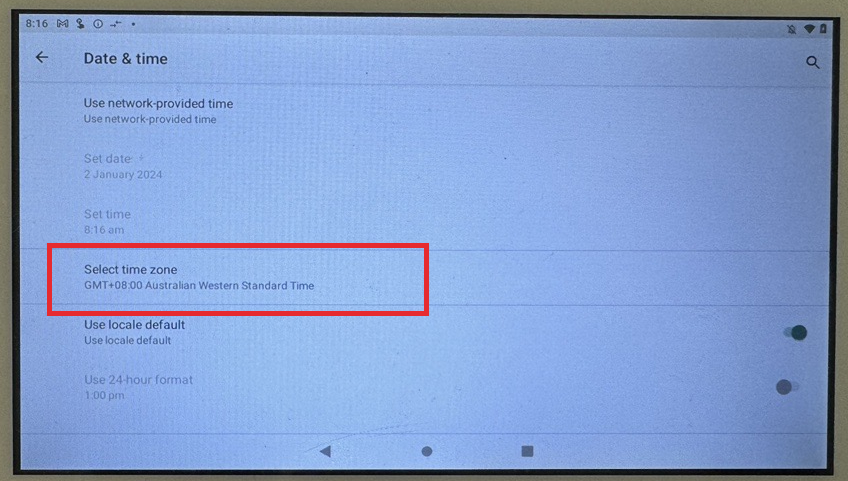 |
| 7 | Choose the correct time zone for the installation location.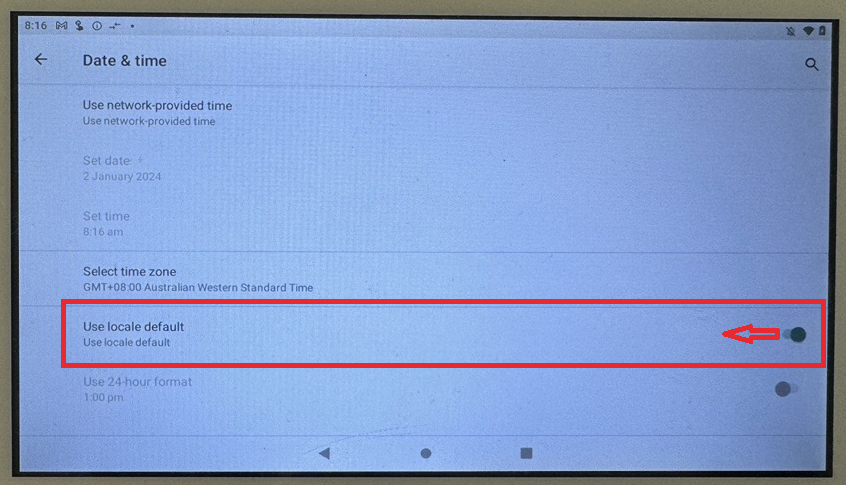 |
| 8 | Locate USE LOCALE DEFAULT and switch it OFF. Move the switch to the left for OFF. |
Check this carefully: The tablet may be configured to Australian Western Standard Time by default. Do not assume the displayed time is correct simply because the clock appears close to the actual time.
3. Update the apps and restart the system
Once the correct tablet time zone has been selected:
| 1 | Confirm the anywAiR application on the wall tablet is up to date. |
| 2 | Confirm the anywAiR application on the customer's phone is up to date. |
| 3 | Turn the air conditioning system off at the power supply. |
| 4 | Leave the system powered off for approximately 10 minutes. |
| 5 | Restore power and allow the anywAiR controller to completely restart. |
| 6 | Open the anywAiR application on the mobile phone and attempt the connection again. |
Expected result: Once the tablet has the correct time zone, both applications are current and the system has been restarted, the remote connection should be attempted again.
4. If the error remains
If FG140P, FG42, FG43 or FG45 continues to be displayed after completing the procedure above, collect the diagnostic information shown in the anywAiR application before escalating the issue.
Useful information includes:
- Error or remote status code
- Mobile phone operating system and version
- anywAiR mobile app version
- Whether Wi-Fi is connected
- Whether internet access is detected
- Whether Local Network Permission is enabled
- Number of stored systems
- Country code
Quick checklist
| Check | Item |
|---|---|
| ☐ | Correct time zone selected on anywAiR tablet |
| ☐ | USE LOCALE DEFAULT switched OFF |
| ☐ | Tablet anywAiR app updated |
| ☐ | Mobile anywAiR app updated |
| ☐ | System powered off for approximately 10 minutes |
| ☐ | Connection tested again after full restart |
GENERAL AIRSTAGE technical support information. Menu names may vary slightly depending on the tablet software version.