
General Assist Technical Reference
How to Install the anywAiR APK
Manual installation procedure for an anywAiR wall-mounted Android touch screen
Use this procedure when the required anywAiR application must be downloaded and installed using an Android Application Package (APK).
Before starting: Check the name and icon of the application currently installed on the wall-mounted touch screen. Download only the APK that matches the installed anywAiR control system.
Important: Use the latest available version of Google Chrome on the touch screen. The wording and position of Android prompts may vary slightly depending on the tablet model and Android version.
1. Requirements
| Requirement | Details |
|---|---|
| Internet connection | Connect the wall-mounted touch screen to a stable Wi-Fi network. |
| Web browser | Use the latest available version of Google Chrome. |
| Correct application | Confirm the application name and icon already associated with the installed anywAiR system. |
| Permission to install | Android may require permission for Chrome to install applications from this source. |
2. Download the correct APK
1
Open Google Chrome on the wall-mounted touch screen.
2
Open the anywAiR Android APK download page.
3
Select the APK that matches the application installed for the anywAiR system.
4
Start the download. If Chrome displays a security warning or asks for permission to download the file, select Continue and then Allow. If a separate confirmation message appears, select OK.

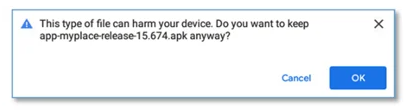
Do not install an APK for a different control platform. Installing the wrong application may cause missing controls, communication issues or incorrect system operation.
3. Allow Chrome to install the APK
- When the APK download is complete, select Open.
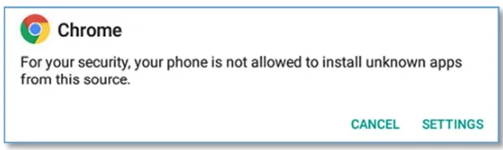
- If Android advises that installation from this source is not permitted, select Settings.
- Turn on the option that allows Chrome to install unknown applications or applications from this source.
- Use the Android back button to return to the installation screen.

The Android setting may be labelled Allow from this source, Install unknown apps or similar. This permission applies to Chrome and can be disabled again after installation.
4. Install and test the application
| 1 | Select Install. |
| 2 | Wait until Android confirms that the application has been installed. |
| 3 | Select Open, or return to the home screen and open the anywAiR application. |
| 4 | Confirm that the application opens correctly and displays the air-conditioning system, zones and temperature information. |
| 5 | Restart the touch screen and confirm the anywAiR application continues to operate after reboot. |
5. Troubleshooting
| Issue | Action |
|---|---|
| APK will not download | Confirm the touch screen has internet access, reopen Chrome and retry the download. |
| Install button is unavailable | Confirm Chrome has permission to install applications from this source. |
| Application not installed | Confirm sufficient storage is available and that the downloaded APK is compatible with the touch screen. |
| Application opens but does not find the system | Confirm the correct APK was installed, restart the touch screen and check communication between the touch screen and the anywAiR control box. |
| Existing application may only require an update | Do not uninstall the existing application unless instructed. Install the matching update over the current version where supported. |
Need further assistance?
Contact General Assist on 1300 364 484, Monday to Friday, 8:00 am to 5:00 pm AEDT, or submit a support request through the General Australia contact page.APK files should only be downloaded from an approved source. Menu names and prompts may vary by Android version.