
AnywAiR App Not Connecting to the Tablet
Troubleshooting error codes FG42, FG43 and FG45
Overview
If the AnywAiR app on a phone is not connecting to the wall-mounted tablet, or the app displays error FG42, FG43 or FG45, the tablet may have an incorrect time-zone configuration.
Procedure
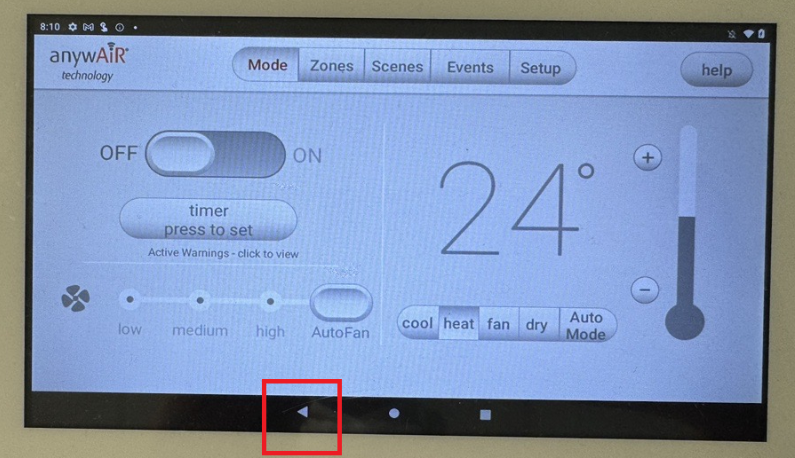
1. Exit the AnywAiR control screen
From the AnywAiR control screen, tap the triangle Back button at the bottom of the tablet display.
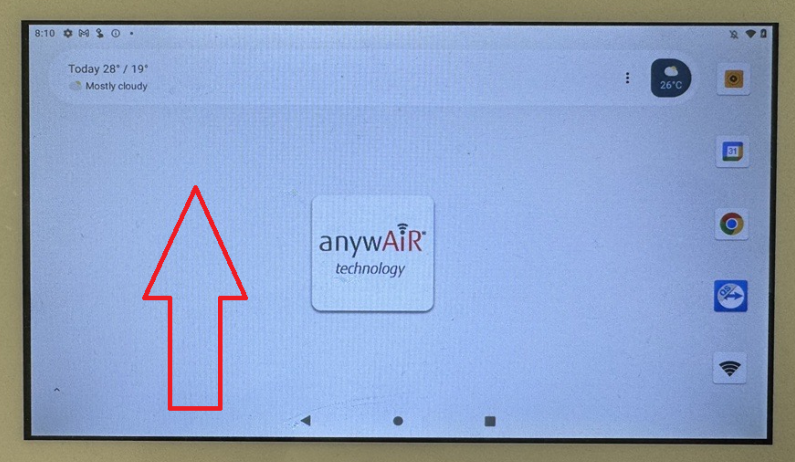
2. Open the application list
On the tablet home screen, swipe upward to display the main application page.
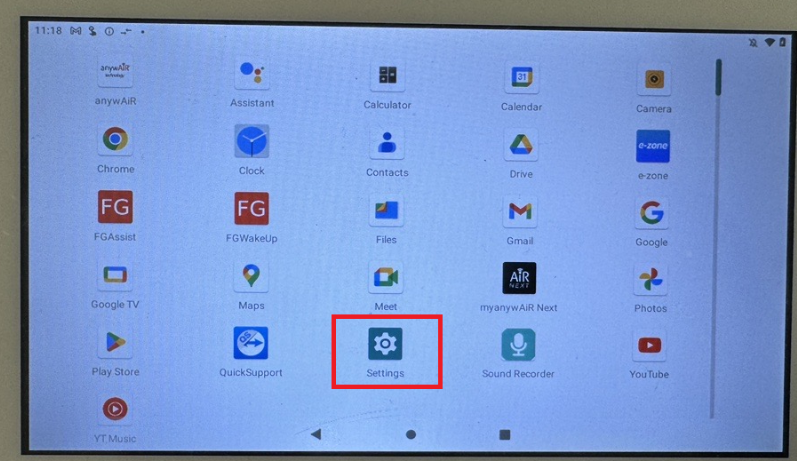
3. Open Settings
Tap the Settings icon.
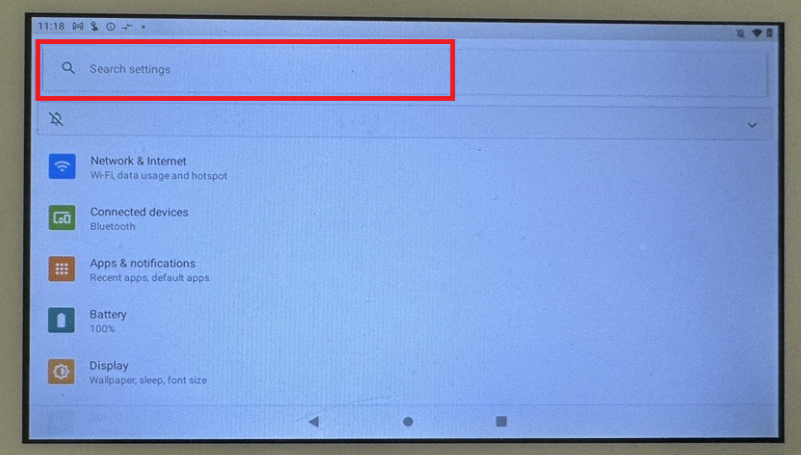
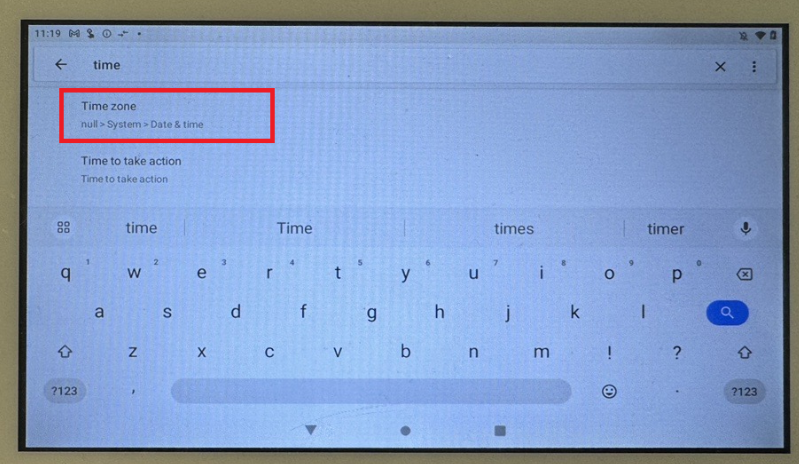
4. Search for the time settings
Tap the search field at the top of Settings and enter time.
5. Select Time zone
From the search results, tap Time zone.
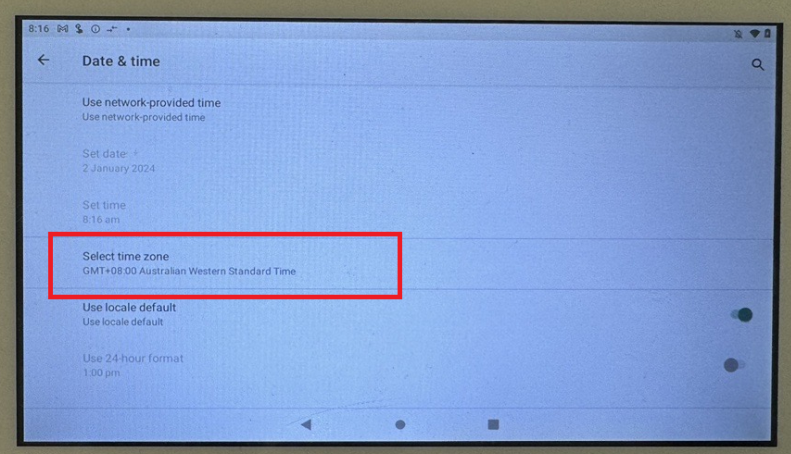
6. Select the correct local time zone
Tap Select time zone, then choose the correct time zone for the installation location.
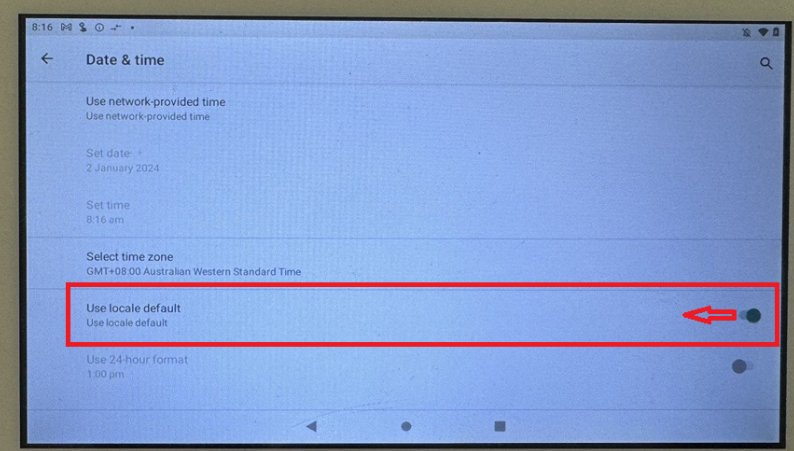
7. Turn off Use locale default
Move the Use locale default switch to the left so it is turned off.
Confirm the connection
Return to the AnywAiR application and allow the tablet a short period to reconnect. The phone app should then connect normally.