
anywAiR Ducted App Help
Removing an old system after replacing an ANY1 controller with ANY2
What to do when both the old and new systems appear in the app
After an ANY1 controller is replaced with an ANY2 controller, the anywAiR Ducted App may temporarily show both systems. This normally means the app still has information from the previous controller stored on your phone or tablet.
Before you begin: Confirm that the old ANY1 controller has been disconnected and that the new ANY2 controller is powered on.
1. Remove the old system from the app
The most reliable way to clear the previous controller details is to remove and reinstall the anywAiR Ducted App.
- Uninstall the anywAiR Ducted App from your phone or tablet.
- Restart your phone or tablet. This helps clear any information still held in memory.
- Reinstall the latest version of the anywAiR Ducted App from the Apple App Store or Google Play Store.
- Open the app. A message such as “No systems paired (FG71)” may appear. This is expected and confirms that the previous pairing information has been removed.
Using more than one phone or tablet?
Repeat these steps on each device that previously connected to the old controller.
Repeat these steps on each device that previously connected to the old controller.
2. Pair the new ANY2 controller
- Make sure the ANY2 controller is powered on.
- Confirm the controller is ready for pairing. The Wi-Fi indicator should be flashing or showing the pairing status described in your installation guide.
- Open the anywAiR Ducted App and select Add System or the equivalent option shown in the app.
- Follow the on-screen instructions to connect the controller to your home Wi-Fi network.
- Where required, use a 2.4 GHz Wi-Fi network. Some controllers cannot be set up using a 5 GHz-only network.
Wi-Fi password: Enter the password exactly as shown on your router or network settings. Wi-Fi passwords are case-sensitive.
3. Check that the new system is working
After pairing is complete:
- Confirm that only the new system appears in the app.
- Test turning the air conditioner on and off.
- Check the operating mode, temperature setting and fan operation.
- Check that the zones open and close correctly.
- Confirm that temperature readings and schedules are available, where fitted.
You may also close and reopen the app to confirm that the new system remains connected.
4. If both systems still appear
| Issue | What to do |
|---|---|
| The old controller still appears | Confirm the old ANY1 controller is disconnected, then uninstall and reinstall the app again. |
| The new controller will not pair | Restart the controller, phone or tablet, and Wi-Fi router. Then repeat the pairing process using 2.4 GHz Wi-Fi. |
| The system appears on one device but not another | Repeat the app removal and pairing process on the second phone or tablet. |
| Pairing continues to fail | Check Wi-Fi signal strength, confirm the password, temporarily disable VPN or mobile data, and try again close to the router. |
Still unable to connect? Contact your installer or Fujitsu General customer support and provide the controller model, the error code shown in the app, and a description of the Wi-Fi indicator status.
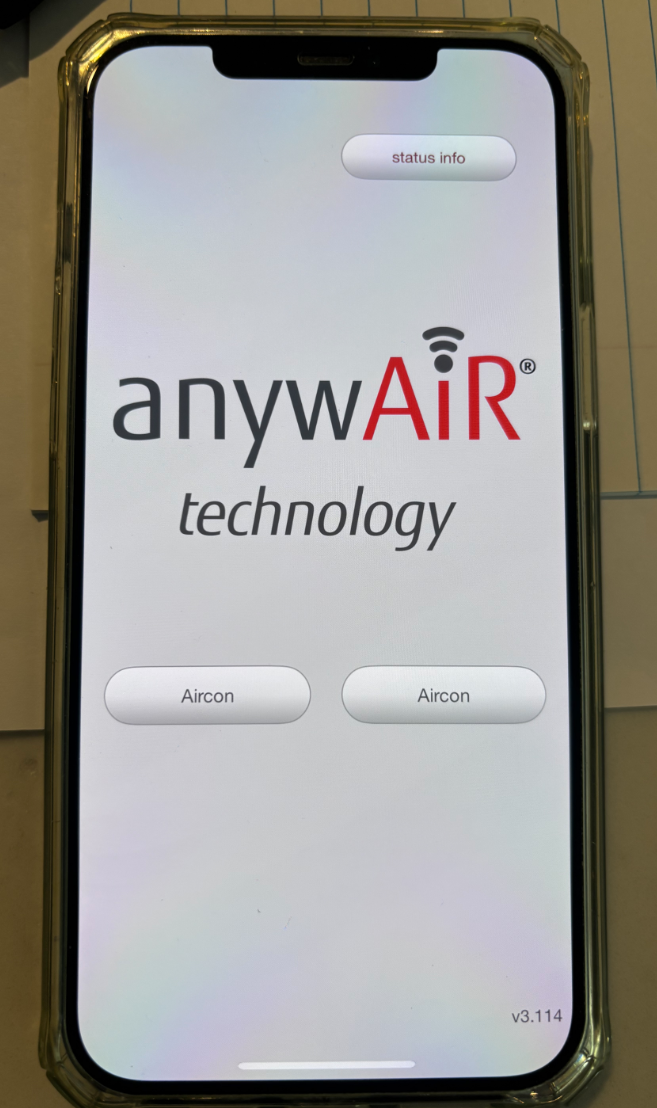
Menu names and pairing screens may vary slightly depending on the app version and mobile device.