How to Reset and Reconnect a myanywAiR Wi-Fi Adaptor
Use this process when the modem, router, Wi-Fi network name or password has changed.
Before you begin: The adaptor must connect to a 2.4 GHz Wi-Fi network. Keep the adaptor and setup device close to the router during configuration.
If your myanywAiR adaptor needs to reconnect to a new modem, router or Wi-Fi network, reset the existing Wi-Fi configuration and then enter the new network details.
Step 1. Enter Wi-Fi Configuration Mode
| 1 | Locate the Reset/Function button on the myanywAiR adaptor. |
| 2 | Press and hold the button for 10 seconds. The LED will begin blinking green while the device resets. |
| 3 | When the LED turns solid green, the reset is complete and the adaptor is ready for Wi-Fi configuration. |
Step 2. Reconnect to Wi-Fi
- Open the Wi-Fi settings on your smartphone, tablet or computer.
- Connect to the temporary network named INTESISHOME_xxxxx or ANYWAIR-I-xxxxx.
- Open a web browser and enter http://192.168.4.1.
- Enter the new Wi-Fi network name (SSID) and password. Both are case-sensitive.
- Select Configure Wi-Fi.
The temporary adaptor network does not provide internet access. This is normal during setup.
Step 3. Check the LED Status
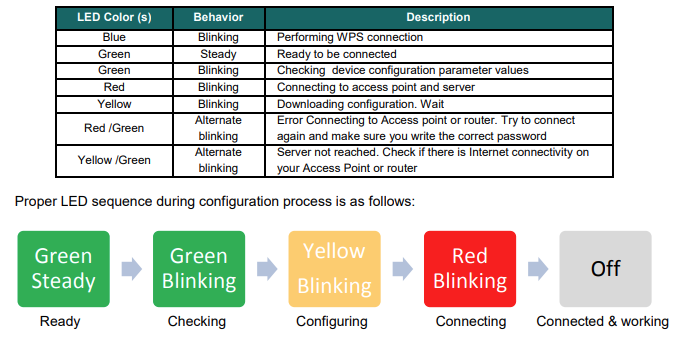
| LED Colour | Status | Meaning |
|---|---|---|
| Green | Steady | Adaptor is ready to connect. |
| Green | Blinking | Checking the configuration. |
| Yellow | Blinking | Downloading the configuration. |
| Red | Blinking | Connecting to the Wi-Fi access point. |
| Off | - | Configuration is complete and the adaptor is connected. |
| Red/Green | Alternating | Unable to connect to the router. Check the SSID and password. |
| Yellow/Green | Alternating | The server cannot be reached. Check the internet connection. |
Expected setup sequence:
Green steady → Green blinking → Yellow blinking → Red blinking → LED off
Green steady → Green blinking → Yellow blinking → Red blinking → LED off
Step 4. Confirm the Connection
Once the LED turns off, the adaptor is connected and online. Open the myanywAiR app and confirm that the air conditioner is available for control.
Tips for Reliable Setup
- Use a 2.4 GHz Wi-Fi network. A 5 GHz-only network is not supported.
- Keep the adaptor within approximately 3 to 5 metres of the router during setup.
- Enter the Wi-Fi name and password exactly as shown, including capital letters and symbols.
- If setup fails, repeat the 10-second reset and try again.