
myanywAiR NEXT PLUS
Use Climate React with Scheduling and Geofencing
Automate Climate React based on time or location
Get more from Climate React by combining it with Scheduling or Geofencing. This allows the app to activate Climate React automatically at selected times or when you enter or leave a defined location.
Set Climate React with a schedule
Schedule Climate React to automatically maintain the room at your preferred temperature during selected times.
| 1. Open Schedule | 2. Select or create | 3. Enable Climate React |
|---|---|---|
Swipe up to open the settings drawer, then tap Schedule. 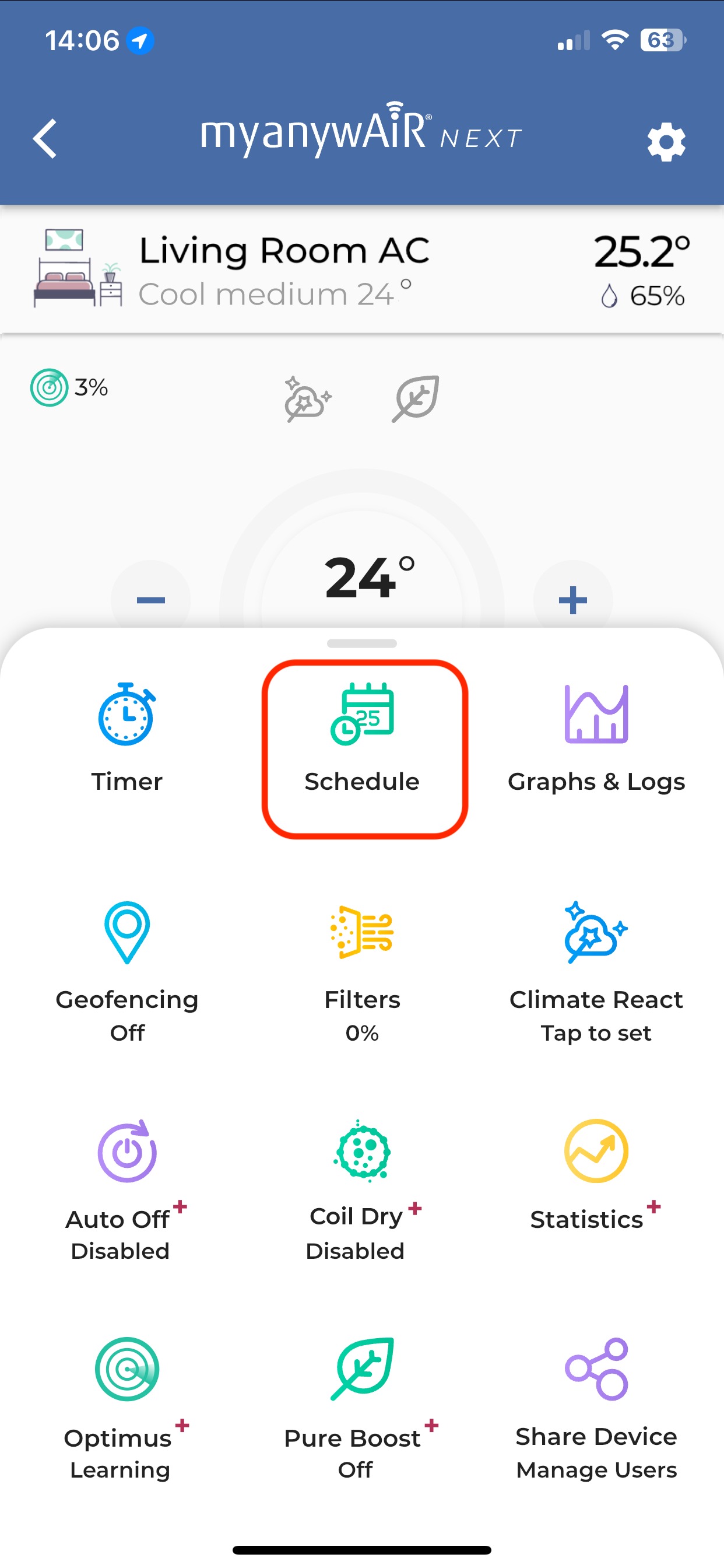 | Select an existing schedule or tap the + icon to create a new one. 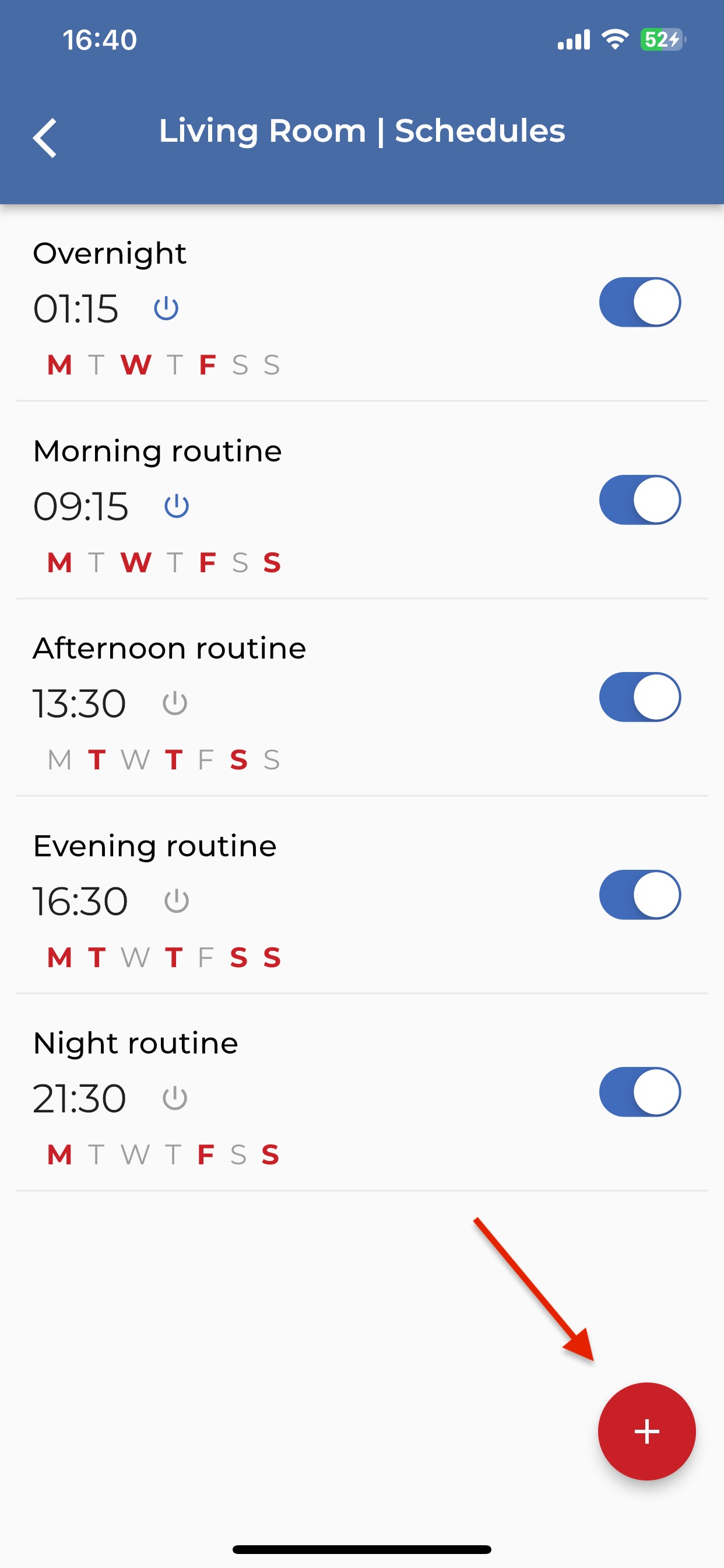 | Add the schedule details and select Schedule Climate React. 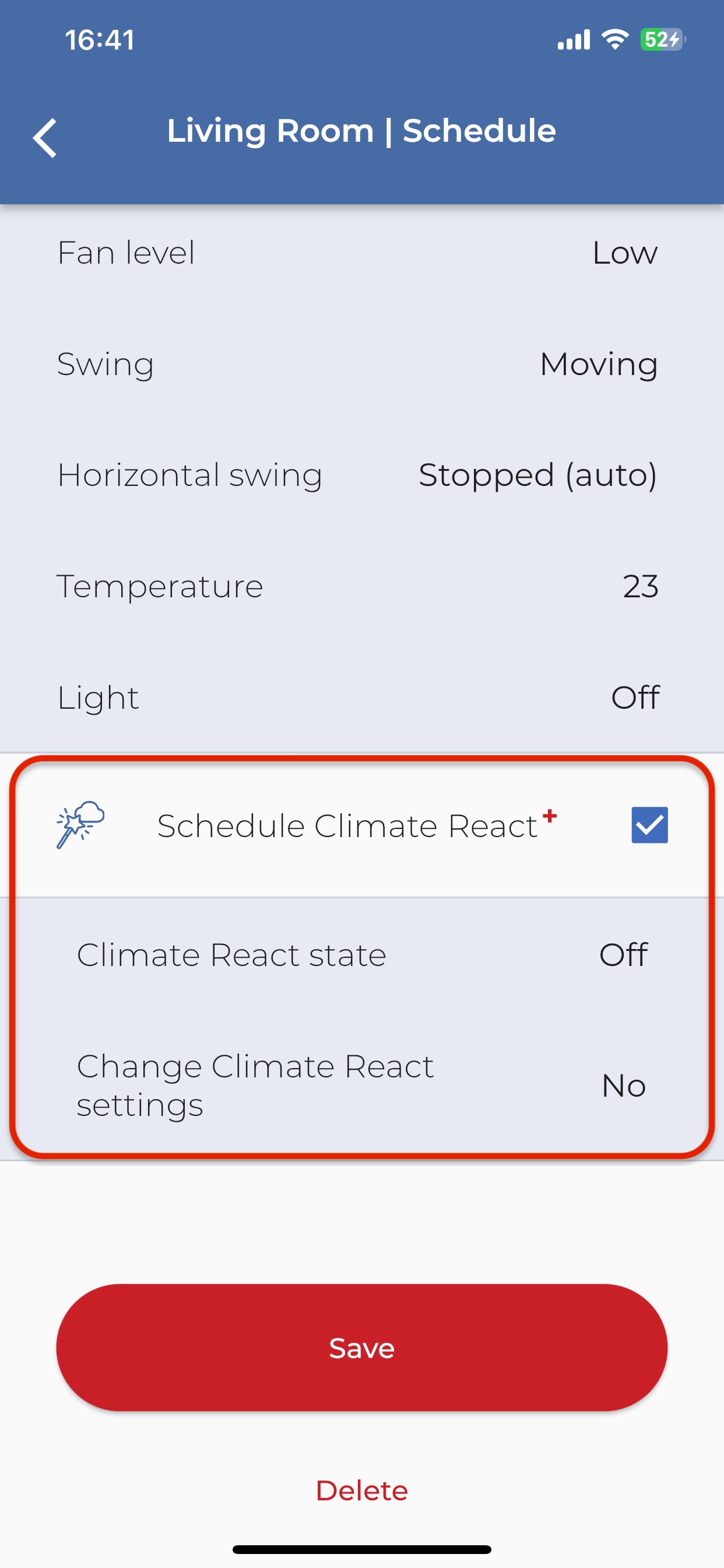 |
Set Climate React with geofencing
Use geofencing to trigger Climate React automatically when you enter or leave the configured location.
| 1. Open Geofencing | 2. Select the Climate React action |
|---|---|
Swipe up to open the settings drawer, then tap Geofencing. 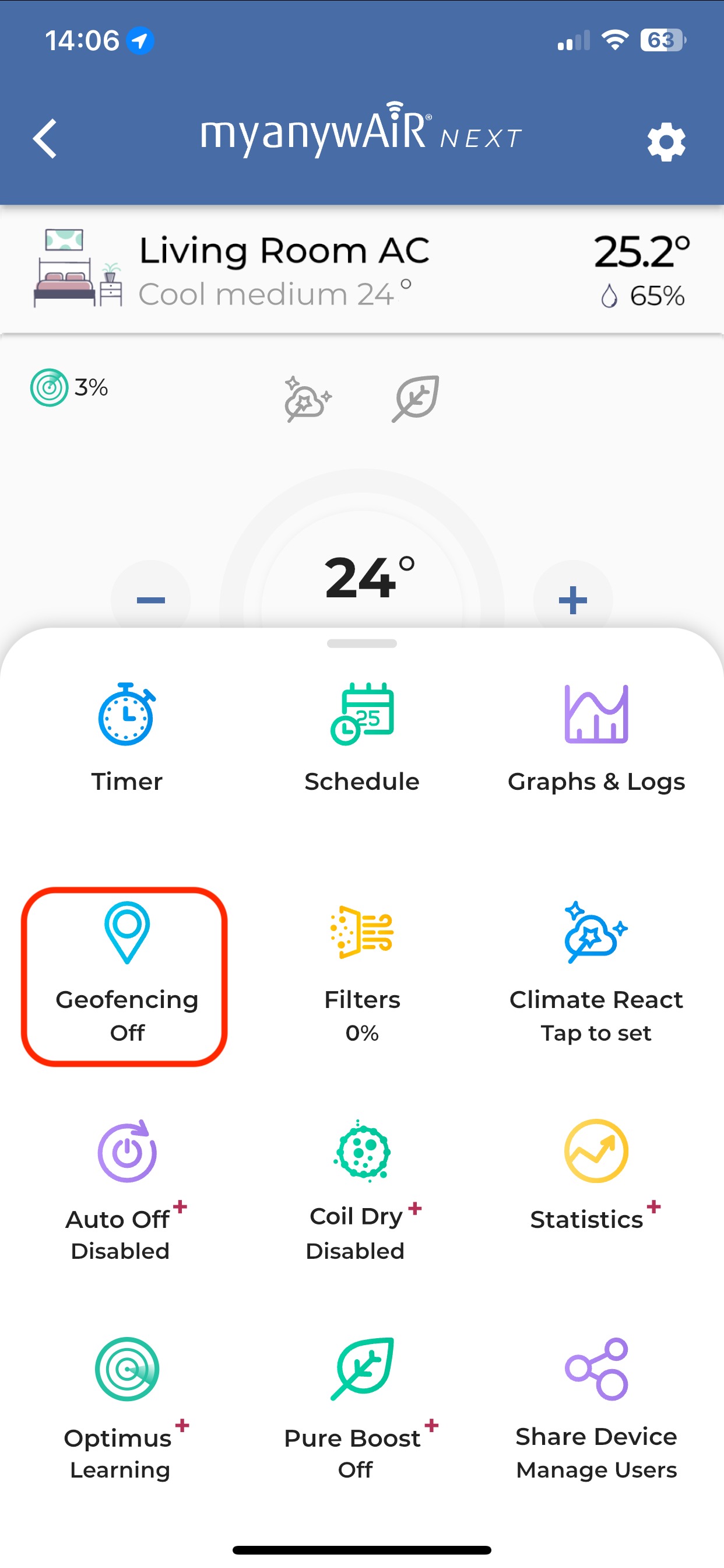 | Configure the geofence action to turn Climate React on or off. 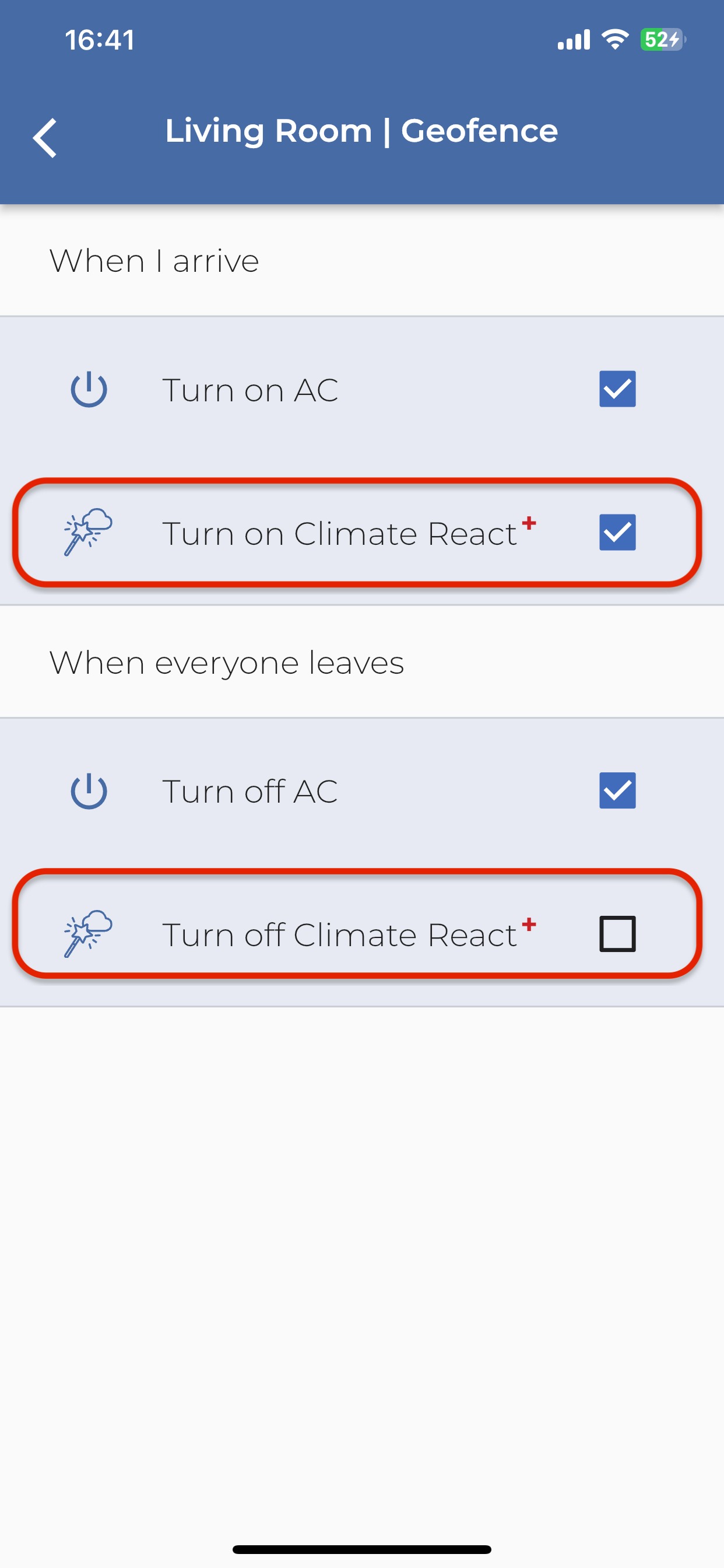 |
Tip: Scheduling is useful when your routine follows set times. Geofencing is useful when you want Climate React to respond automatically as you arrive or leave.