
myanywAiR next App Guide
Amazon Echo (Alexa) for myanywAiR next
Connect your myanywAiR next account to Alexa and control compatible air conditioners with voice commands
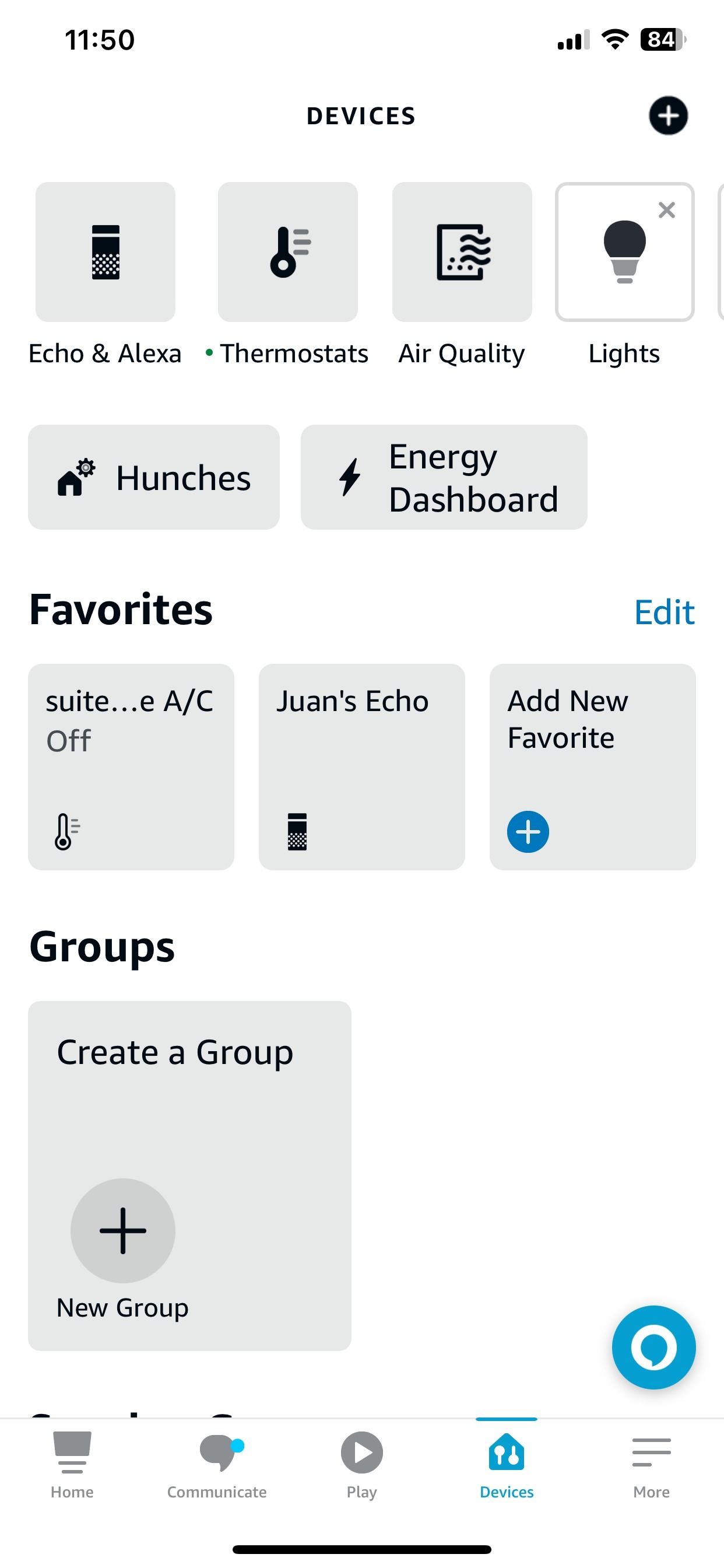
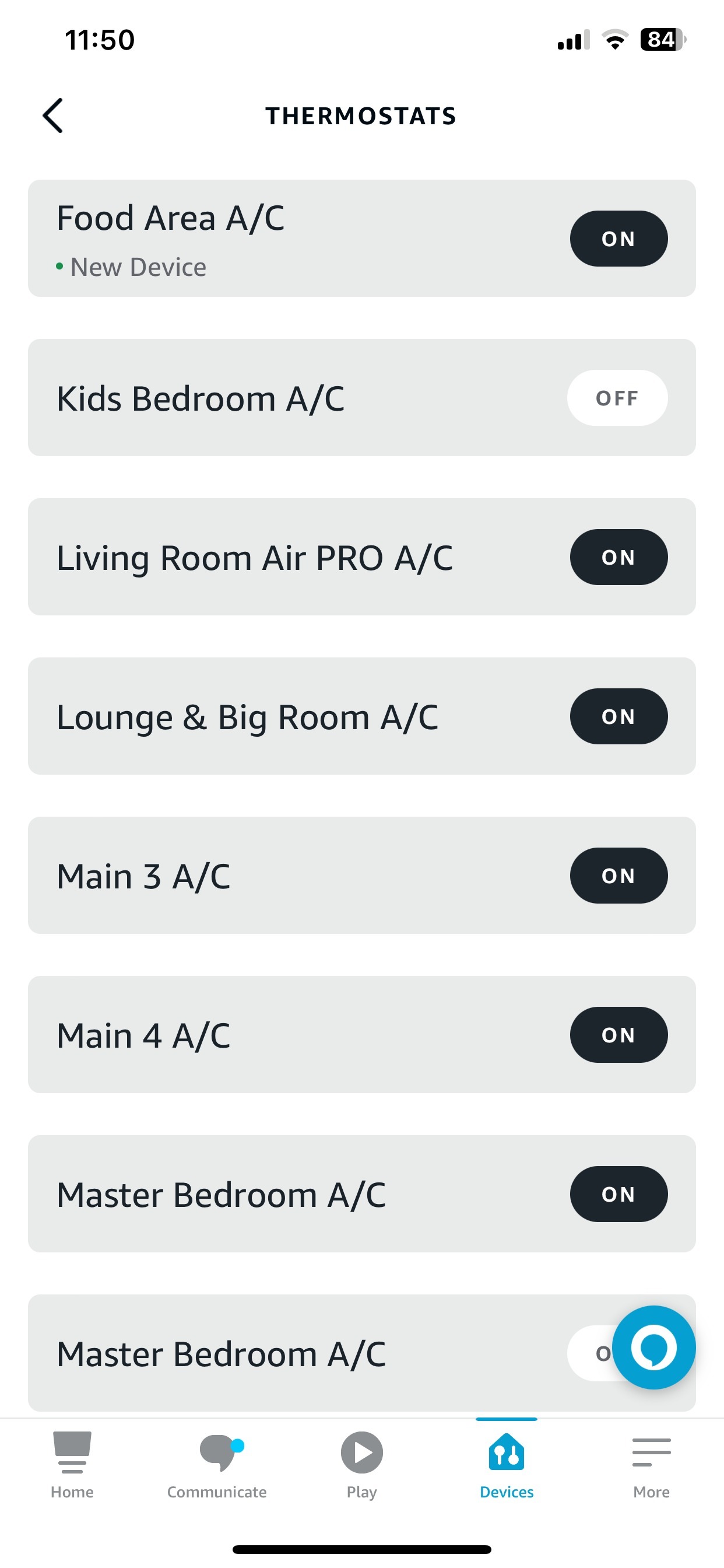
myanywAiR next can be linked to Amazon Echo (Alexa) so your system can be discovered and controlled as a thermostat device. Once the account is linked, your air conditioner will appear in the Alexa app under Smart Thermostats.
1. Before you start
- Make sure you are signed in to the Alexa app.
- Confirm your air conditioner is already set up and working in myanywAiR next.
- Have your myanywAiR next username and password ready, as you will be prompted to enter them during account linking.
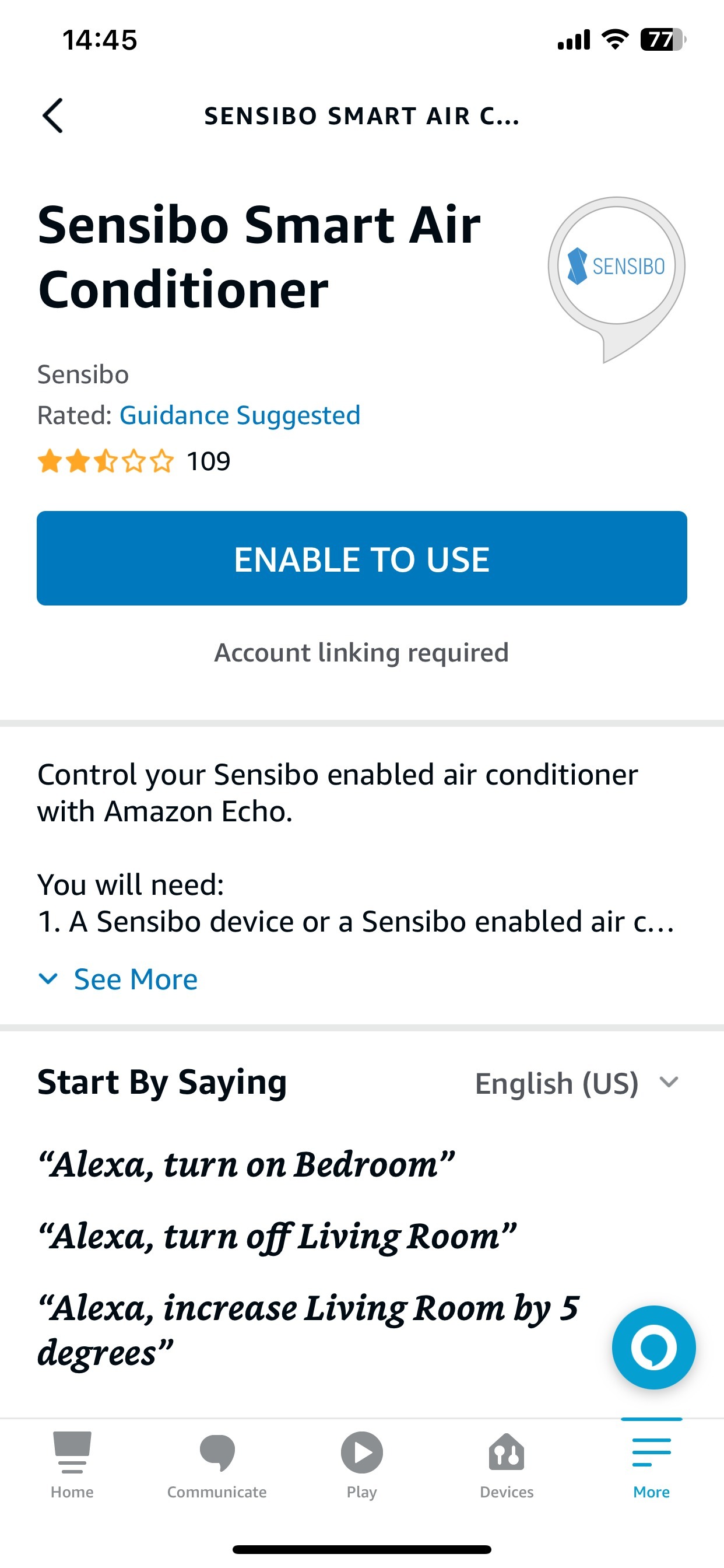
- Use the Sensibo skill in Alexa. Depending on your Alexa app version, it may appear as Sensibo Smart Air Conditioner.
Quick answer: Link the Sensibo skill in Alexa, authorise your myanywAiR next account, then run Discover devices. Your units will appear in Alexa under Smart Thermostats.
2. Connect myanywAiR next to Amazon Echo (Alexa)
Important: If Alexa does not automatically find your air conditioner after linking, manually run Discover devices again from the Alexa app.
3. Where the device appears in Alexa
After linking is complete, Alexa recognises myanywAiR next as a thermostat device type.
| Alexa area | What you should see |
|---|---|
| Devices | Your air conditioner appears in the Devices area of the Alexa app. |
| Smart Thermostats | The device is listed under Smart Thermostats. |
| Device name | Alexa uses the room or device name from your myanywAiR next setup, such as Living Room. |
4. Example voice commands
When speaking to Alexa, you may use the words thermostat, air conditioner or A/C.
Examples
- Alexa, turn on Living Room.
- Alexa, turn off Living Room.
- Alexa, set temperature in Living Room to 25 degrees.
- Alexa, increase temperature in Living Room by 2 degrees.
- Alexa, decrease temperature in Living Room by 2 degrees.
- Alexa, what is Living Room set to?
- Alexa, what is the temperature in the Living Room?
- Alexa, set Living Room to Heat.
- Alexa, set Living Room to Cool.
- Alexa, set Living Room to Auto.
Recommended sequence:
1. Alexa, turn on Living Room A/C
2. Alexa, set Living Room to Cool
3. Alexa, set temperature in Living Room to 25 degrees
1. Alexa, turn on Living Room A/C
2. Alexa, set Living Room to Cool
3. Alexa, set temperature in Living Room to 25 degrees
5. Important notes
| Topic | Details |
|---|---|
| Device type | myanywAiR next is exposed to Alexa as a thermostat. |
| Turn the unit on first | You must first ask Alexa to turn the A/C on before attempting to change the mode or the temperature. |
| Temperature and mode | You cannot set the mode or temperature without first turning the unit on. |
| Fan level | Amazon Echo (Alexa) currently does not support changing the fan level with myanywAiR next. |
Please note: If you say a mode or temperature command before turning the air conditioner on, Alexa may not complete the request.
6. Troubleshooting
| Issue | Recommended action |
|---|---|
| Sensibo skill cannot be found | Search for Sensibo or Sensibo Smart Air Conditioner in the Alexa app. |
| Account linking fails | Re-enter your myanywAiR next username and password carefully, then try authorising again. |
| No devices discovered | Run Discover devices again and confirm the air conditioner is visible and online in myanywAiR next. |
| Alexa cannot change temperature or mode | Ask Alexa to turn the A/C on first, then retry the command. |
| Voice command controls the wrong unit | Rename devices in Alexa or myanywAiR next so each room name is clear and unique. |
| Fan speed command does not work | This is expected behaviour. Alexa currently does not support fan level control for myanywAiR next. |
Menu names and screen layouts may vary depending on the Alexa app version, the myanywAiR next app version, the phone operating system and account permissions.
To connect myanywAiR next to Amazon Echo (Alexa):
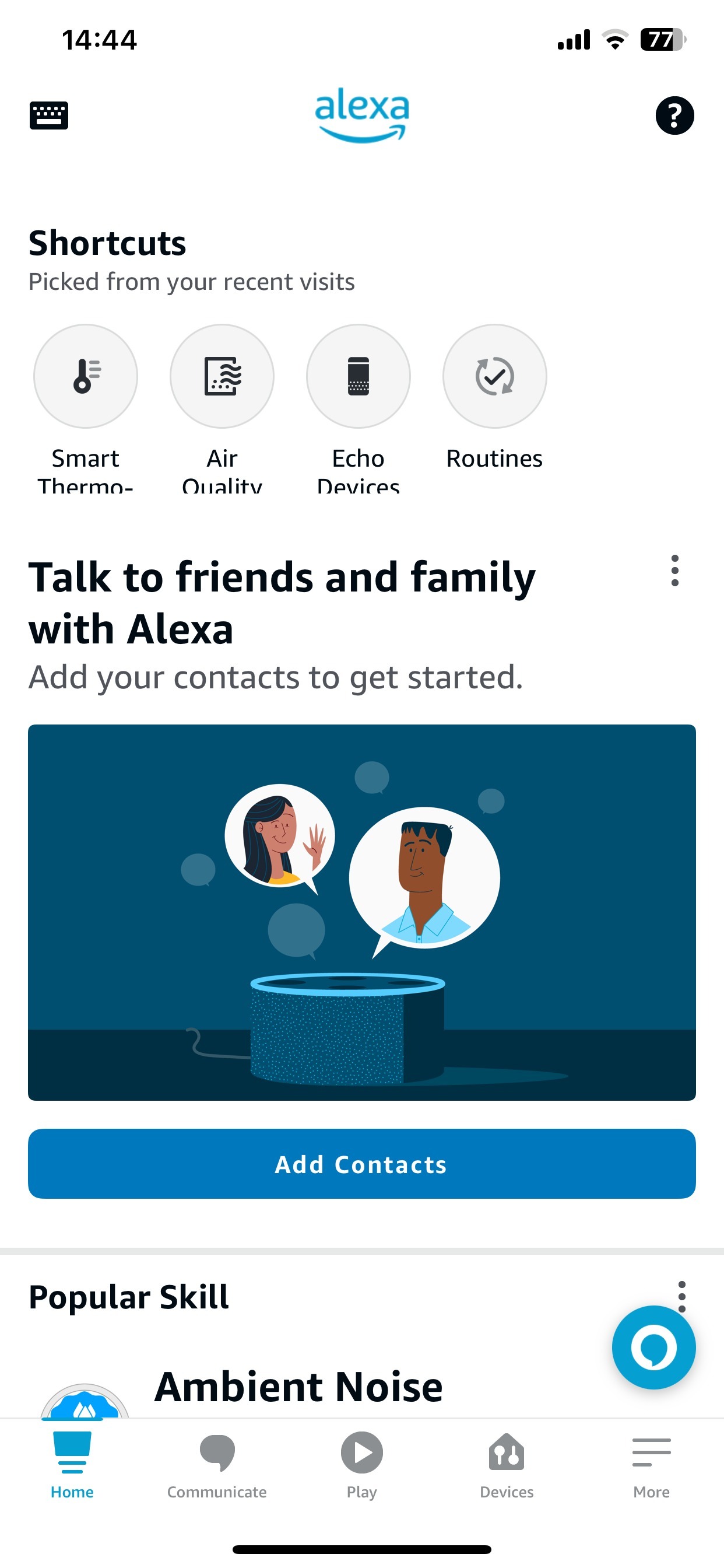
- Go to your Alexa app (sign in if necessary).
- Go to 'Smart Home' and search for the Sensibo Skill then click on 'enable to use'.
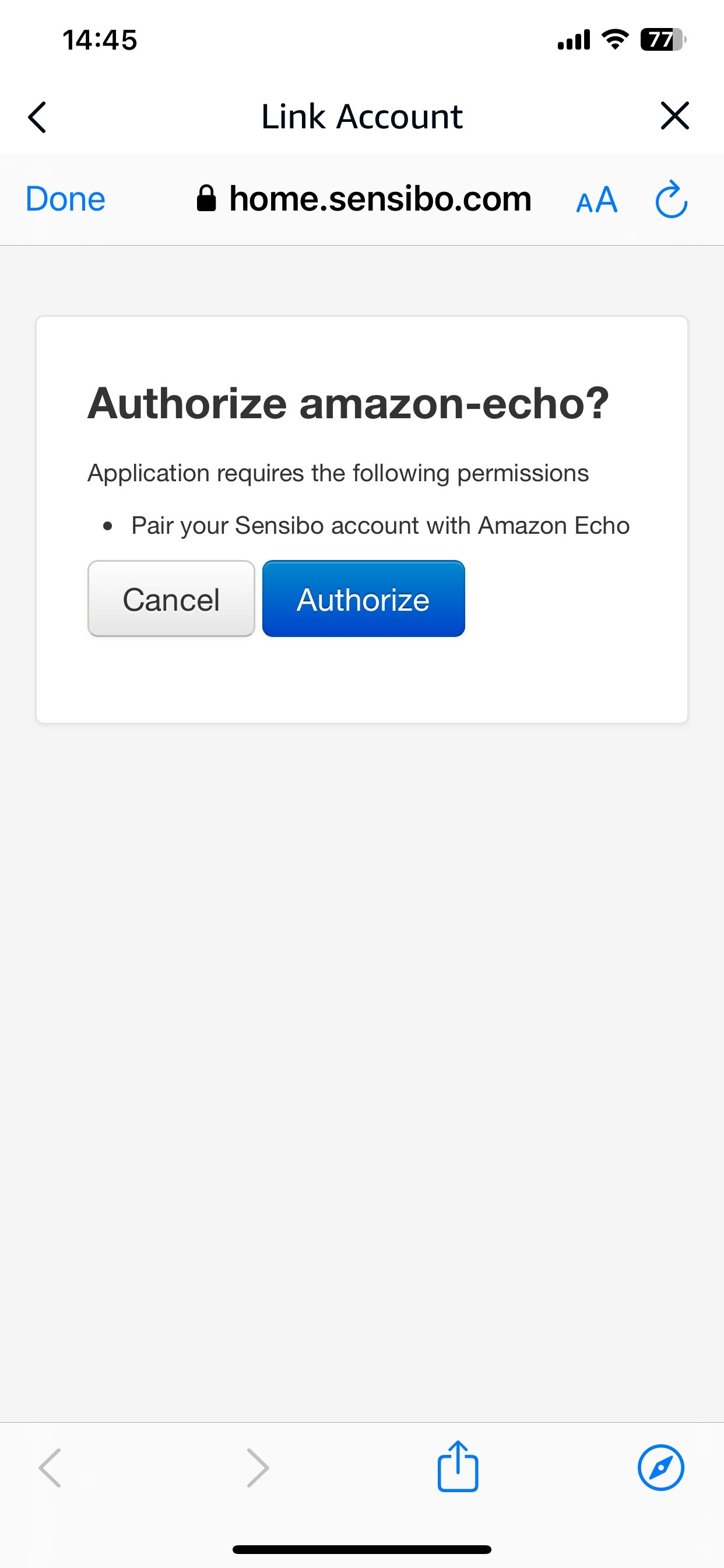
- You will be redirected to myanywAiR next to 'authorize'. You will be prompted to enter your myanywAiR next username and password.
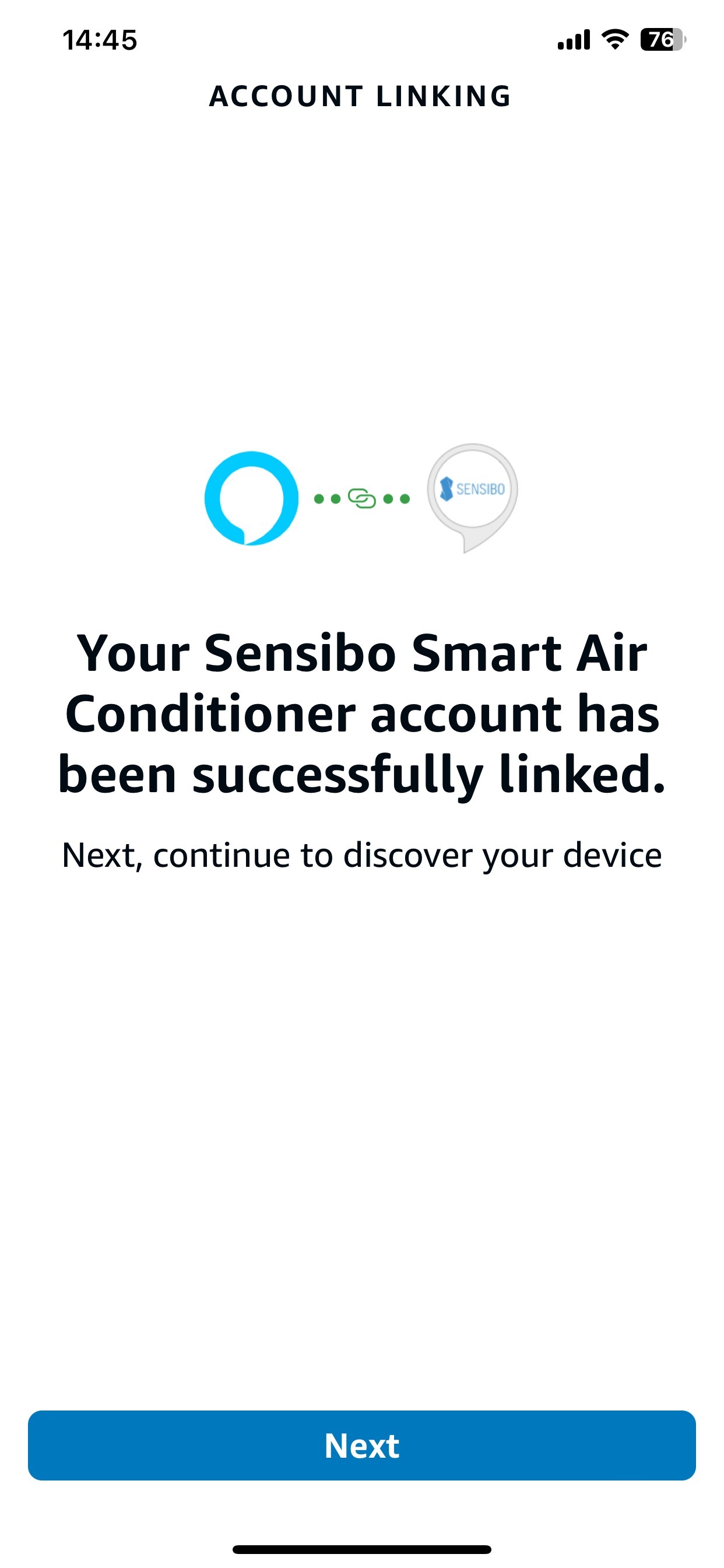
- Your myanywAiR next account will link to Amazon Echo (Alexa) and you can now run 'Discover devices'.
- Once linked, your myanywAiR next devices will appear under 'Smart Thermostats'.
You're good to go!
myanywAiR next acts as a thermostat device. Here are a few examples of usage:
*You may use the word 'thermostat', 'air conditioner', or 'a/c'.
- Turn on Living Room
- Turn off Living Room
- Set temperature in Living Room to 25 degrees
- Increase temperature in Living Room (by X degrees)
- Decrease temperature in Living Room (by X degrees)
- What is Living Room set to?
- What is the temperature in the Living Room?
- Set Living Room to Heat / Cool / Auto
Please note: In order to send commands to Amazon Echo (Alexa), you must first turn on your A/C.
For example:
- Alexa, turn on Living Room A/C
- Alexa, set living room to Cool
- Alexa, set temperature to 25 degrees
*You cannot set the mode or temperature without asking Amazon Echo (Alexa) to turn the A/C on first.
Currently, Amazon Echo (Alexa) does not support changing the Fan level with myanywAiR next.
