
General Assist How-To Guide
How to Reset the Wi-Fi Connection and Password with myanywAiR NEXT
Reconnect your air conditioner after changing the home Wi-Fi network name or password
Reset the Wi-Fi connection when the network details saved in myanywAiR NEXT no longer match your home network. The app will guide you through placing the air conditioner into Wi-Fi reset mode and entering the new network details.
When a Wi-Fi reset is required
- The name of your home Wi-Fi network has changed.
- The password for your home Wi-Fi network has changed.
- The router or modem has been replaced and the new network uses different connection details.
- The app shows the device as unavailable and the controller can no longer connect to the saved network.
Before starting: Have the new Wi-Fi network name and password available. Keep the wireless remote controller nearby and stand close enough to point it directly at the indoor unit.
Reset the Wi-Fi connection
| 1 | Open the myanywAiR NEXT app and select the affected air conditioner. |
| 2 | When the device screen displays the warning symbol or HELP, press HELP to open the troubleshooting options. |
| 3 | Select Reset Wi-Fi settings.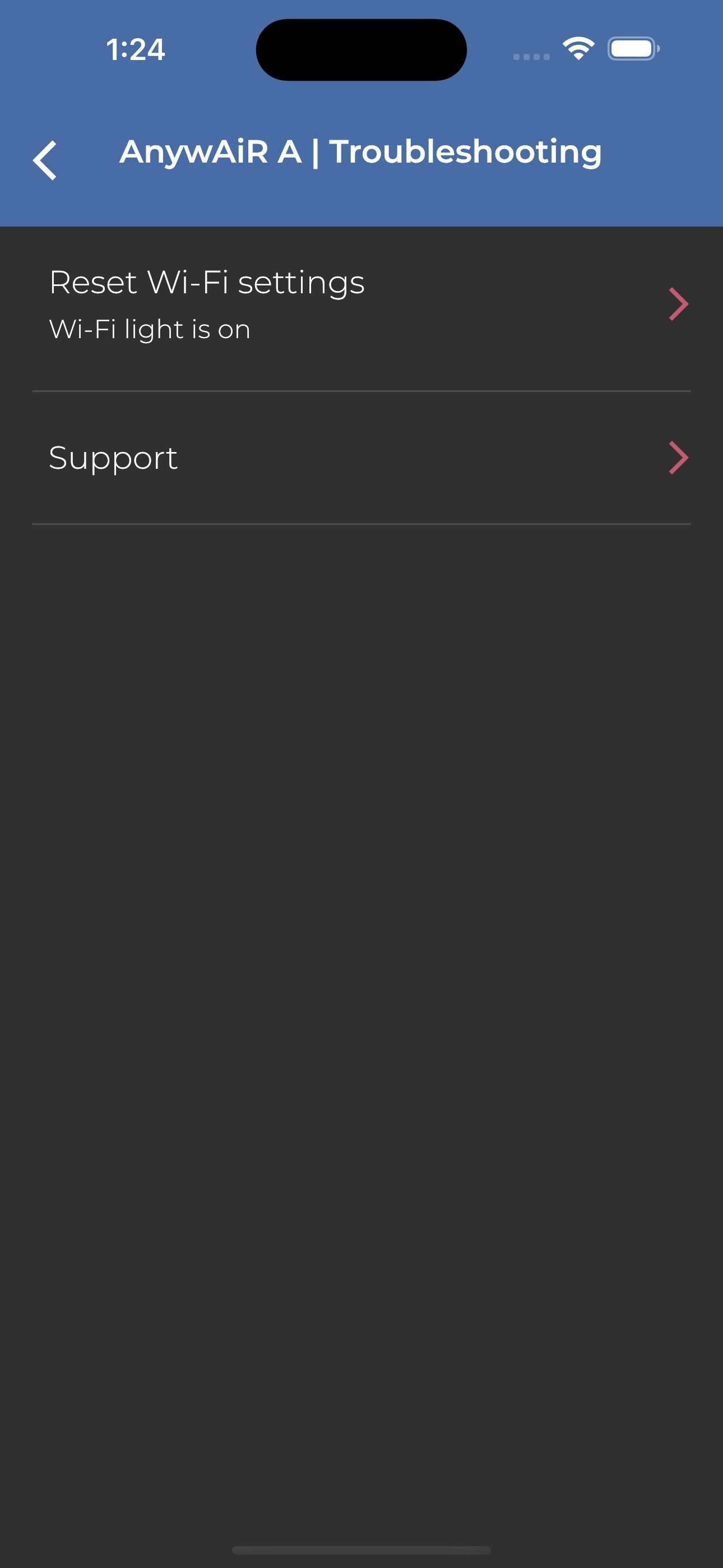 |
| 4 | Select the picture that matches your wireless remote controller. The app will then display the correct reset instructions for that remote.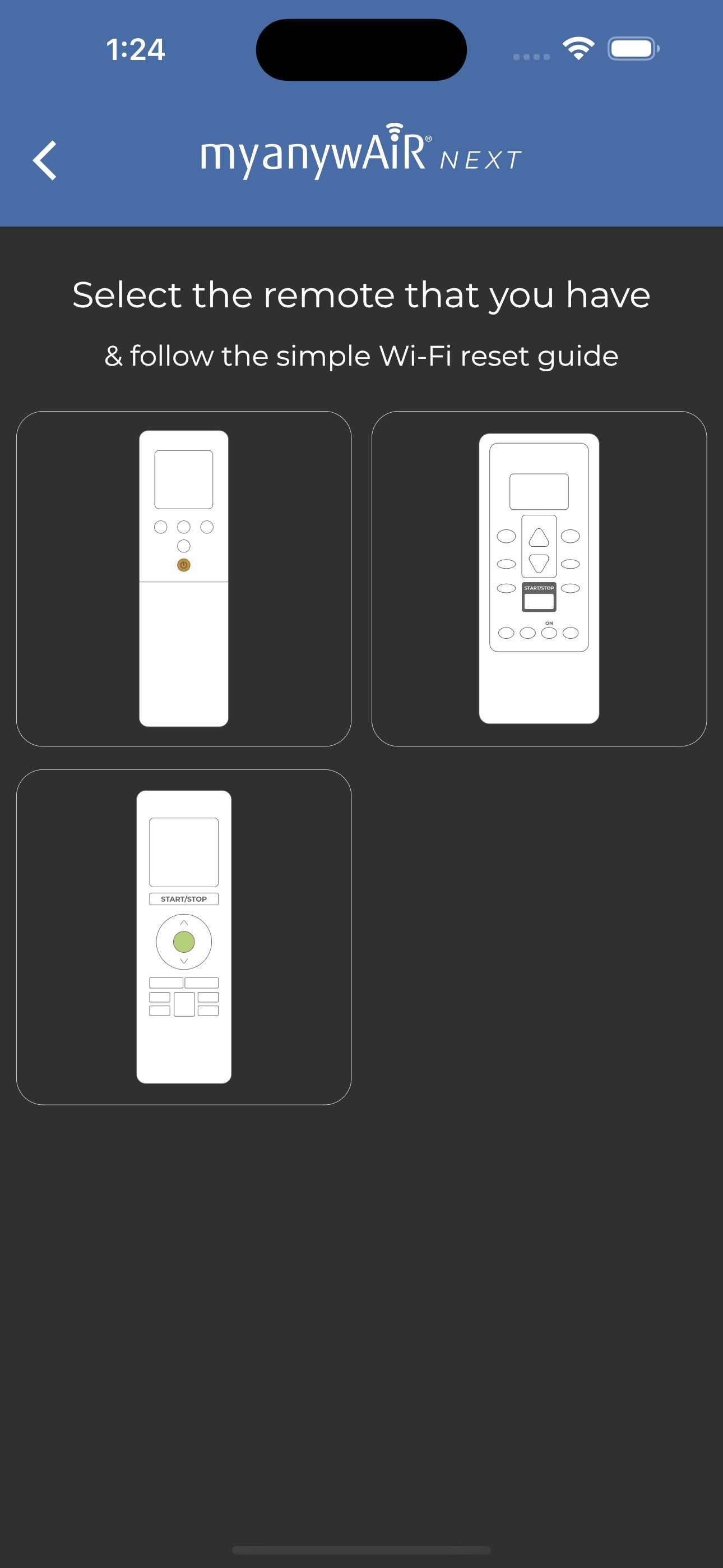 |
| 5 | Turn the air conditioner off using the wireless remote controller, then press Next in the app.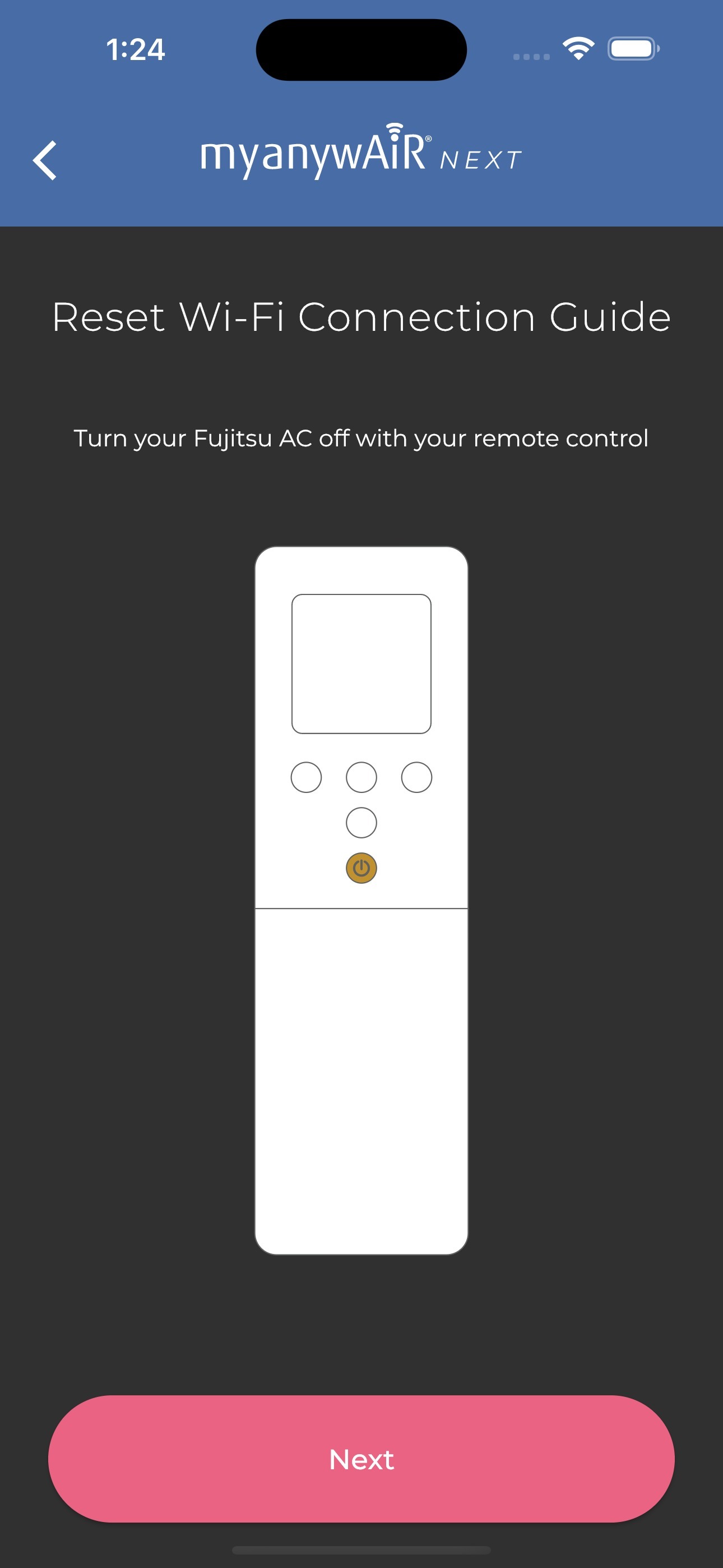 |
| 6 | For the remote shown in the guide, press and hold the SEND button for approximately five seconds until Ln and the number 1 appear on the remote display.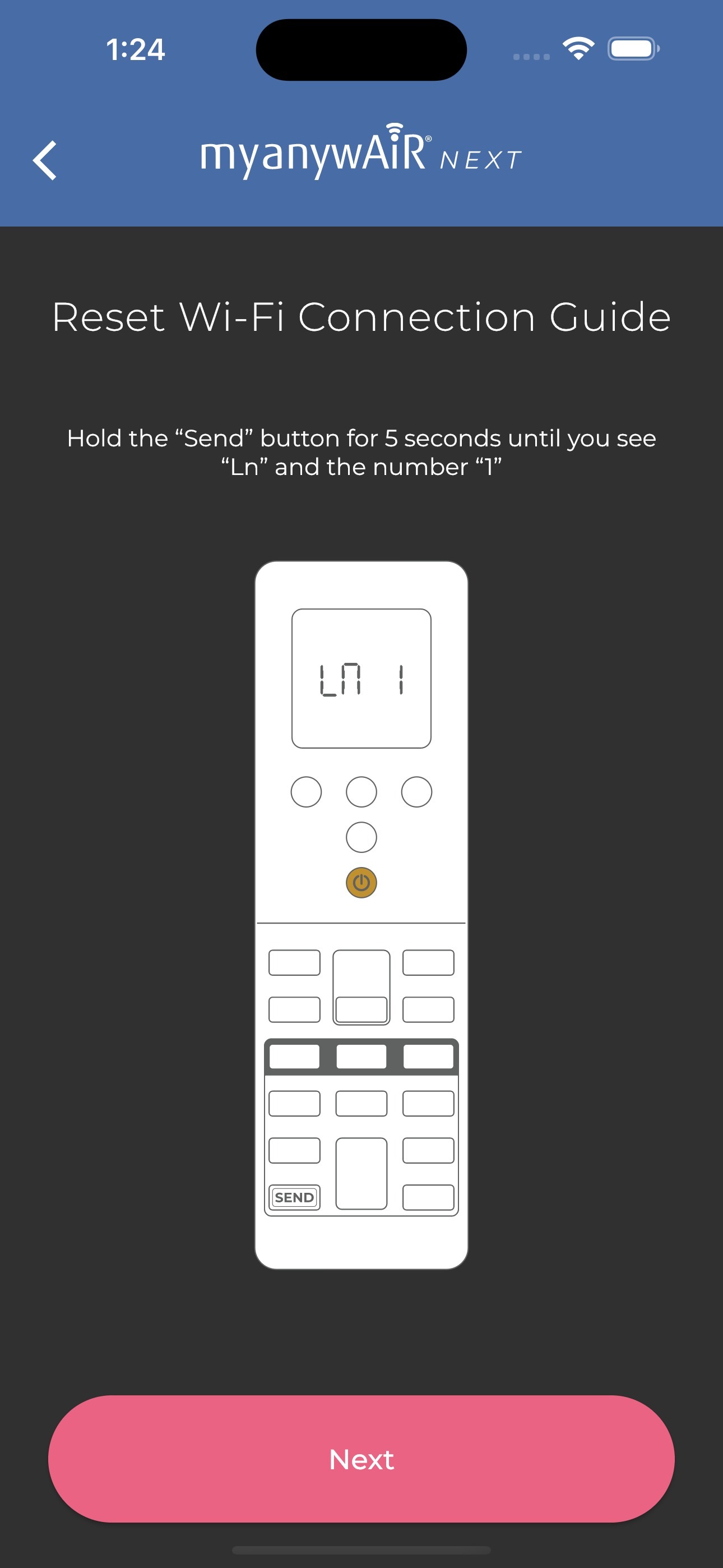 |
| 7 | Press the remote controller's power button once. The display should change to 01.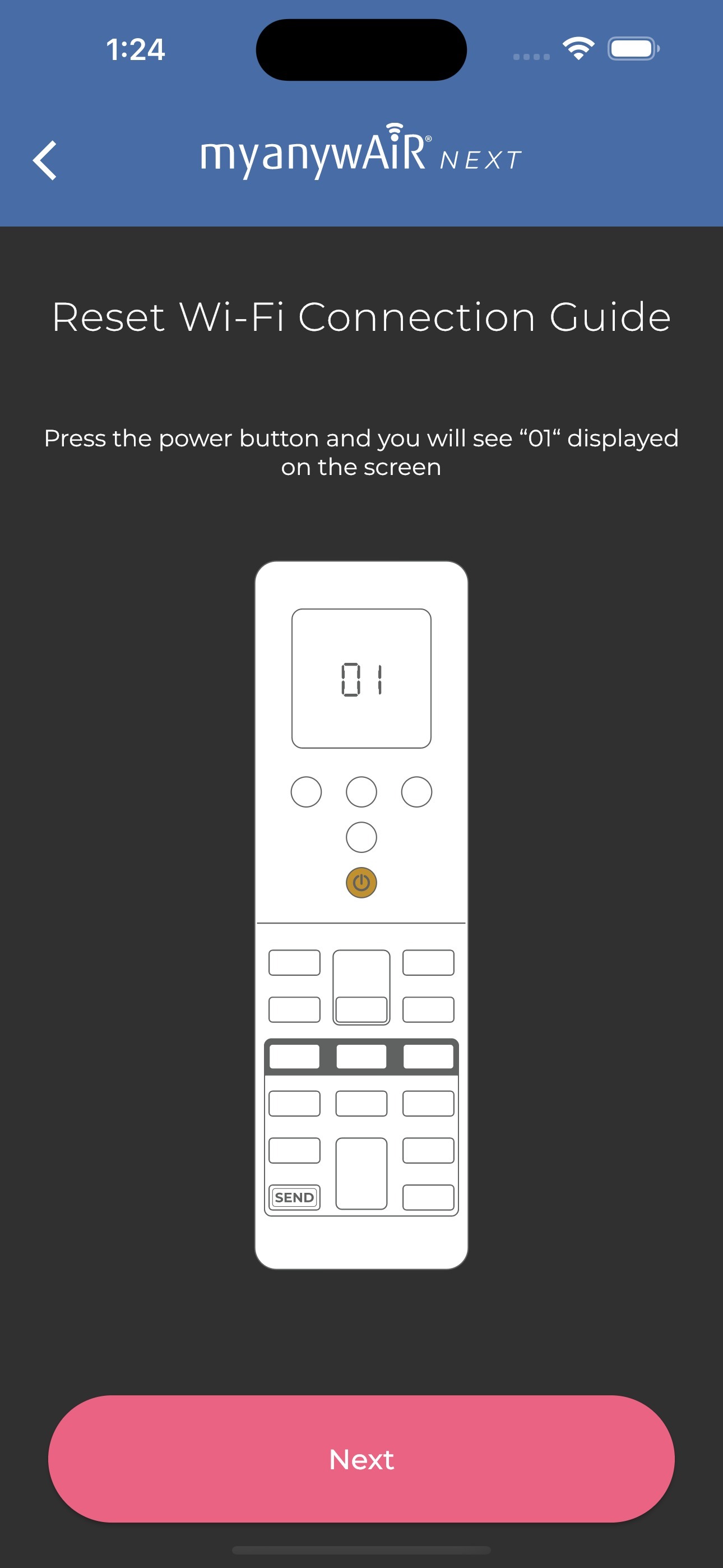 |
| 8 | Point the remote directly at the indoor unit and press the power button again to place the air conditioner into Wi-Fi reset mode.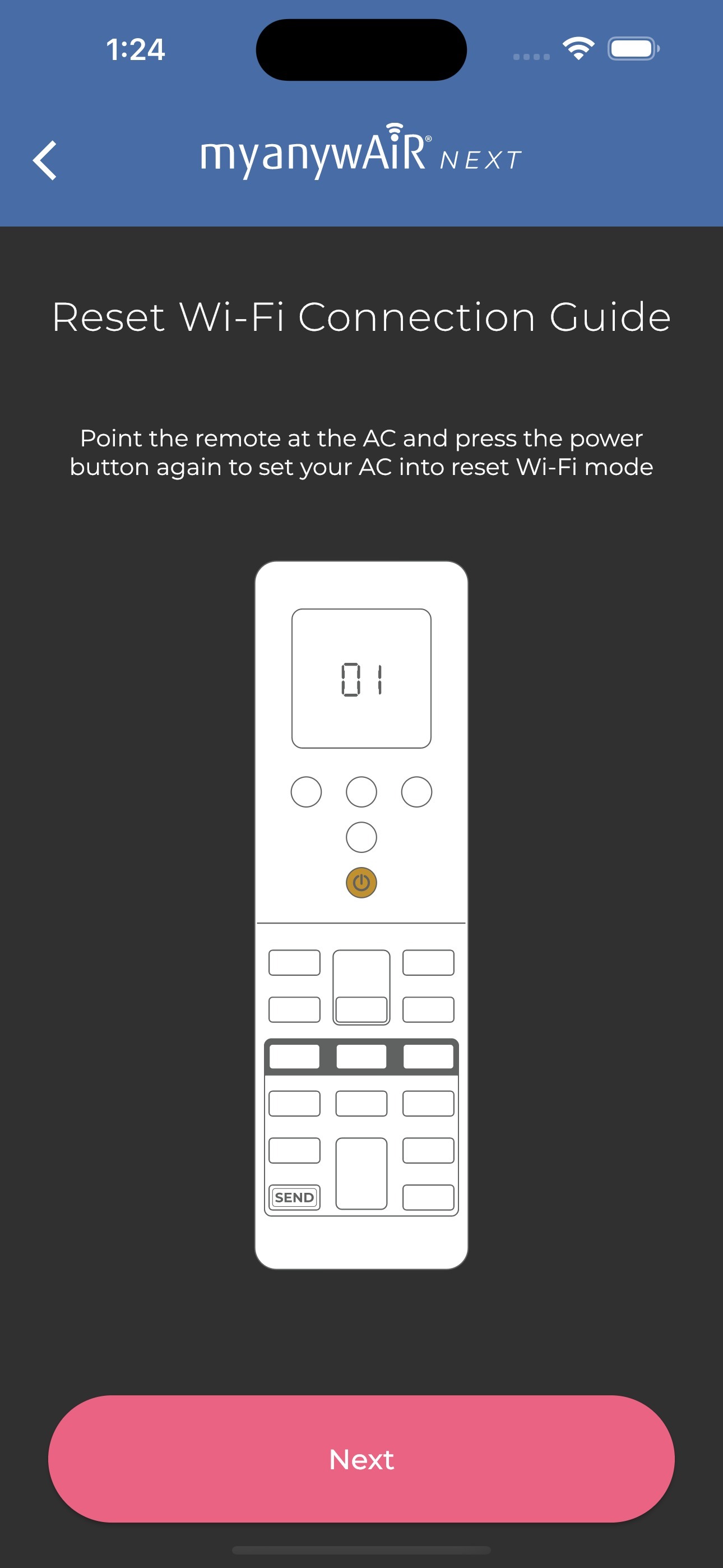 |
| 9 | Return to the app and allow it to scan for the controller.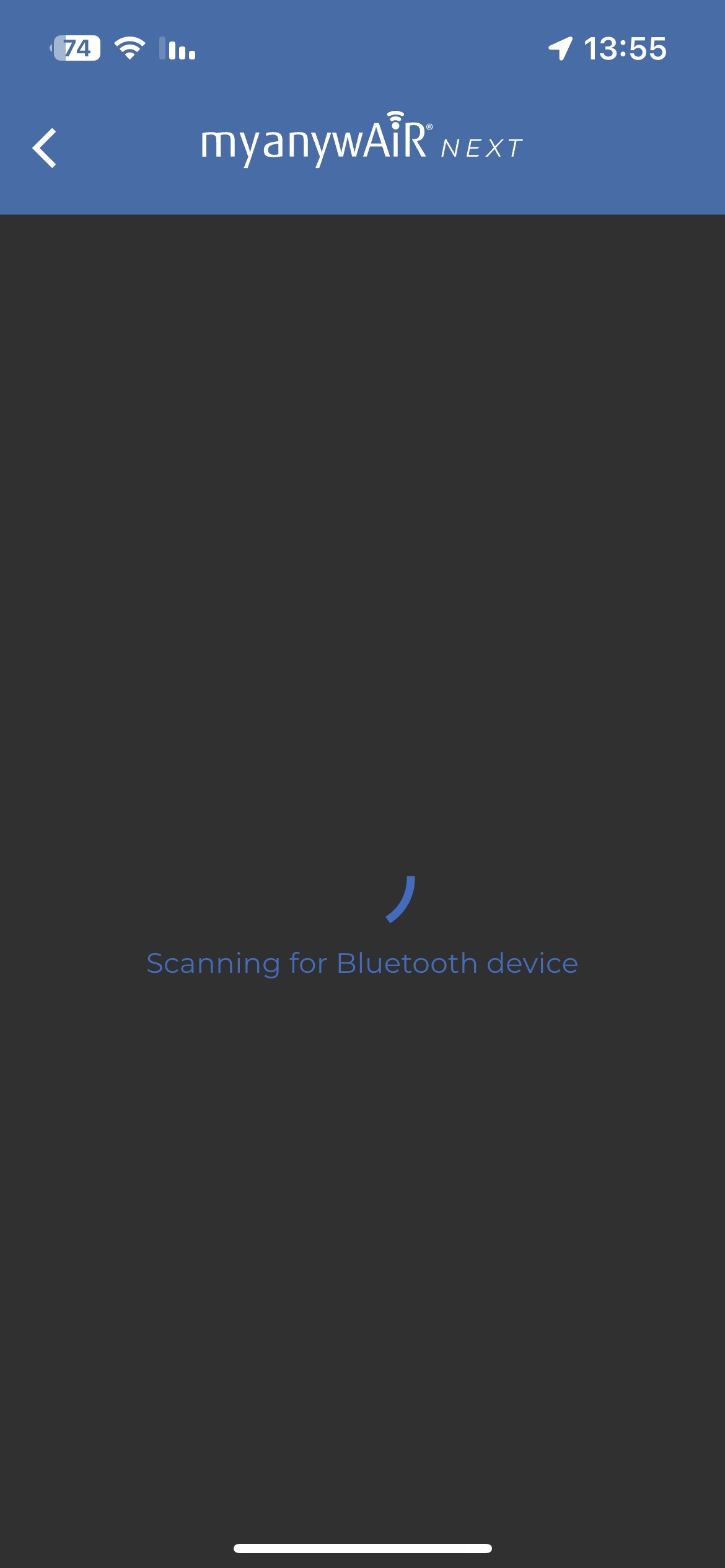 |
| 10 | When prompted, select the required Wi-Fi network, enter the new password and complete the on-screen connection process. |
Important: Follow the remote-controller instructions displayed in the app. Button names and reset sequences can differ between remote types.
What the reset changes
| Saved Wi-Fi details | The controller replaces the previous network details with the newly selected network name and password. |
| Air-conditioner operation | The air conditioner can still be operated with its normal remote controller while the Wi-Fi connection is being restored. |
| App access | App control resumes after the controller successfully connects to the network and returns online. |
If the app cannot find the controller
| 1 | Confirm the air conditioner was switched off before beginning the remote-controller reset sequence. |
| 2 | Check that Ln 1 and then 01 appeared on the remote display as shown in the app. |
| 3 | Repeat the final power-button command while pointing the remote directly at the indoor-unit receiver. |
| 4 | Move the phone closer to the air conditioner and allow Bluetooth access when requested by the app. |
| 5 | Verify that the Wi-Fi network name and password have been entered correctly, including capital letters and special characters. |
| 6 | Restart the app and repeat the guided Wi-Fi reset process if the device remains offline. |
Quick answer: Open the affected device, select HELP, choose Reset Wi-Fi settings, select the correct remote controller and follow the guided reset sequence. When scanning is complete, choose the Wi-Fi network and enter its current password.
Menu names, button locations and screen appearance may vary depending on the myanywAiR NEXT app version, remote-controller model and connected air conditioner.