
General Assist How-To Guide
How to Rename a Room, Choose an Icon and Change Temperature Units with myanywAiR NEXT
Personalise how your air conditioner appears in the myanywAiR NEXT app
The Appearance menu allows you to change the room name, select a room icon and choose whether temperatures are displayed in degrees Celsius or Fahrenheit.
Open the Appearance settings
| 1 | Open the myanywAiR NEXT app and select the device or room you wish to update. |
| 2 | Press the cogwheel in the top-right corner of the device screen. |
| 3 | Select Appearance from the Settings menu.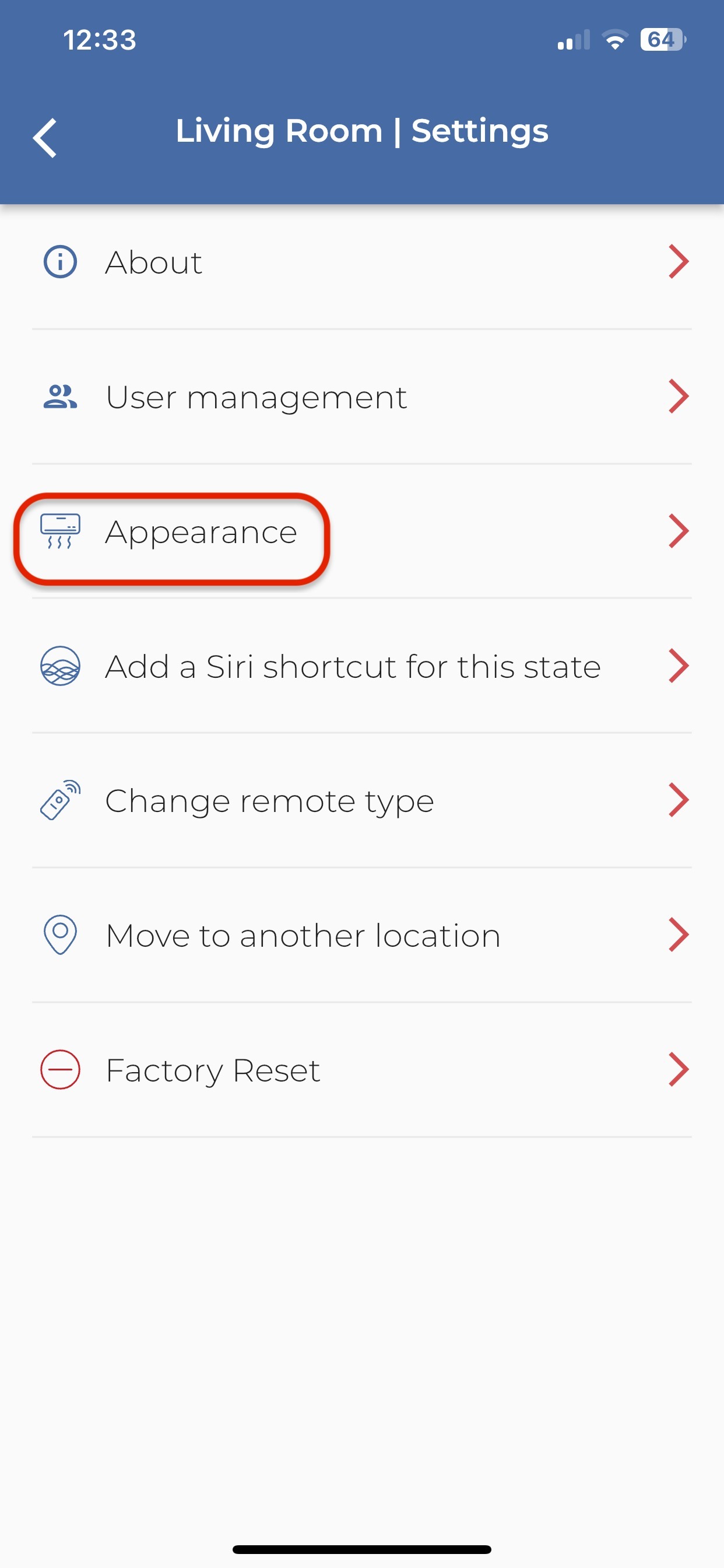 |
Available settings
| Setting | What to do |
|---|---|
| Room name | Select the room-name field, enter the new name and confirm the text is correct.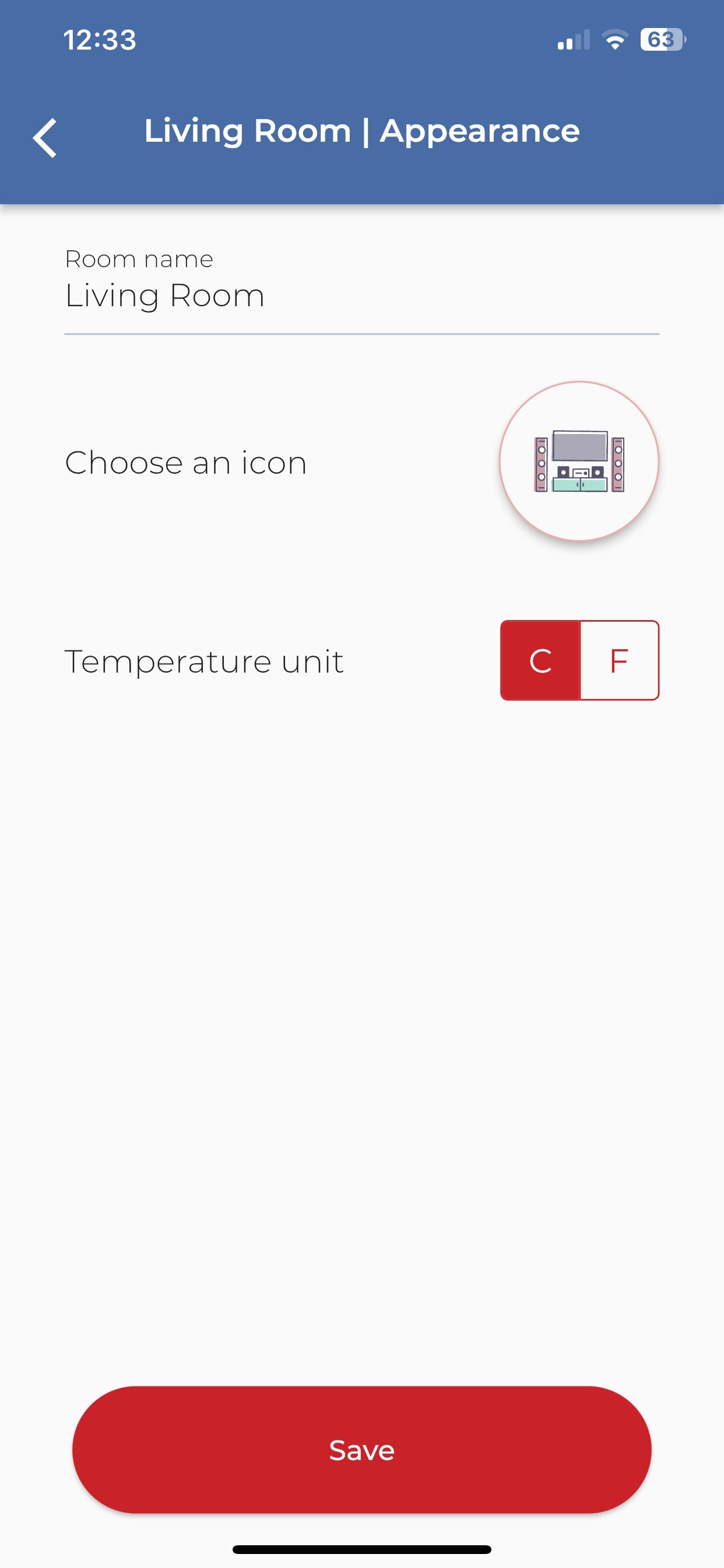 |
| Room icon | Press the current icon and choose the image that best represents the room or area. |
| Temperature unit | Select C for degrees Celsius or F for degrees Fahrenheit. |
Remember to save: Press Save at the bottom of the Appearance screen after making your changes.
What changes after saving
| Room name | The updated name appears on the device screen and in the app's device or location lists. |
| Icon | The selected icon is displayed beside the room or device name. |
| Temperature unit | Temperatures shown for the selected device are displayed in the chosen unit. |
If the changes do not appear
| 1 | Return to the Appearance screen and confirm the changes were saved. |
| 2 | Close and reopen the device screen to refresh the display. |
| 3 | Confirm the myanywAiR NEXT controller is online and showing current room information. |
| 4 | Check that you have permission to manage the device if it has been shared with you by another account. |
| 5 | Restart the app and try saving the changes again. |
Note: Changing the temperature unit only changes how temperatures are displayed in the app. It does not change the air conditioner's operating capability or temperature range.
Menu names and screen appearance may vary depending on the app version, controller hardware and account permissions.