
myanywAiR next App Guide
How to Update a Device Location
Move an existing air conditioner to another saved location or create a new location
Each device in the myanywAiR next app is assigned to a location. You can move a device to an existing location or create a new location by entering a location name and address.
1. Update the device location
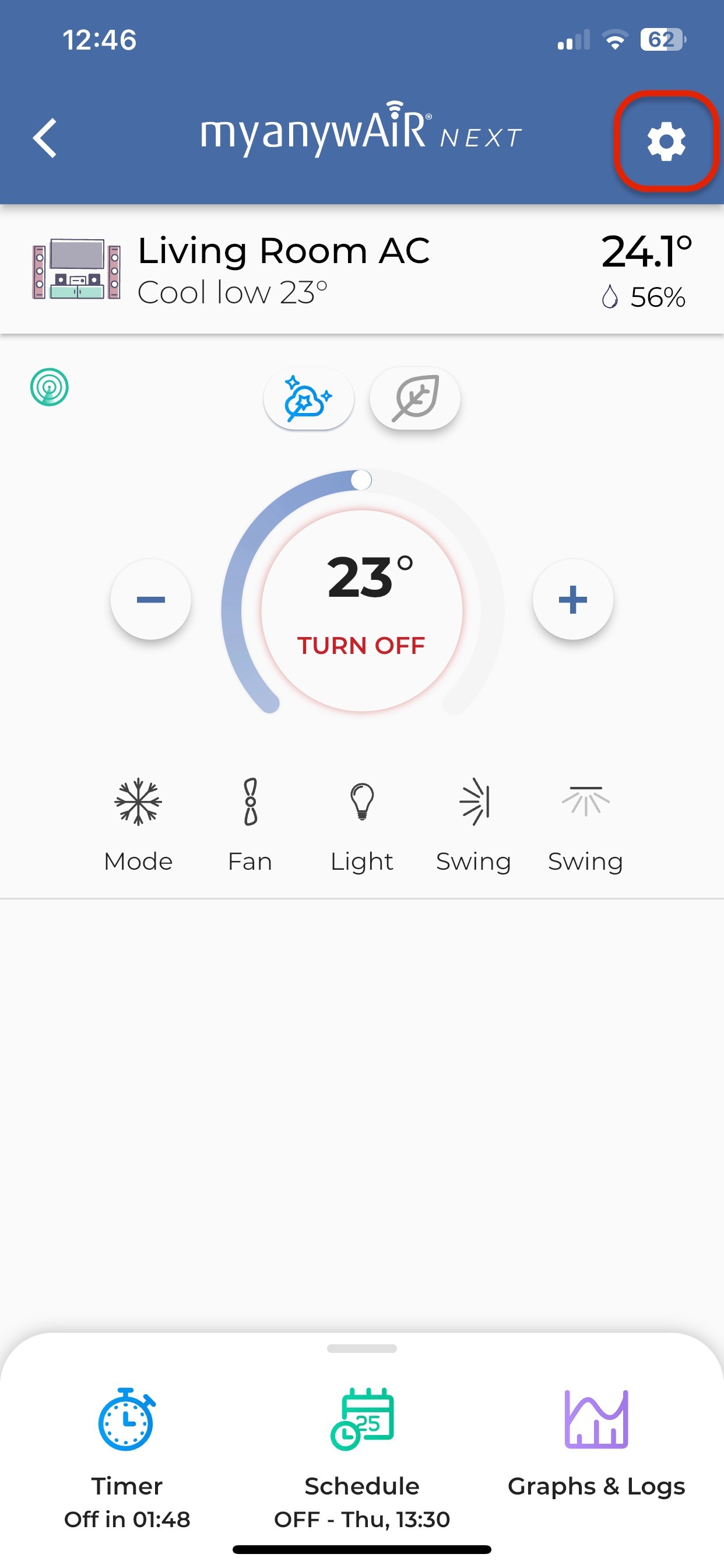
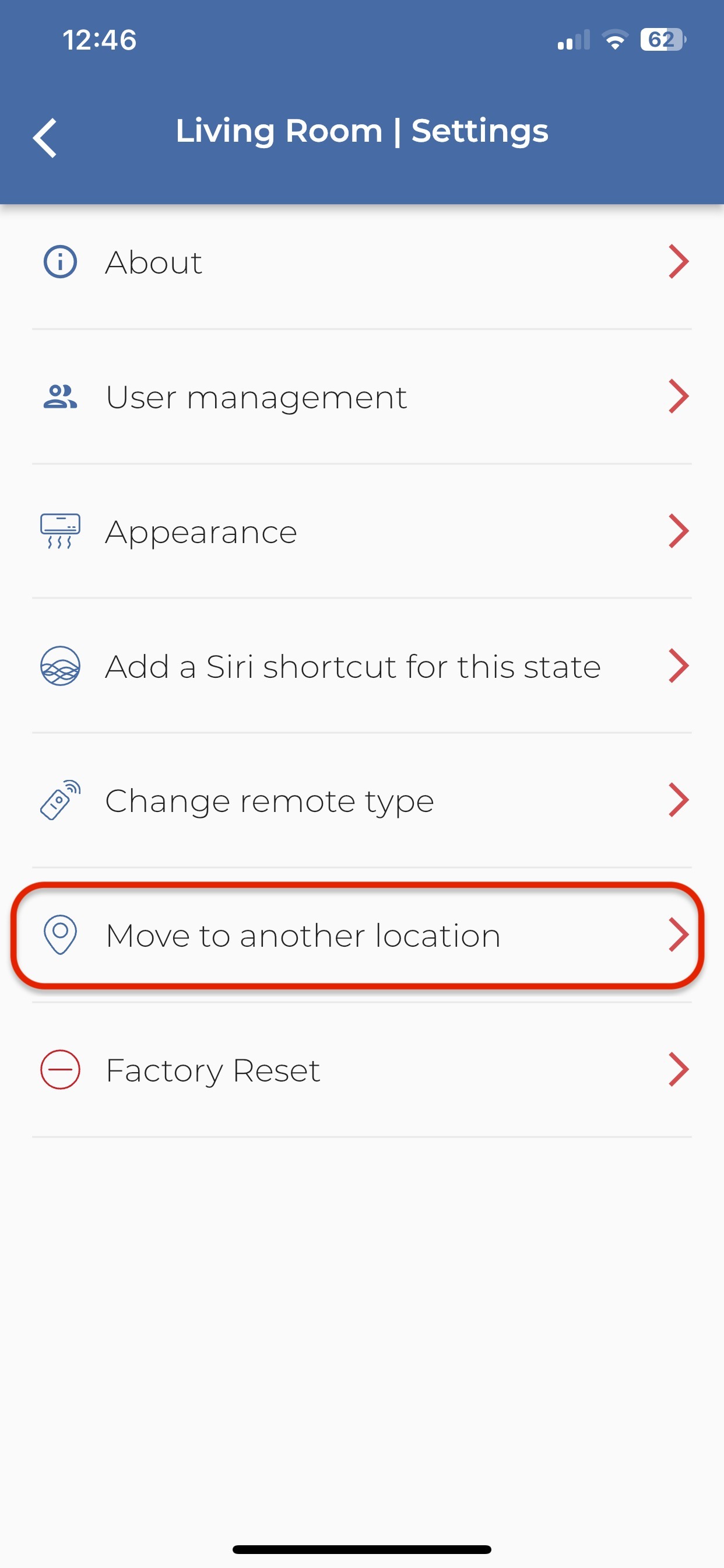
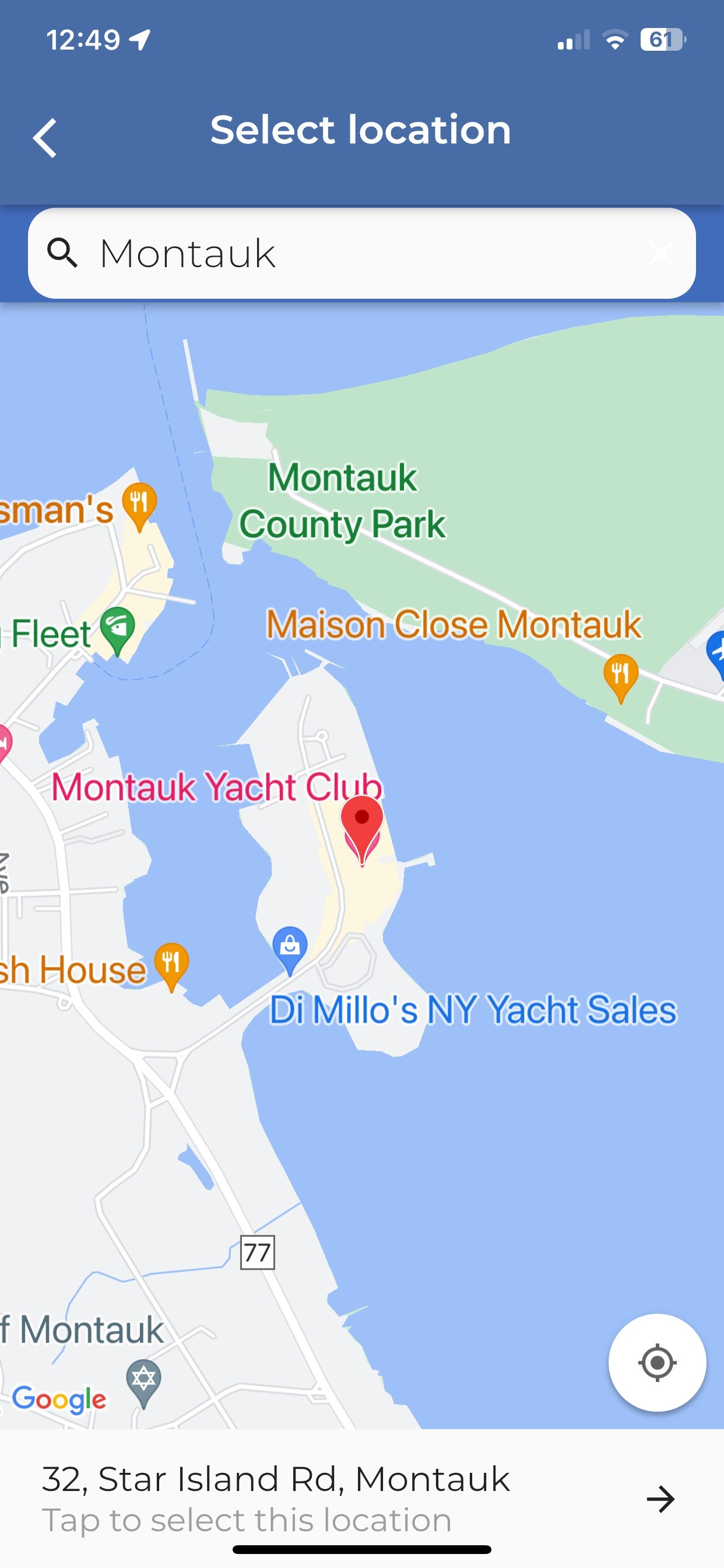
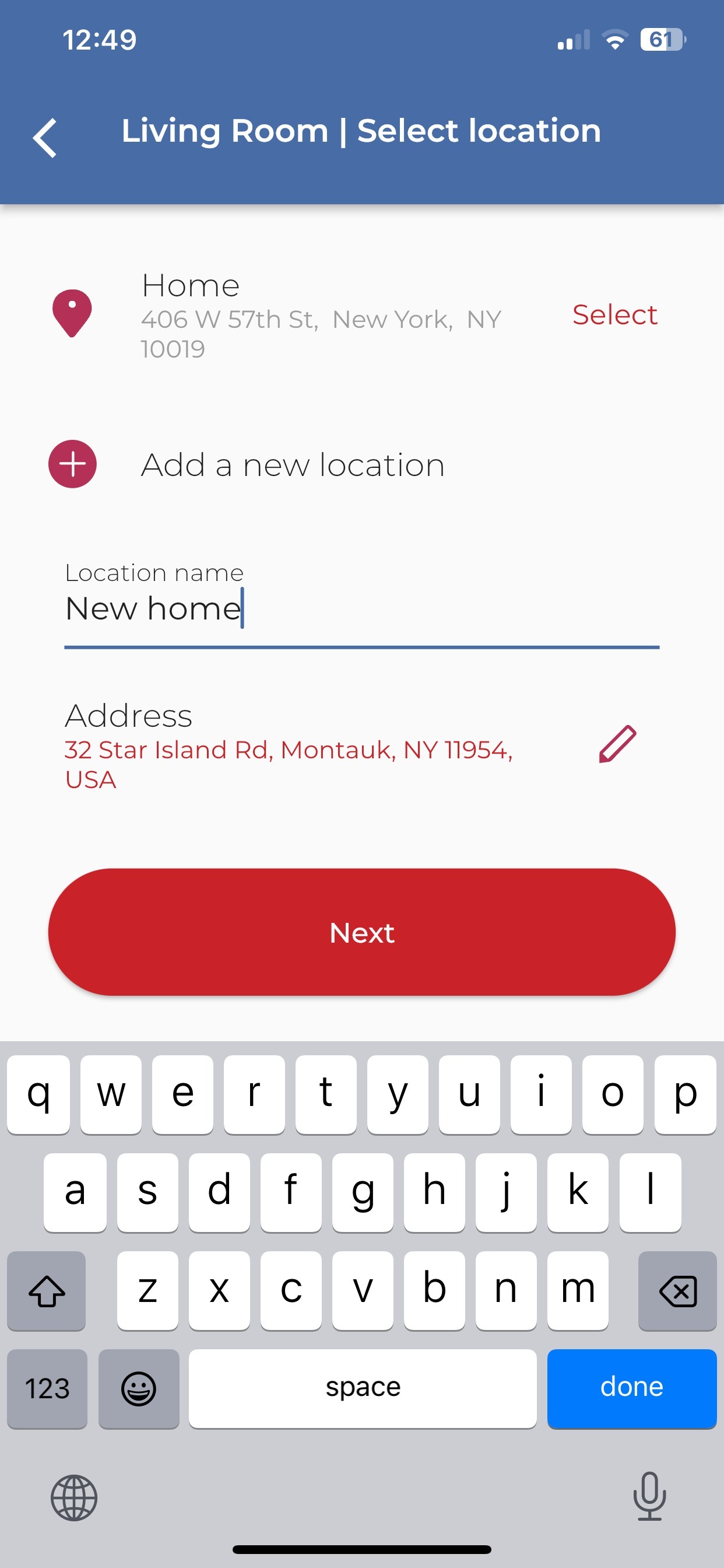
Important: Confirm that the map pin and displayed address are correct before selecting Next. Location-based features may use this address.
2. Move the device to an existing location
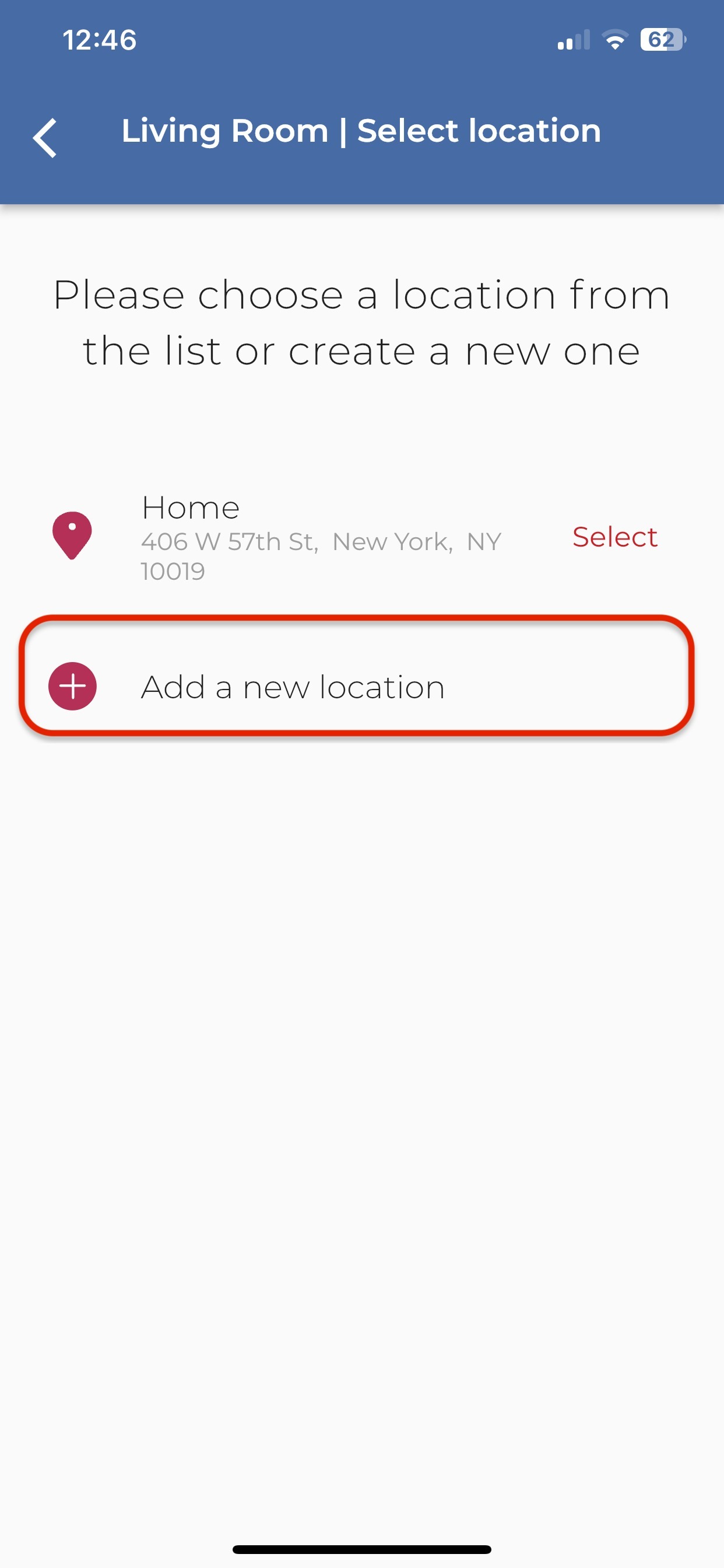
When the location-selection screen opens, previously saved locations are displayed in a list.
| Action | What to do |
|---|---|
| Review the saved location | Check the location name and address shown in the list. |
| Select the location | Tap Select beside the required location. |
| Confirm the change | Follow the on-screen prompts to complete the move. |
3. Create and select a new location
- Tap Add a new location.
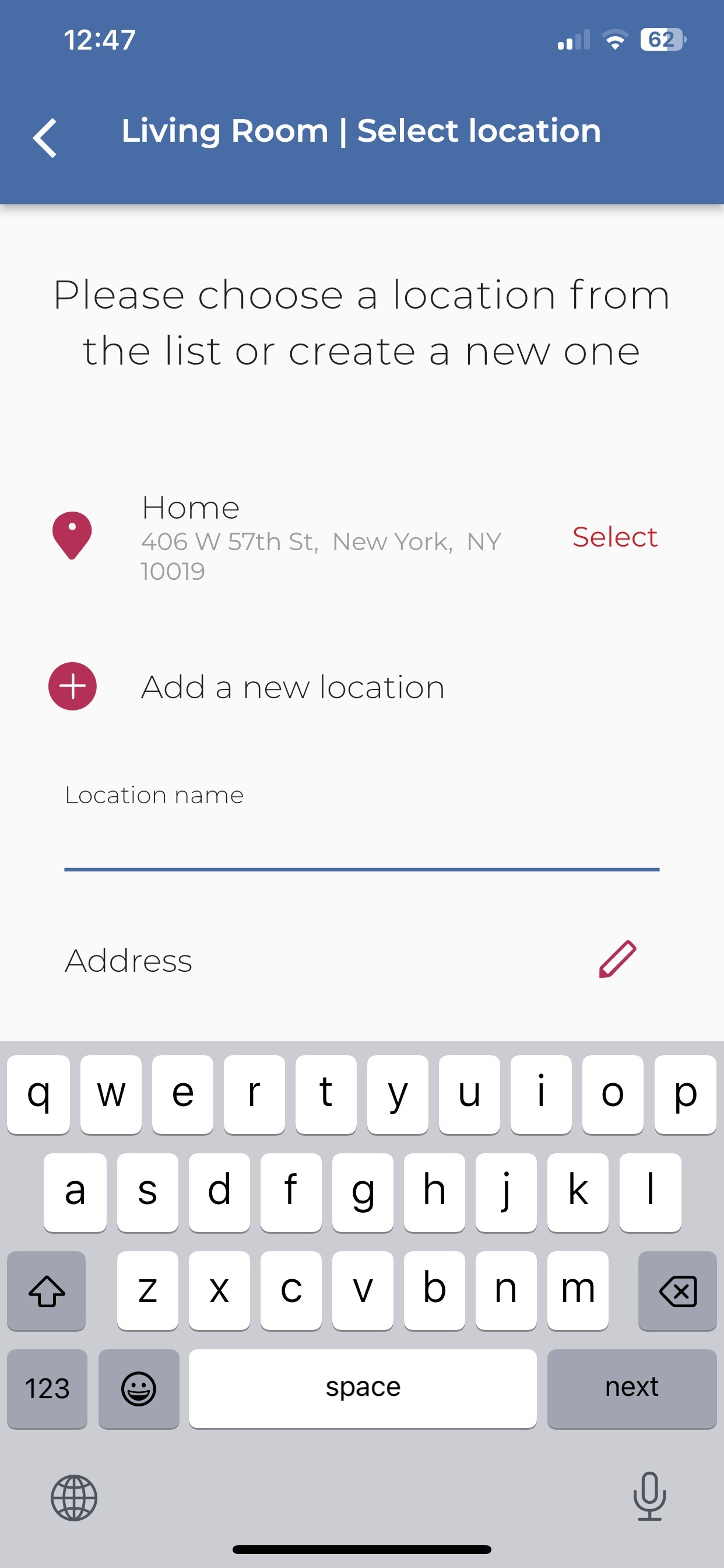
- Enter a clear Location name, such as Home, Office or Holiday House.
- Tap the address field or pencil icon.
- Search for the suburb, street or full address.
- Move or confirm the map pin so it represents the correct property.
- Tap the address panel at the bottom of the map to select the location.
- Review the location name and address, then tap Next.
Tip: Use a location name that is easy to recognise when managing multiple homes, offices or properties in the same account.
4. If the location cannot be updated
| Issue | Recommended action |
|---|---|
| Address does not appear | Search using the suburb or postcode first, then refine the street address. |
| Map pin is incorrect | Reposition the map or search again before confirming the address. |
| Next button is unavailable | Confirm that both the location name and address have been completed. |
| Location does not save | Confirm the phone has an active internet connection, close and reopen the app, then try again. |
| Move option is unavailable | Confirm that you are signed in with an account that has permission to manage the device. |
Privacy reminder: Only enter the location information needed to manage the system. Avoid sharing screenshots that display a private residential address.
Menu names and screen layouts may vary depending on the myanywAiR next app version, phone operating system and account permissions.