
General Assist How-To Guide
How to View Statistics with myanywAiR NEXT
Review weekly activity, monthly usage and automated feature events
The Statistics feature provides a summary of how long the air conditioner has operated and how often selected smart-control features have been used.
Availability: Statistics is marked with a plus symbol in the app and may require an eligible controller, app version or subscription. The information displayed can vary between installations.
Open Statistics
| 1 | Open the myanywAiR NEXT app and select the device or room you wish to review. |
| 2 | Swipe up from the bottom of the device screen to open the feature drawer. |
| 3 | Select Statistics.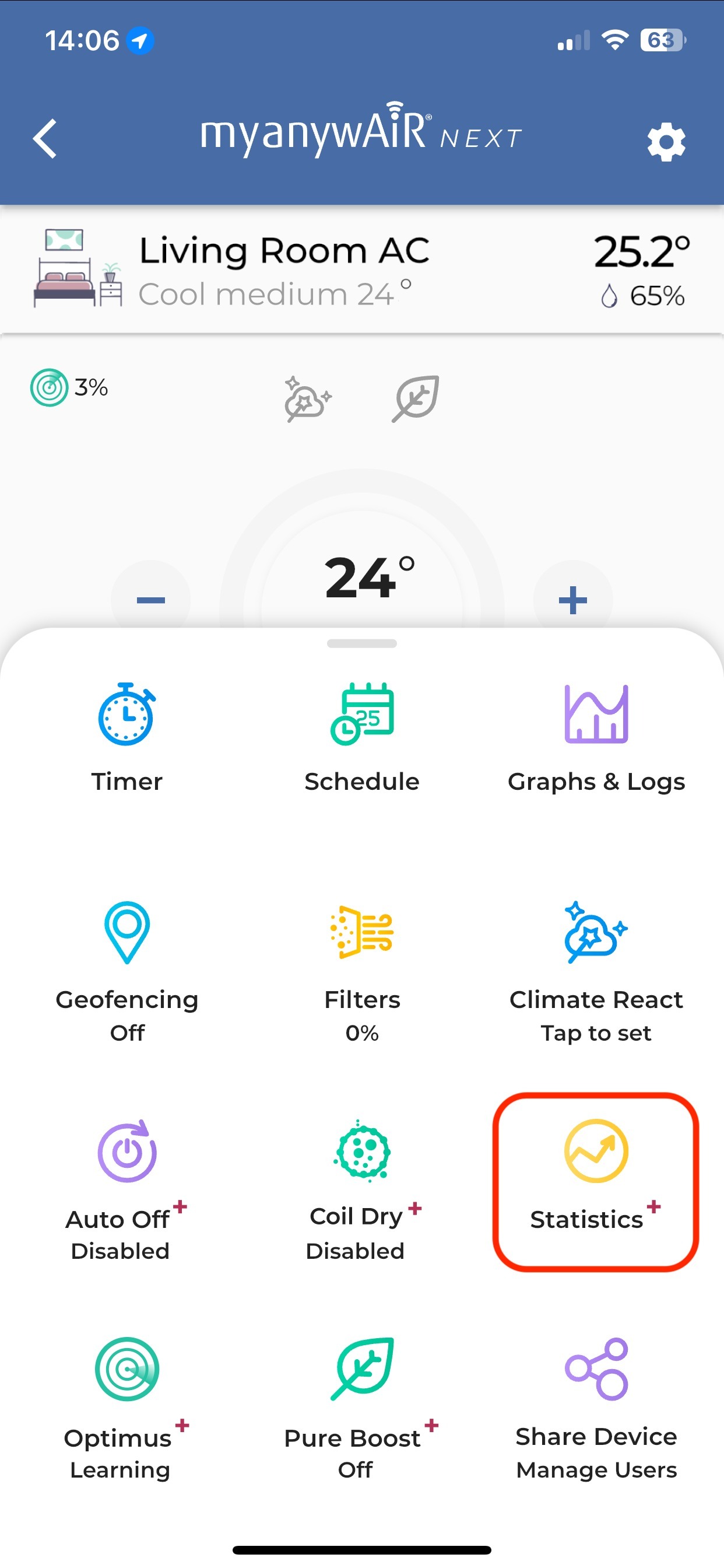 |
| 4 | Review the available daily, weekly and monthly usage information.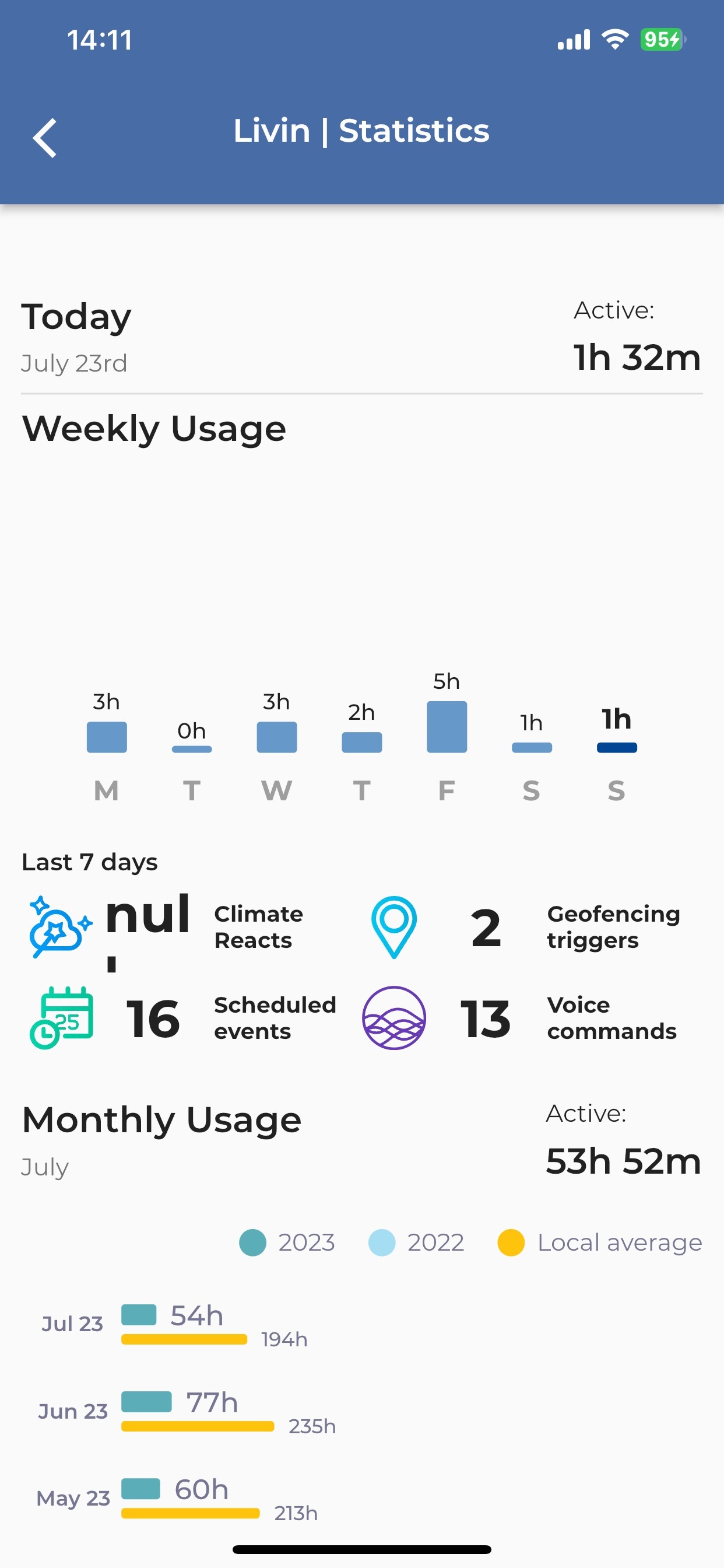 |
Information shown in Statistics
| Section | What it shows |
|---|---|
| Today | The total time the selected air conditioner has been active during the current day. |
| Weekly Usage | Daily operating hours for the current seven-day period. |
| Last 7 Days | The number of recorded smart-feature events, such as Climate React actions, geofencing triggers, scheduled events and voice commands. |
| Monthly Usage | Total operating hours for recent months. Where available, this may include a comparison with the previous year and a local average. |
Understanding the results
- Active time represents the recorded period that the air conditioner was operating.
- Scheduled events count actions performed through schedules, rather than the total number of schedules saved.
- Climate React and geofencing figures show recorded trigger events during the displayed period.
- Local average is a comparison value supplied by the app where sufficient regional data is available.
Important: Statistics are intended as a usage guide. They are not an electricity meter and should not be used to calculate exact energy consumption or power costs.
If Statistics is unavailable or not updating
| 1 | Confirm the myanywAiR NEXT controller is online and showing current room information. |
| 2 | Check whether Statistics is available for the device and account, particularly where it is marked with a plus symbol. |
| 3 | Refresh or reopen the device screen and allow time for the latest usage data to synchronise. |
| 4 | Confirm the mobile device has an active internet connection and the app is updated to the latest available version. |
| 5 | Sign out and back in if the information remains unavailable after the controller has reconnected. |
Menu names, comparison data and available statistics may vary depending on the app version, controller hardware, account permissions and subscription level.