
General Assist How-To Guide
How to Set Geofencing with myanywAiR NEXT
Automatically turn the air conditioner on when you arrive and off when everyone leaves
The Geofencing feature uses your phone's location to detect when you are entering or leaving a selected area. You can configure myanywAiR NEXT to turn the air conditioner on when you arrive and turn it off when everyone has left.
Before you start: Make sure location services are enabled on your phone and that the myanywAiR NEXT app has permission to access location data. If prompted, select Always Allow or the closest equivalent setting on your device.
Set up geofencing
| 1 | Open the myanywAiR NEXT app and go to the main screen. |
| 2 | Tap the menu icon in the top left-hand corner.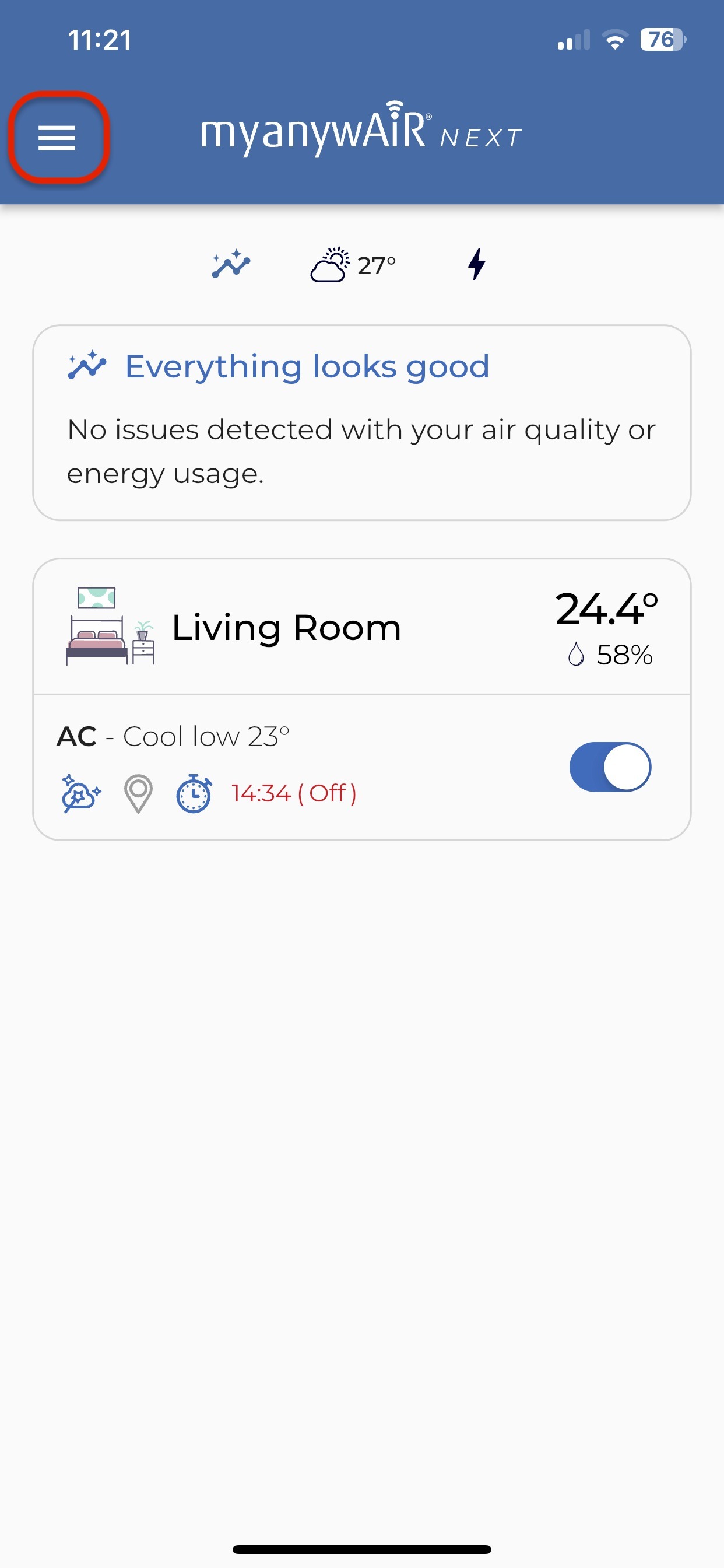 |
| 3 | Select Locations & Geofencing.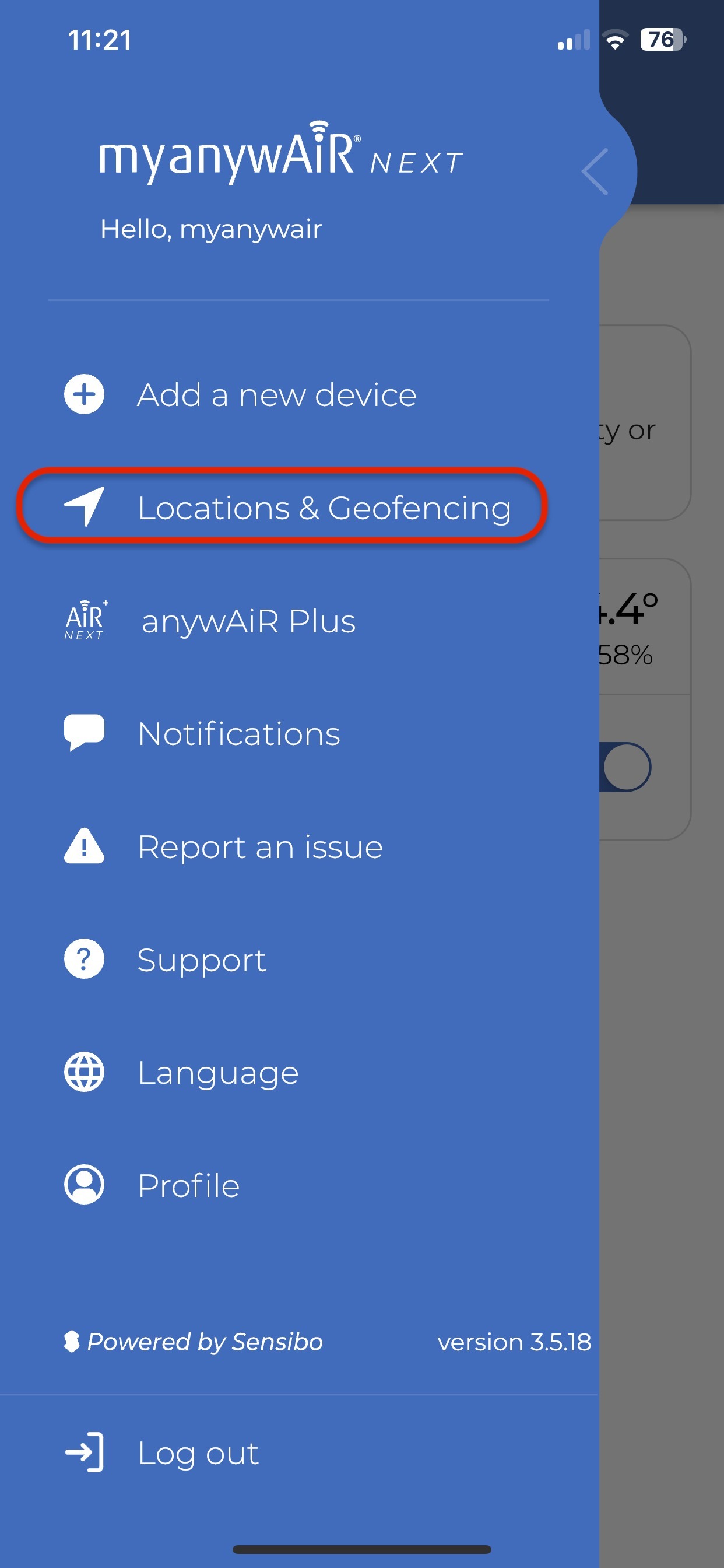 |
| 4 | If you have more than one location, choose the location you want to edit, such as Home or Office.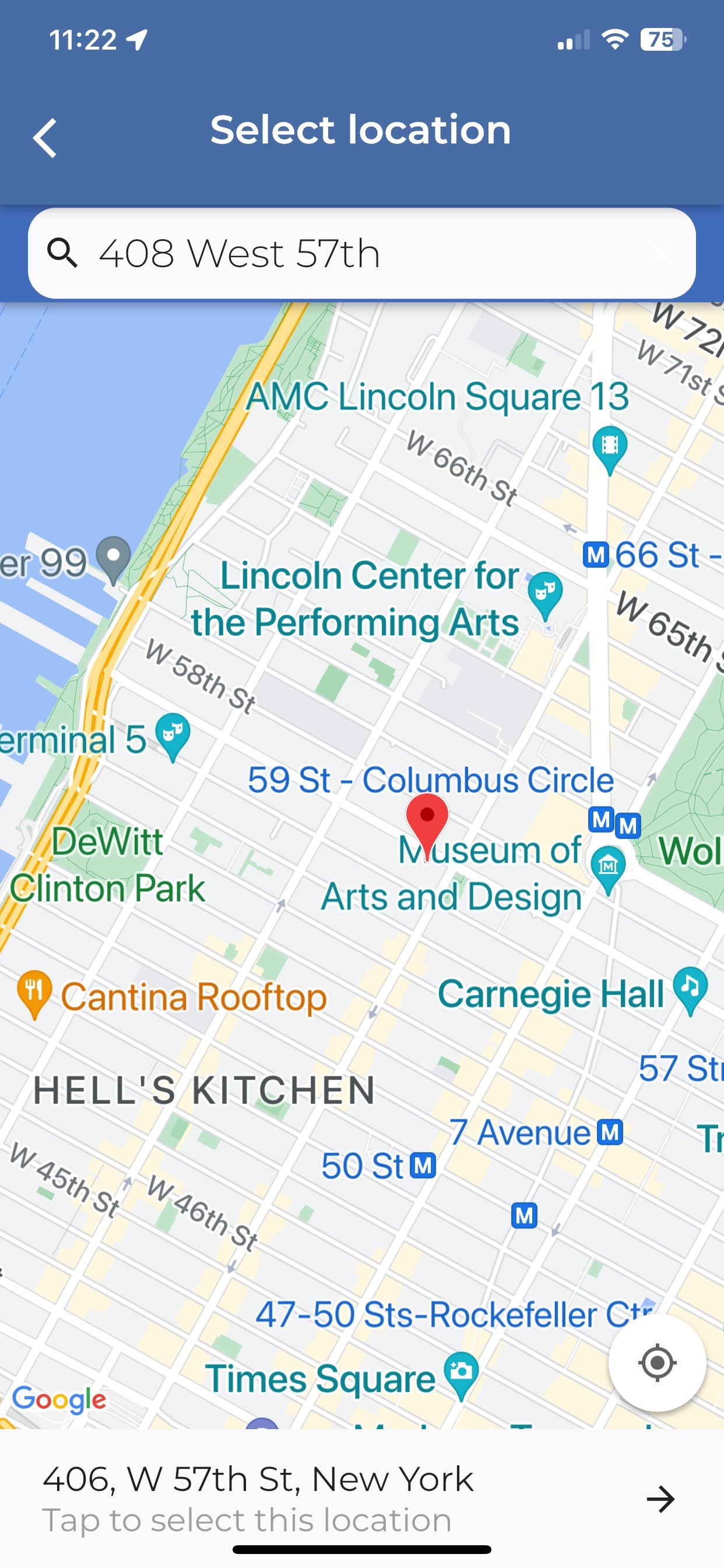 |
| 5 | Switch Enable geofencing on.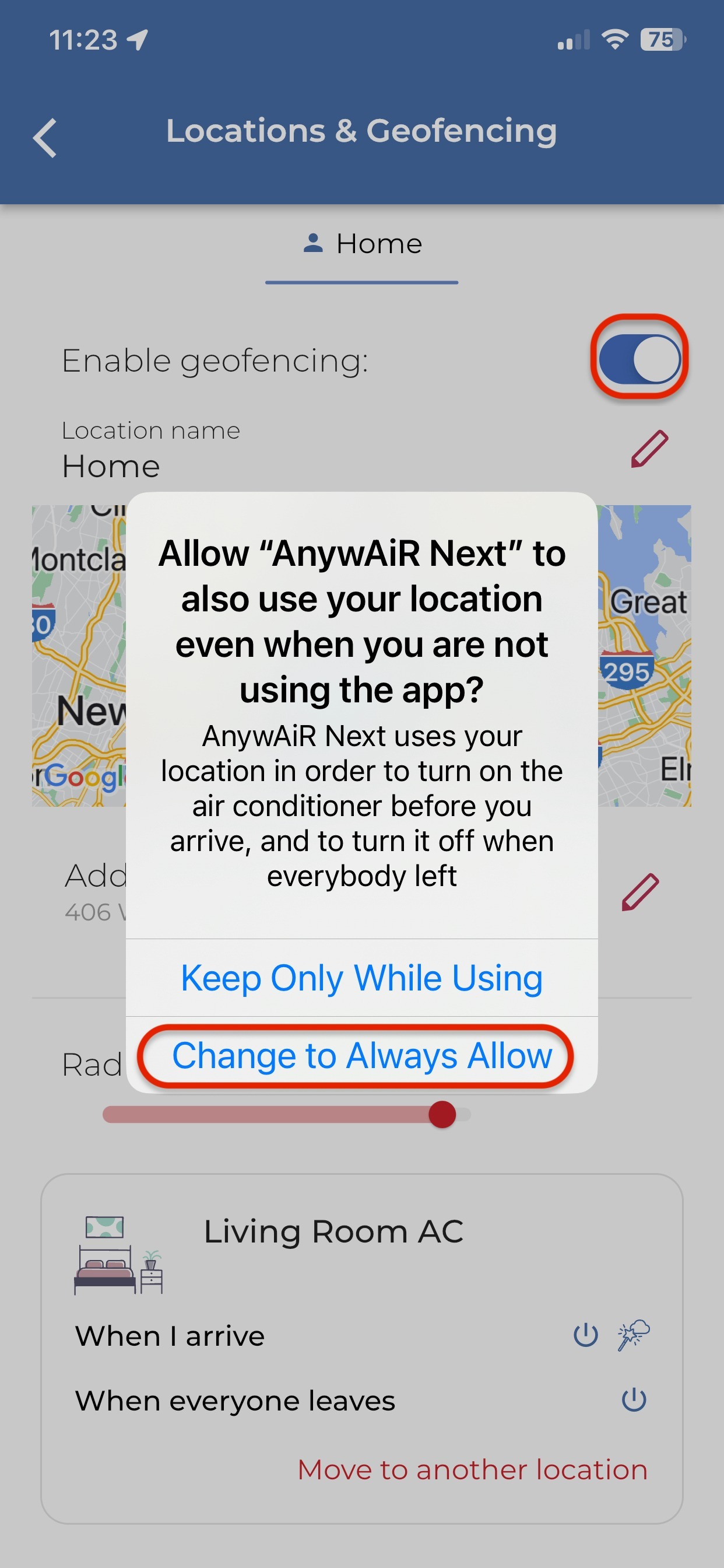 |
| 6 | Adjust the Radius slider to set how large the detection area should be. Move the slider right to increase the area or left to decrease it.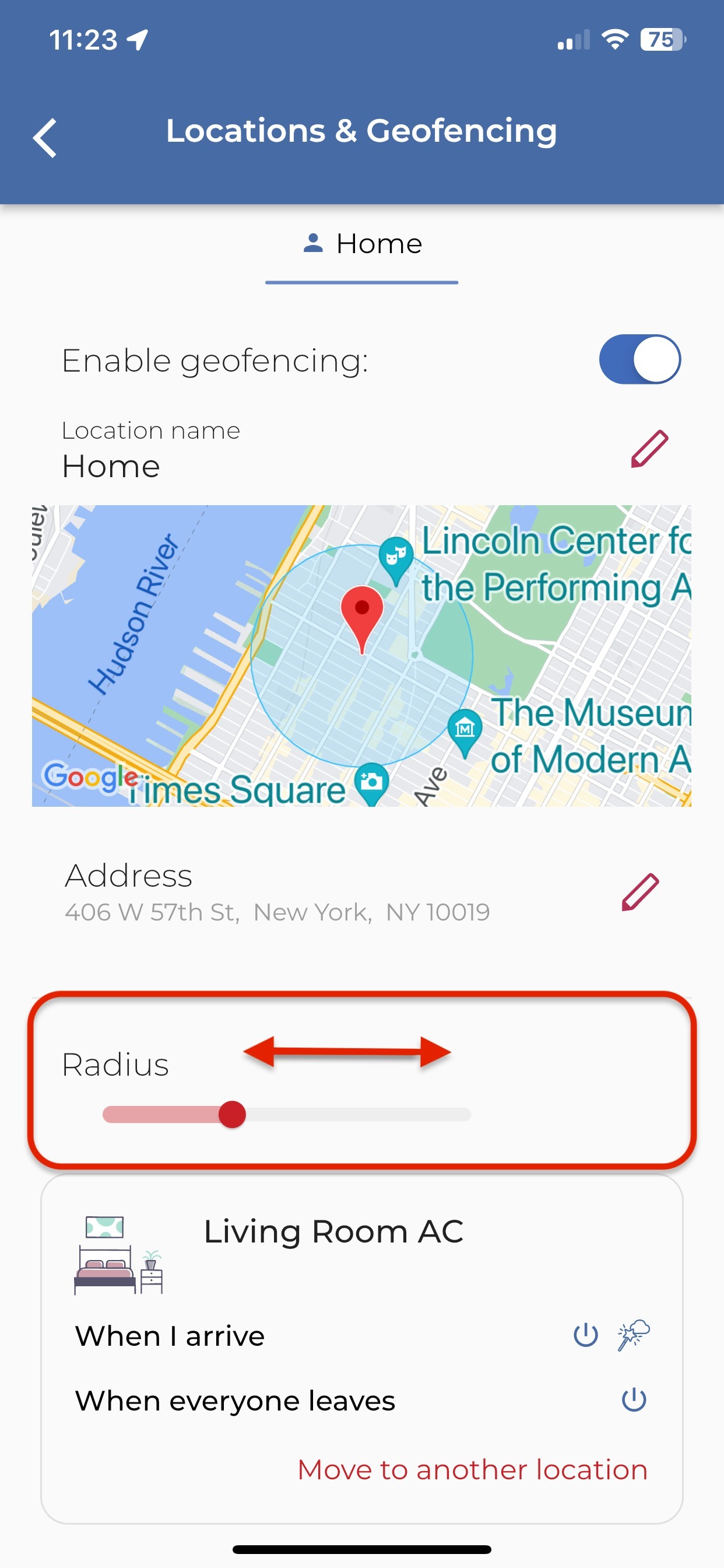 |
| 7 | Under When I arrive, choose what action you want. For example, you can turn the air conditioner on and optionally turn on Climate React.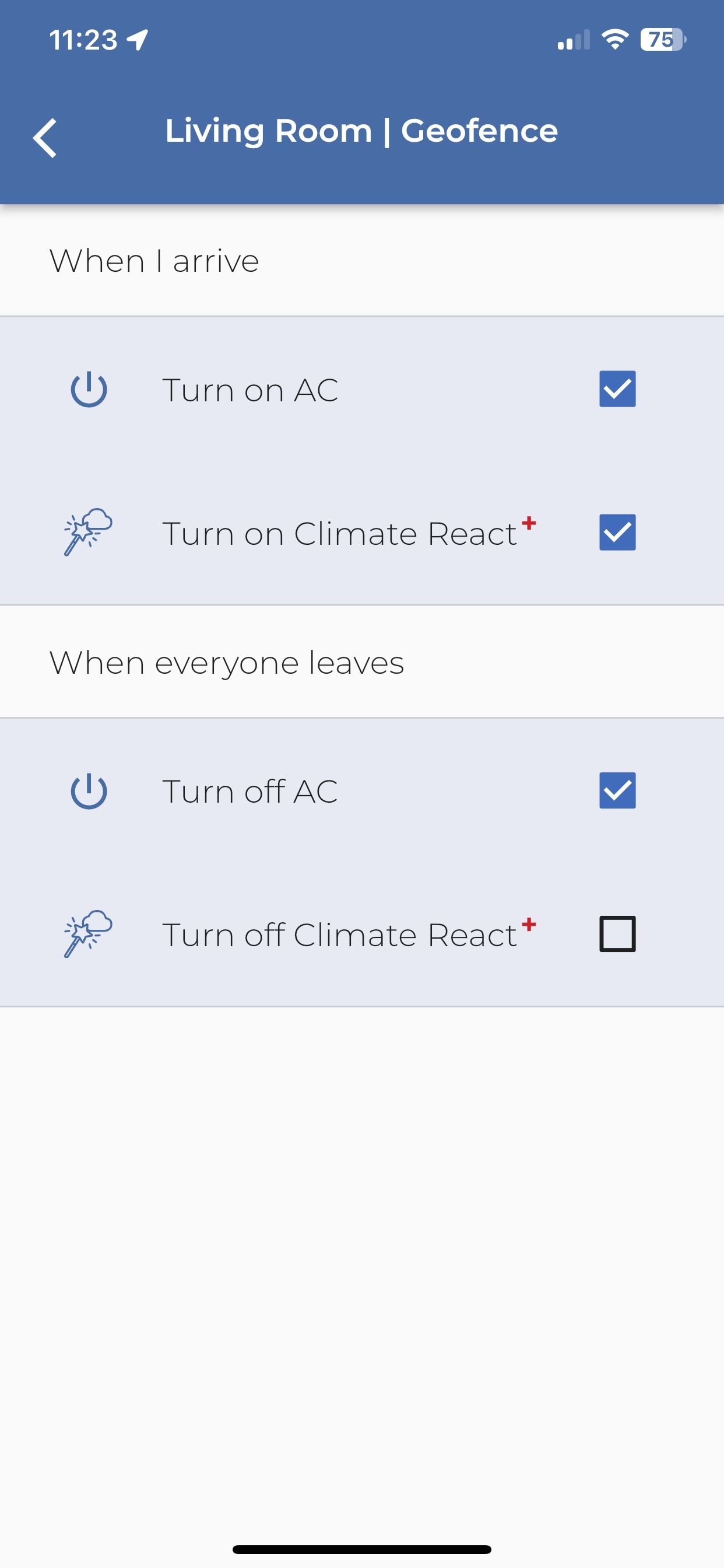 |
| 8 | Under When everyone leaves, choose what action you want. For example, you can turn the air conditioner off and optionally turn off Climate React. |
| 9 | Close the screen once your settings are saved. Geofencing should now operate automatically. |
How geofencing works
| Trigger | What it does |
|---|---|
| When I arrive | Runs the actions you selected when your phone enters the geofence area. |
| When everyone leaves | Runs the actions you selected when all shared users have left the geofence area. |
| Radius | Defines how far from the address the app should detect arrival and departure. |
Important: If the system is shared with other users, the air conditioner will only turn off when the last person leaves the geofenced area.
If geofencing is not working
| 1 | Confirm Enable geofencing is switched on for the correct location. |
| 2 | Check that the app has permission to access your phone's location at all times or while using the app, depending on your phone settings. |
| 3 | Confirm the address and radius are set correctly. |
| 4 | Make sure your phone has mobile data or internet access so the location update can be processed. |
| 5 | If the system is shared, remember that the When everyone leaves action will not run until all shared users have left the area. |
| 6 | Close and reopen the app, then review the geofencing settings again. |
Menu names and screen appearance may vary depending on the app version, controller hardware, phone operating system and account permissions. Features marked with a plus symbol may require an eligible subscription or account feature.