
General Assist App Guide
How to Schedule Your A/C with myanywAiR next
Create automatic A/C events for selected days and times
Use schedules to automatically turn your system on or off and apply your preferred operating settings.
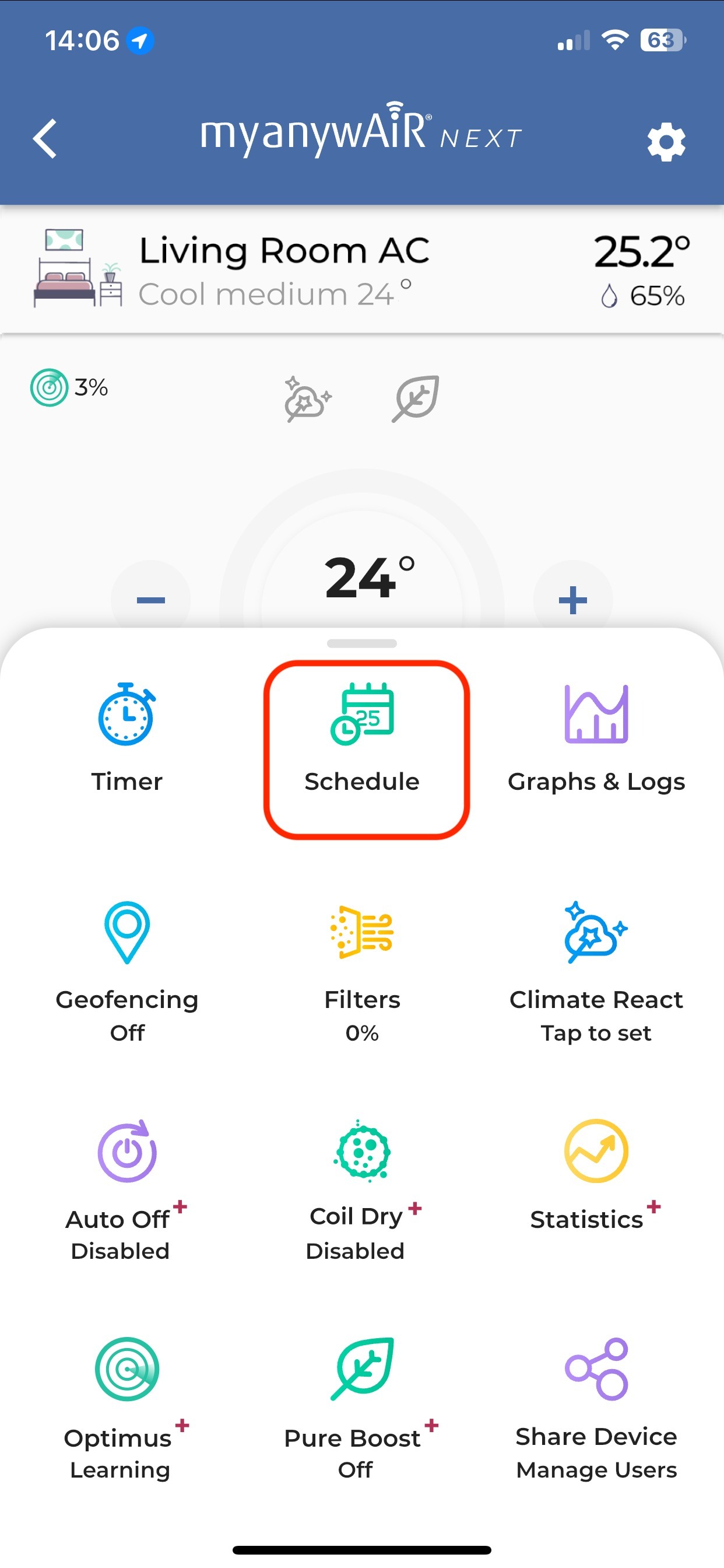
Quick answer: Open the required A/C device, swipe up to display the settings drawer, select Schedule, tap the red + button, configure the event and select Save.
What can be scheduled?
- Turn the A/C on or off.
- Change the set temperature.
- Change the operating mode, such as heating or cooling.
- Change the fan level: Auto, Low, Medium or High.
- Repeat an event on selected days of the week.
Important: A schedule applies the settings selected in that event. Confirm the A/C state, mode, temperature and fan level before saving.
Create a schedule
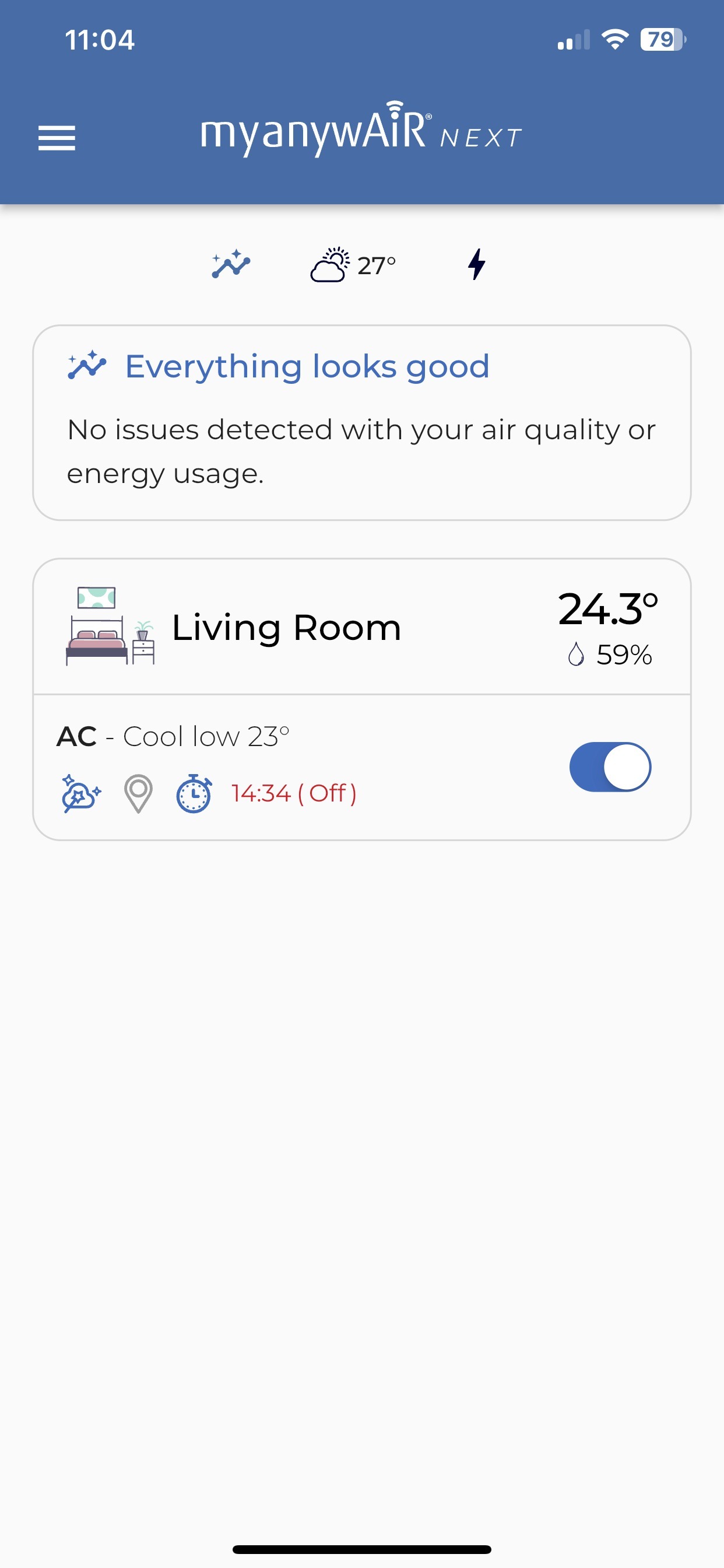
| 1 | Select the A/C device From the myanywAiR next home screen, select the room or A/C device that you want to schedule. |
| 2 | Open Schedule Swipe up from the bottom of the A/C control screen to open the settings drawer, then select Schedule. |
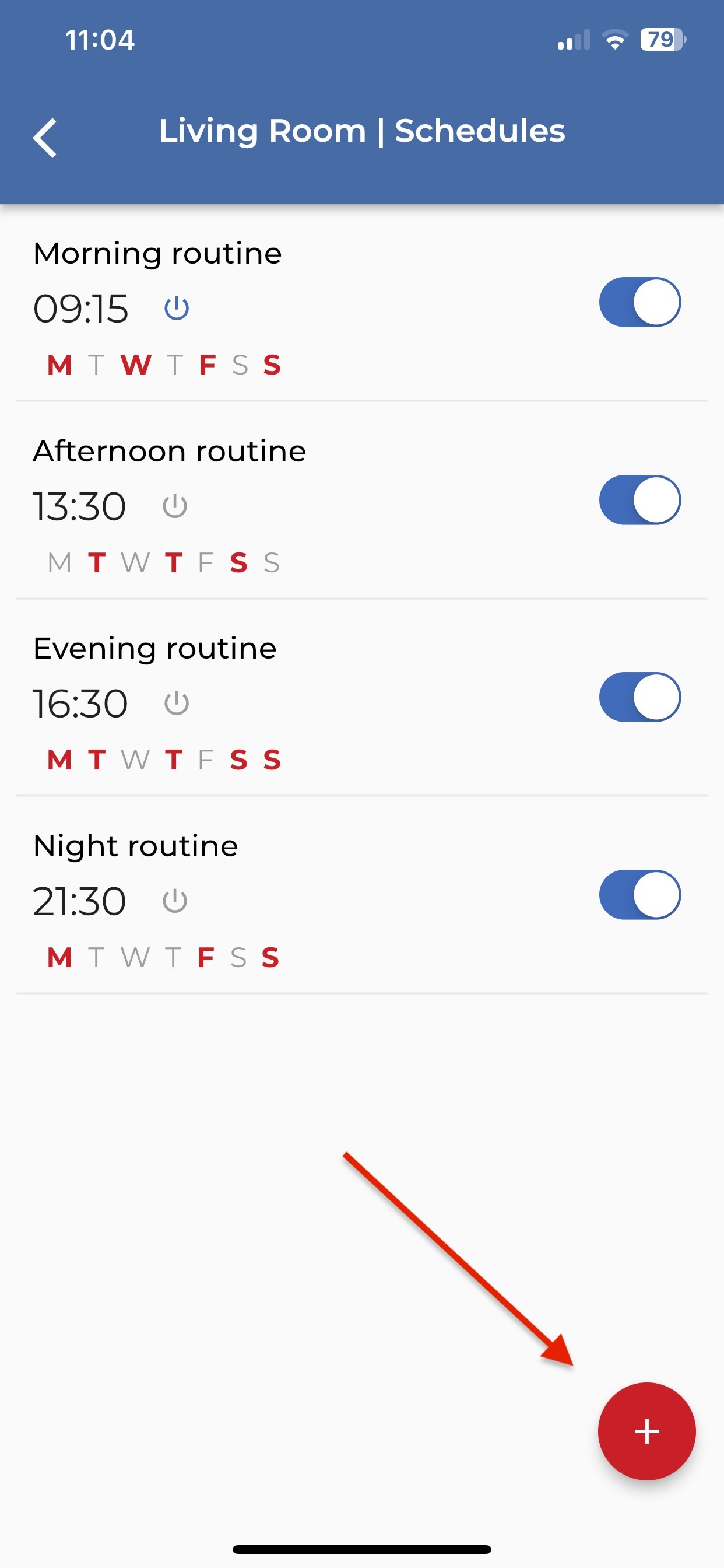
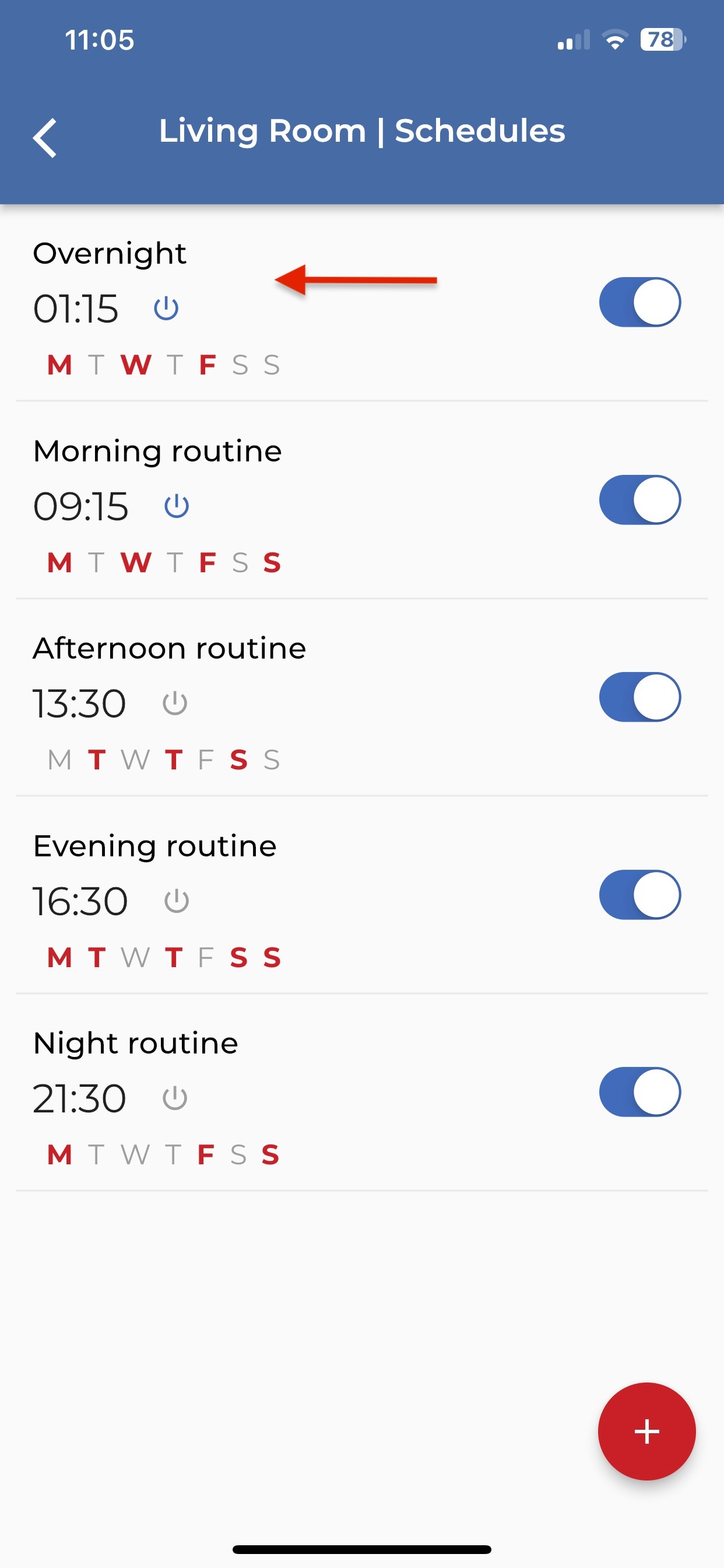
| 3 | Add a schedule On the Schedules screen, tap the red + button in the lower-right corner. |
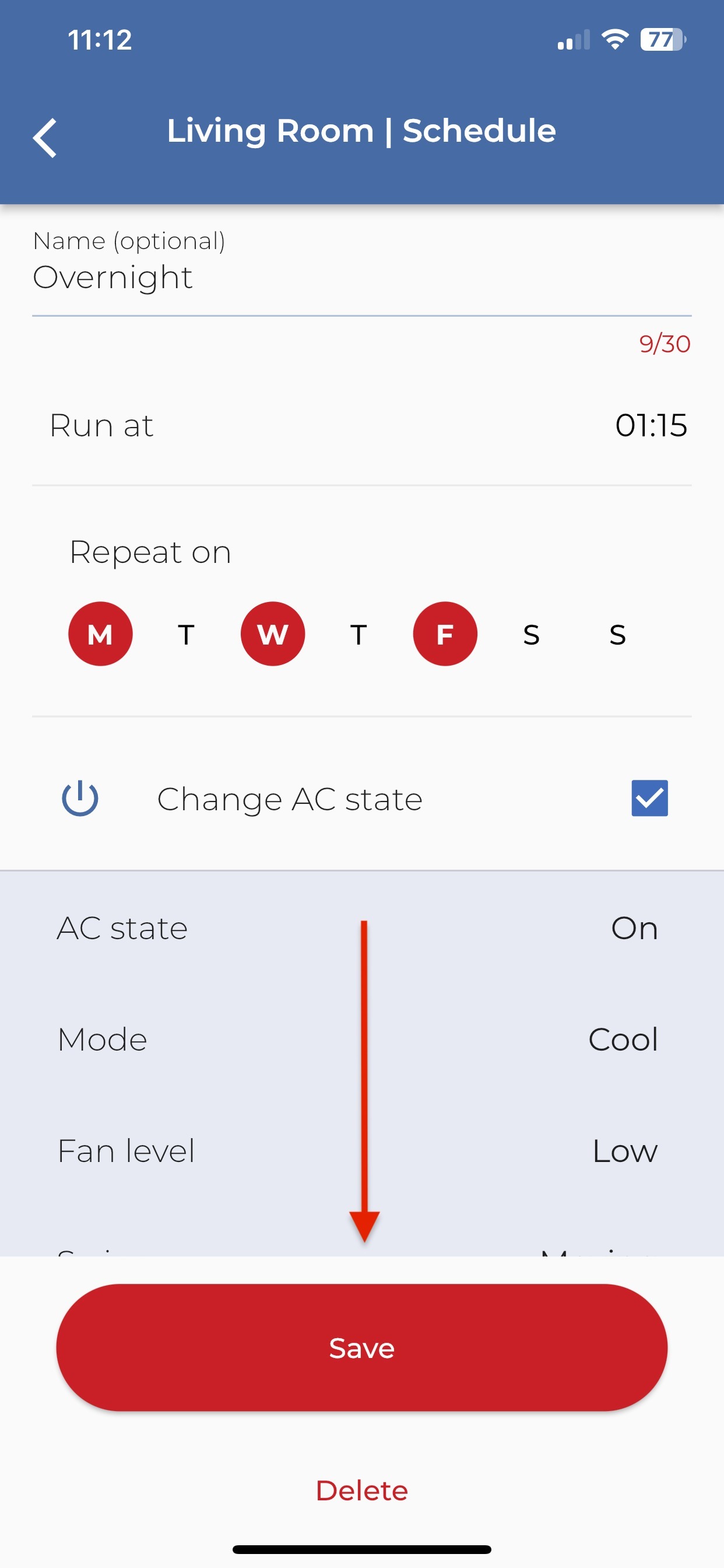
| 4 | Configure and save the event Enter an optional name, select the run time and repeat days, and choose whether the event changes the A/C state. Review the mode, fan level, temperature and other available settings, then scroll down and tap Save. |
| 5 | Confirm the schedule The saved event will appear in the Schedules list. Use the switch on the right to enable or disable an individual event. |
Add or arrange additional schedules
To create another event, tap the red + button again. Multiple schedules can be created for the same A/C device.
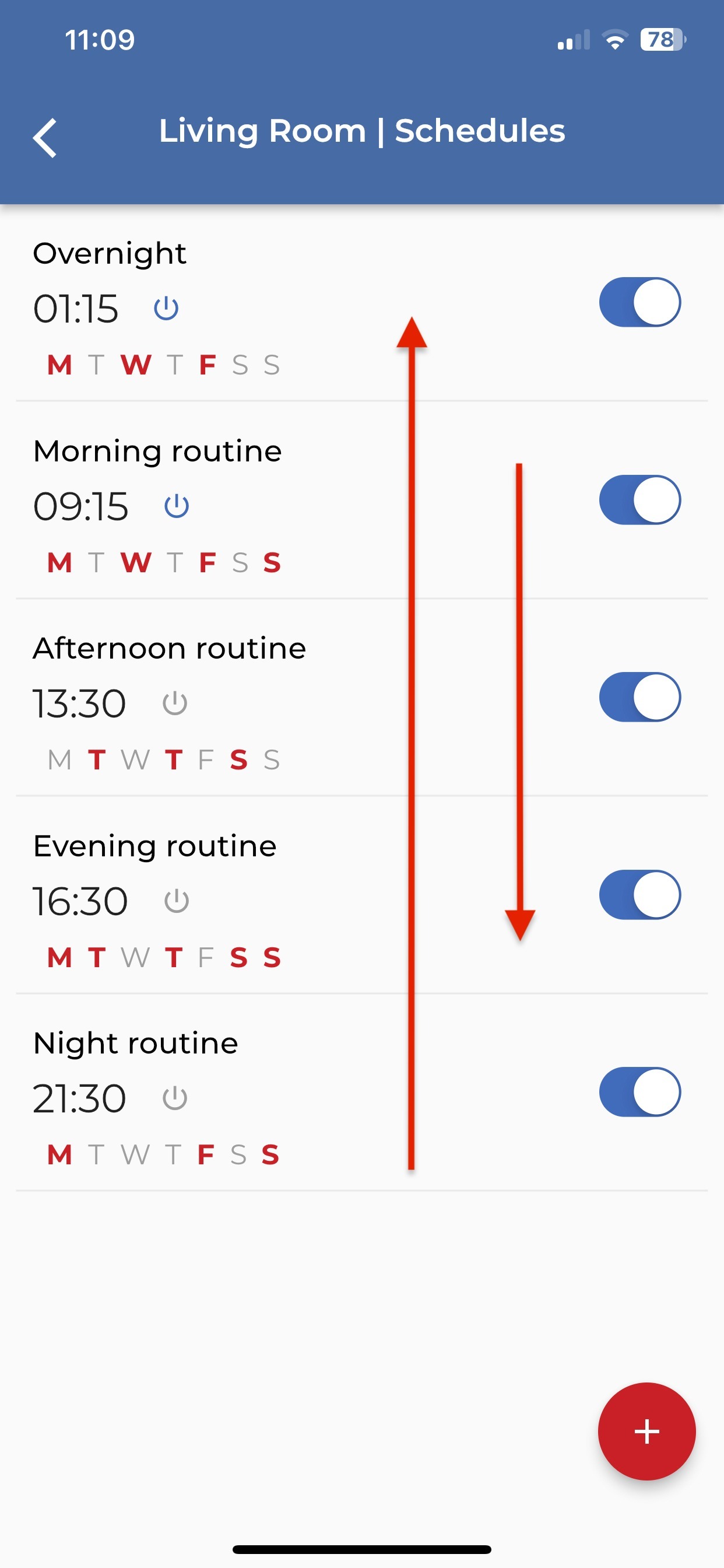
To change the display order, press and hold the schedule you want to move, then drag it up or down the list.
Edit or delete a schedule
Tap an existing schedule to open it. Make the required changes and select Save, or scroll to the bottom and select Delete to remove the event.
Tip: When multiple events are used, allow sufficient time between them and check that later events do not unintentionally override earlier settings.
Screen appearance and available options may vary depending on the app version, connected equipment and system configuration.