
myanywAiR next
How to Set Climate React
Create automatic air-conditioning actions using temperature, humidity or “Feels Like” conditions
Climate React allows myanywAiR next to automatically change the air conditioner’s operating state when a selected room condition is reached. A rule can be based on Temperature, Humidity or Feels Like.
1. Set up Climate React
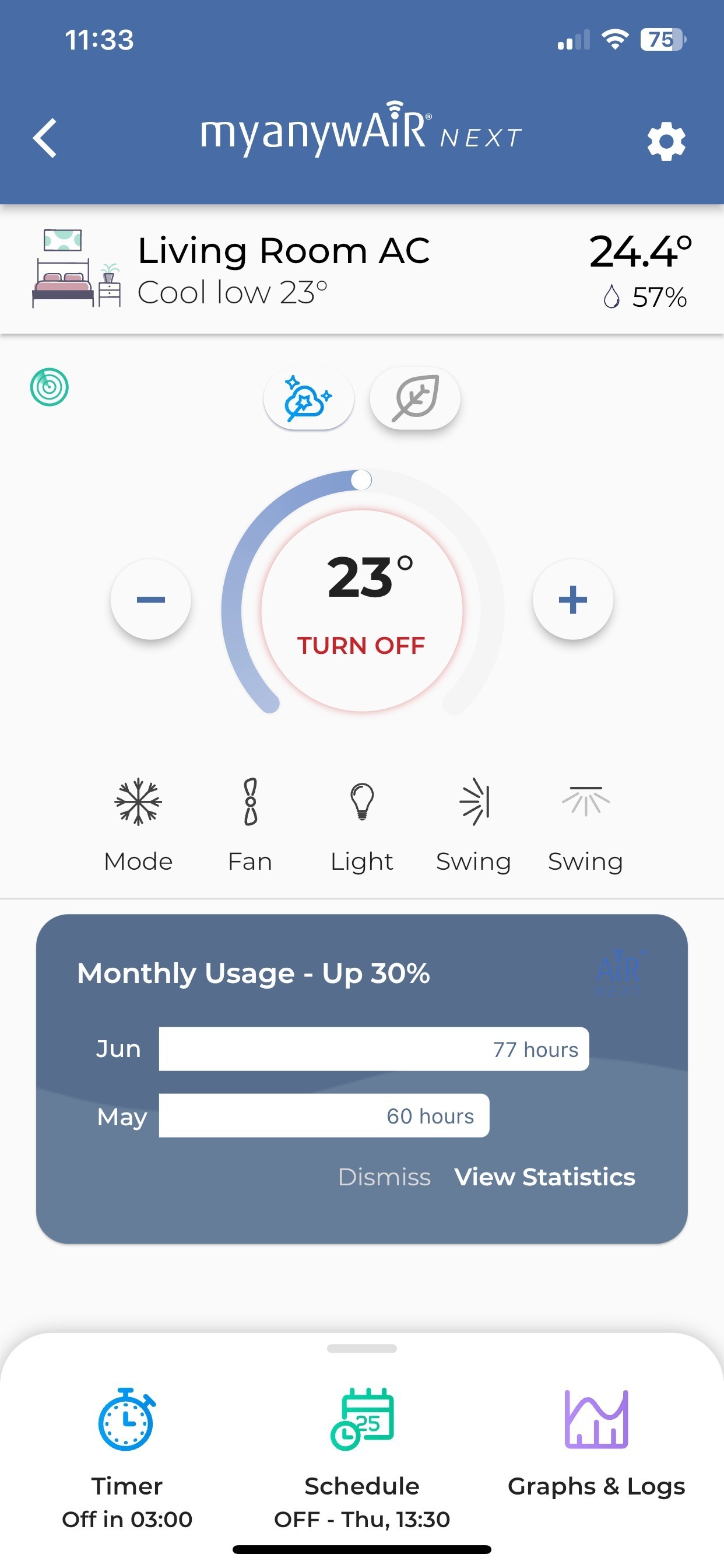
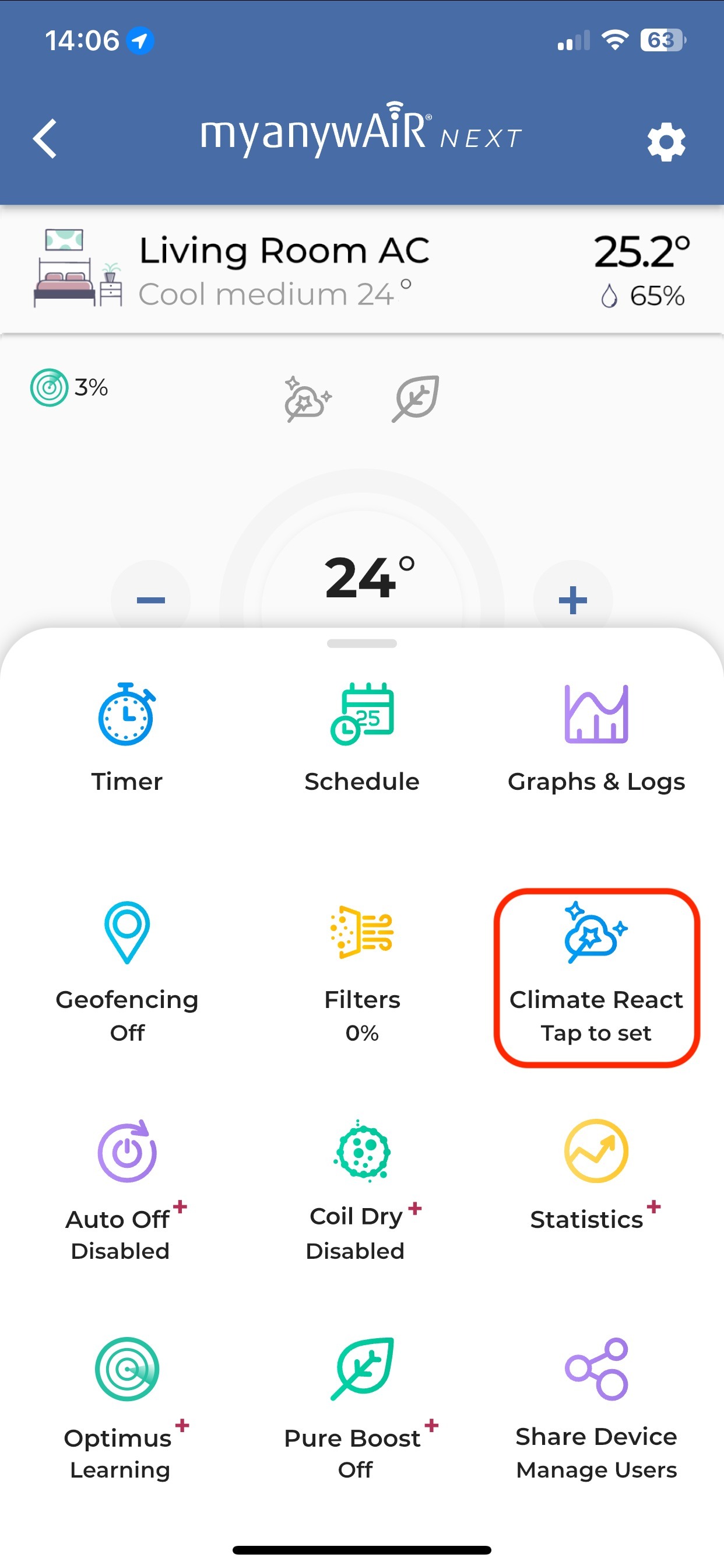
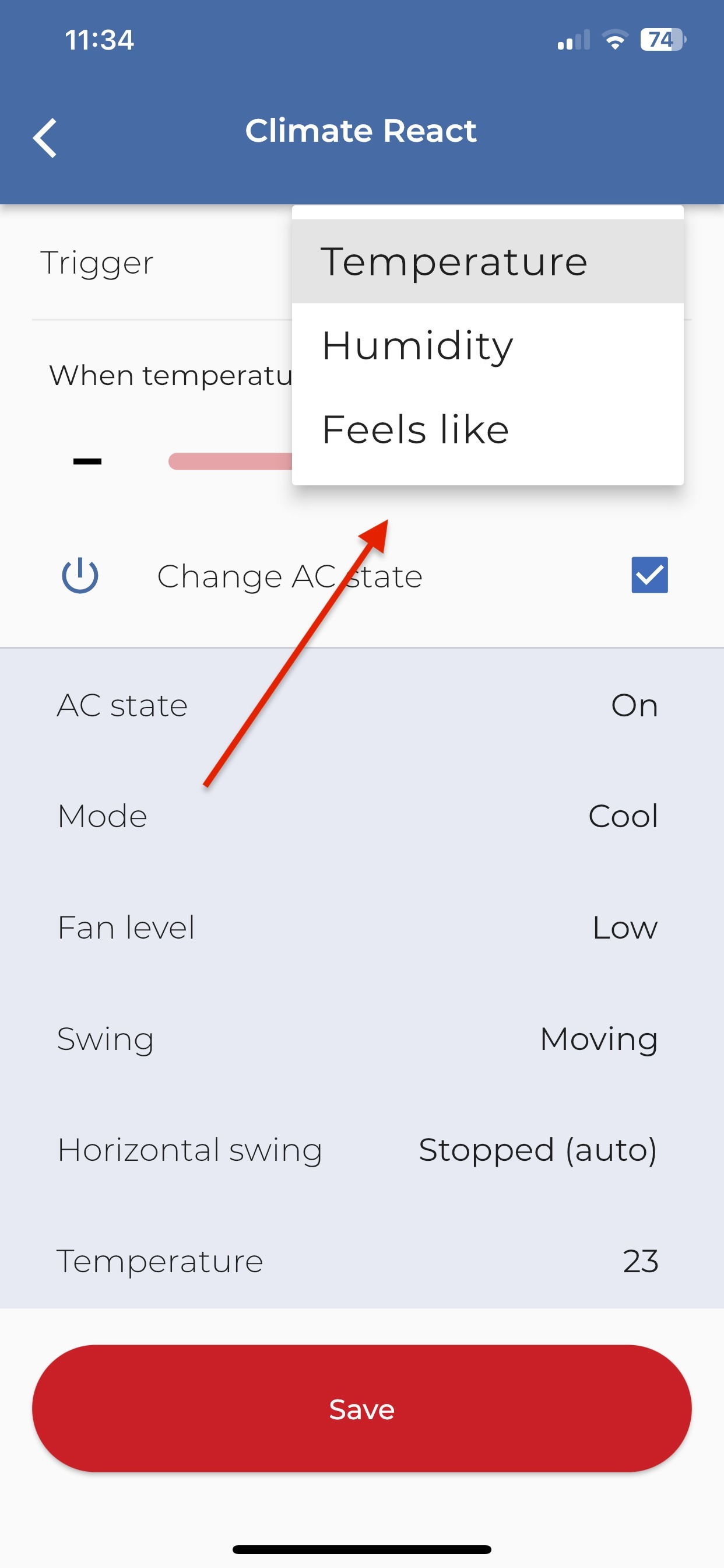
Available air-conditioner settings
| Setting | What to select |
|---|---|
| AC state | Choose whether the air conditioner turns on or off when the trigger is reached. |
| Mode | Select the required operating mode, such as Cool, Heat, Dry, Fan or Auto where supported. |
| Fan level | Select the required fan speed. |
| Swing | Select the vertical and horizontal swing positions where supported by the indoor unit. |
| Temperature | Choose the set temperature that will apply when the rule activates. |
2. Trigger options
3. How the “Feels Like” trigger works
The “Feels Like” option uses a heat-index calculation. This combines the measured room temperature and relative humidity to estimate the apparent temperature experienced by occupants.
Minimum conditions: “Feels Like” will not trigger when the measured temperature is below 27°C (80°F) or the relative humidity is below 40%.
| Heat-index level | General interpretation |
|---|---|
| Caution | Warm conditions where prolonged exposure may become uncomfortable. |
| Extreme caution | Hot and humid conditions requiring greater care. |
| Danger | High heat-index conditions with increased heat-related risk. |
| Extreme danger | Very high heat-index conditions requiring immediate cooling and appropriate safety precautions. |
Example: At the same room temperature, a higher humidity level produces a higher “Feels Like” result. Climate React can therefore start cooling before the measured dry-bulb temperature alone appears unusually high.
4. Important notes
- The available operating modes, fan speeds and swing controls depend on the connected indoor unit.
- Climate React relies on the temperature and humidity information available to the myanywAiR next system.
- Select practical trigger values to avoid frequent cycling or conflicting operation with timers and schedules.
- After saving, confirm that Climate React is shown as configured for the selected device.
- The heat-index categories are a general guide and are not a substitute for workplace or health advice during extreme heat.
Do not rely on Climate React as a safety-critical control. During extreme heat, monitor occupants and conditions directly and follow relevant health and emergency guidance.
Menu names and available settings may vary depending on the myanywAiR next app version, connected controller and indoor-unit capabilities.