
General Assist Support Guide
Improving myanywAiR Geofencing Performance
Recommended phone settings for reliable location-based control
Review these settings when geofence actions are delayed, inconsistent or do not trigger as expected.
Geofencing allows your Fujitsu air conditioner to turn on or off automatically based on your location. Reliable operation depends on the myanywAiR app being permitted to access location services and continue running in the background.
1. Check app permissions
- Confirm that the myanywAiR app has location and geofence permissions enabled.
- Check this under your phone's Settings > Apps > myanywAiR > Permissions.

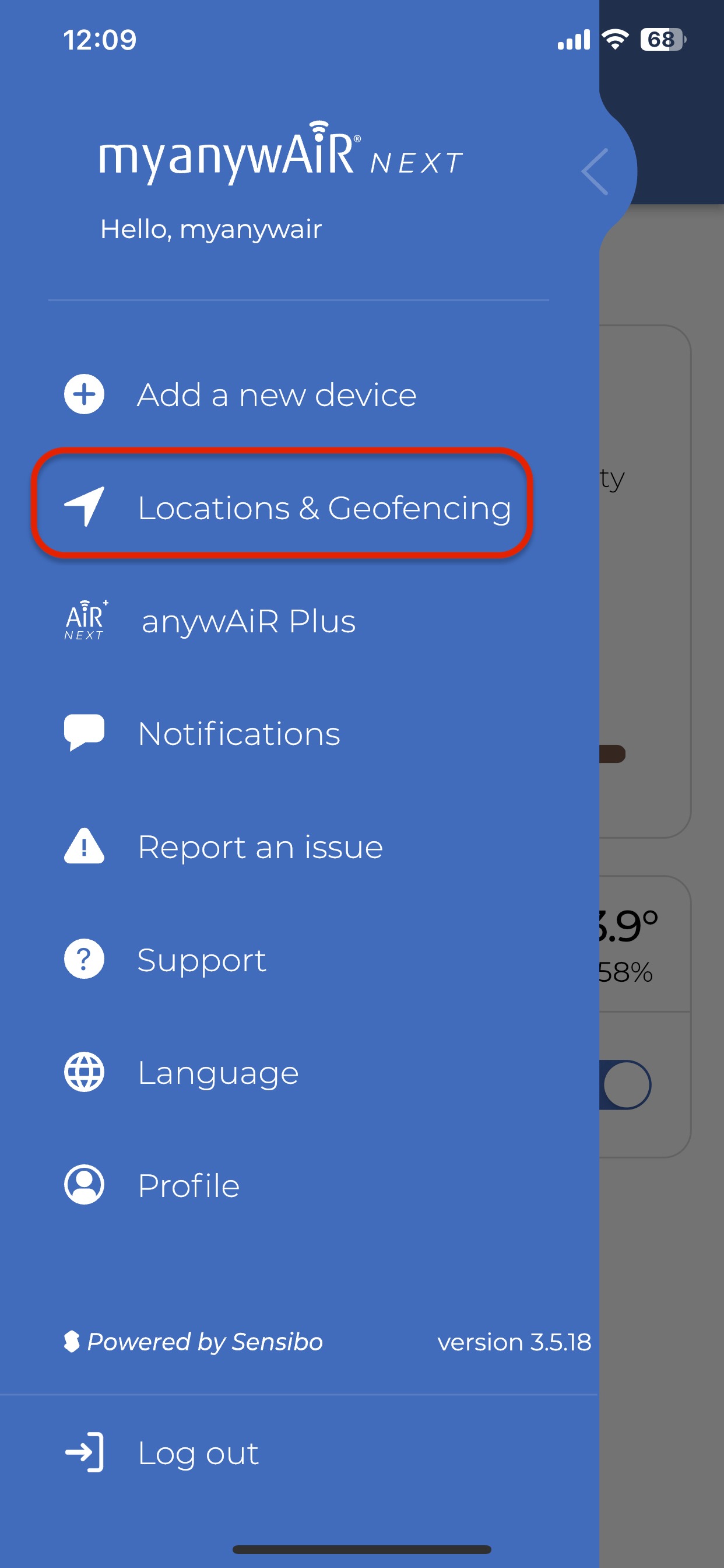
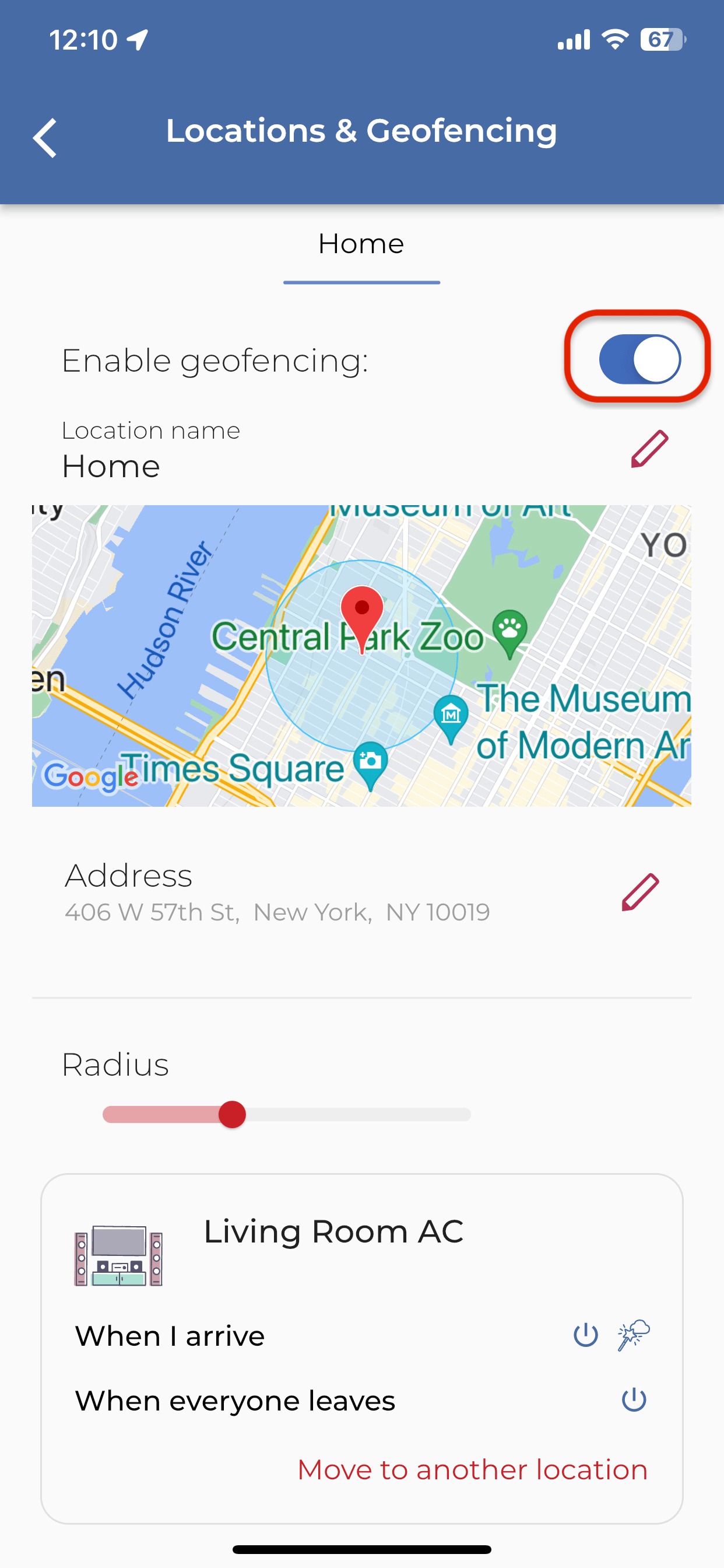
Open the app settings and confirm that location access is enabled.
2. Review location settings
| Location access | Set location access to Always On so geofencing can continue when the app is closed. |
| Location accuracy | Enable High Accuracy Mode, which uses GPS, Wi-Fi and mobile networks. |
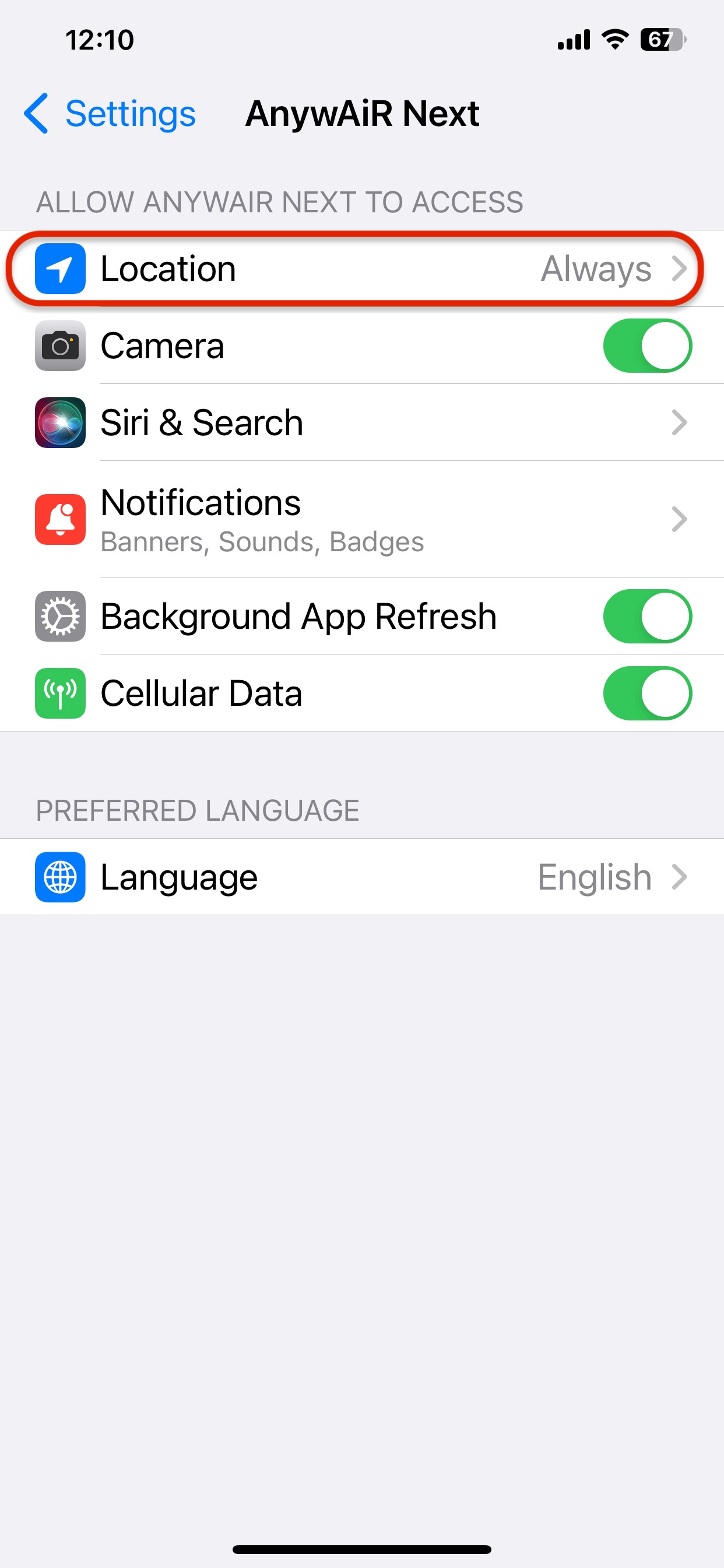
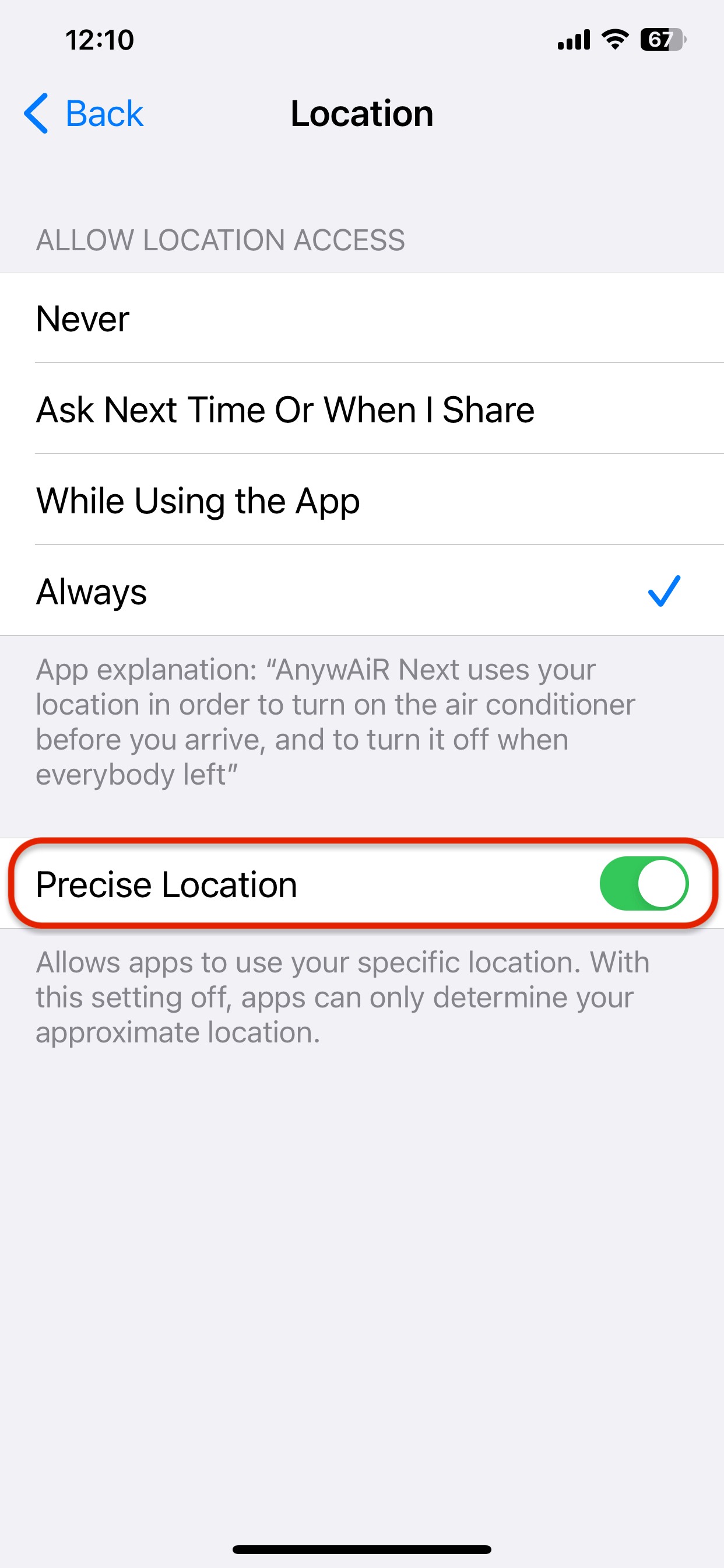
3. Maintain phone connectivity
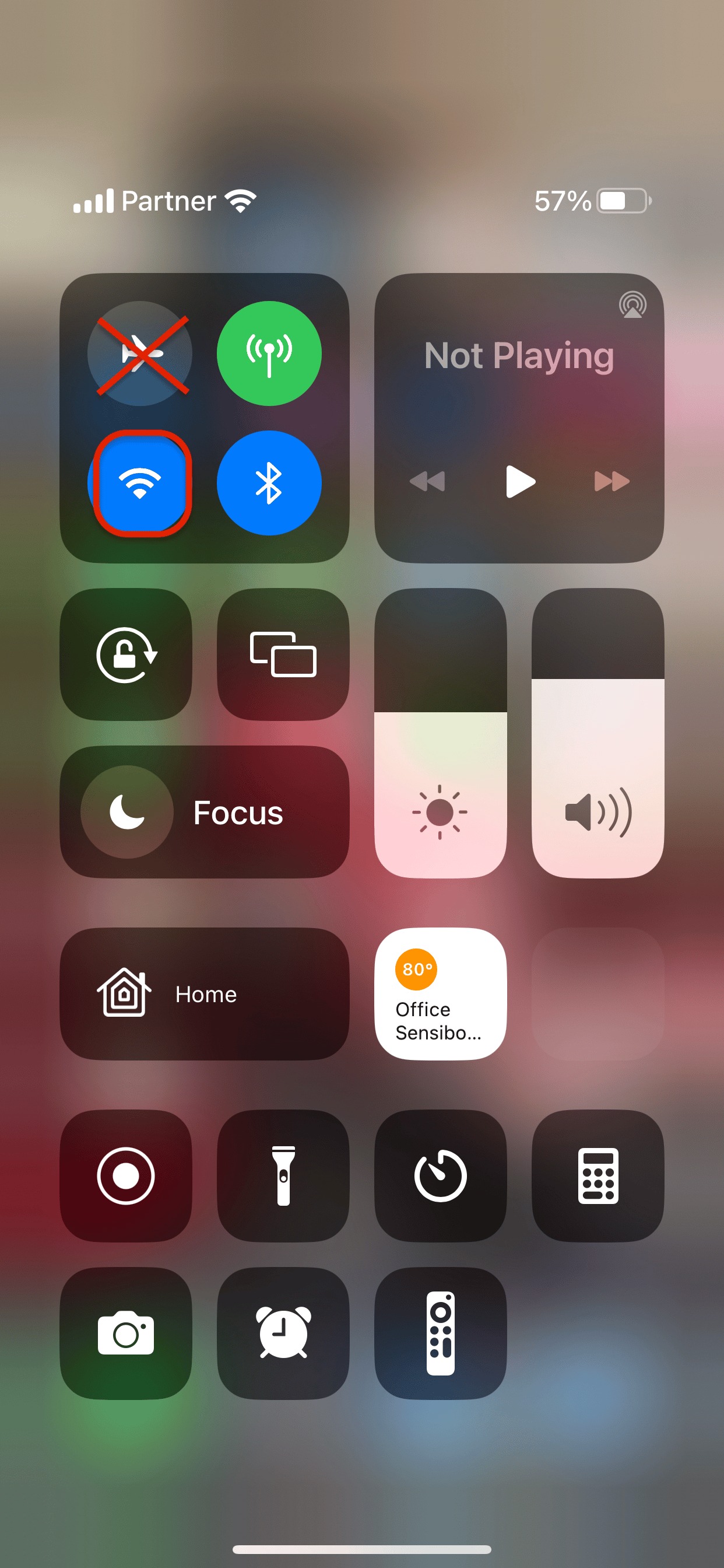
- Keep Wi-Fi enabled. Geofencing uses Wi-Fi positioning to improve location accuracy.
- Confirm that Airplane Mode is off. Geofencing will not operate correctly while Airplane Mode is enabled.
4. Disable battery and background restrictions
- Battery optimisation: Exclude the myanywAiR app from battery optimisation or restriction settings.
- Power Saving Mode: Turn it off because it may stop background geofence activity.
- Task manager or cleaner apps: Disable or uninstall third-party apps that may close myanywAiR in the background.
- Sleeping apps: Check for device-specific sleep or background restrictions. On some Samsung devices, Smart Manager may put the app to sleep automatically.
Important: Geofencing relies on the app continuing to run in the background. Battery-saving and app-sleep features can prevent location changes from being detected.
5. Increase the geofence radius
If the geofence triggers inconsistently, increase the radius to:
2 km
1.2 miles
A larger radius can improve reliability, particularly in areas with weaker GPS, Wi-Fi or mobile coverage.
6. Need additional help?
If the issue continues after these settings have been checked, contact the Support Team through the myanywAiR NEXT app using the Report an Issue option.
The app will send available system logs to the technical team for further assessment.
Before submitting a report: Confirm location access is set to Always On, Wi-Fi is enabled, Airplane Mode is off and the app is excluded from battery optimisation.