
General Assist Support Guide
Manually Configure Wi-Fi for myanywAiR next
Use the device configuration page to connect to a visible or hidden 2.4 GHz Wi-Fi network
In most installations, the myanywAiR next device connects automatically through the setup wizard in the app. Manual setup may be required when connecting to a hidden network or when the app cannot complete the Wi-Fi configuration.
Step 1. Locate the device broadcast
When the device is in configuration mode, it will broadcast a temporary Wi-Fi network such as:
ANYWAIR-I-XXXXX
C-ANYWAIR-I-XXXXX
“XXXXX” represents the device's unique identification number.
Step 2. Connect to the temporary network
- Open Wi-Fi settings on your smartphone, tablet or laptop.
- Select ANYWAIR-I-XXXXX or C-ANYWAIR-I-XXXXX.
- Wait for the device to connect.
Important: The temporary network does not provide internet access. This is expected during setup.
Step 3. Open the configuration page
- Open a web browser such as Chrome or Safari.
- Enter http://192.168.4.1 in the browser address bar.
- Press Enter or Go to open the device configuration page.
Step 4. Select or enter the Wi-Fi details
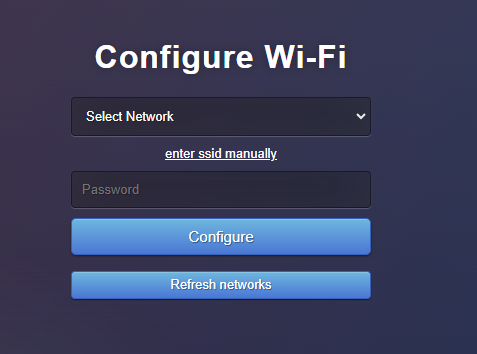
- Select Select Network to display nearby Wi-Fi networks.
- For a hidden network, select Enter SSID Manually.
- Enter the Wi-Fi network name (SSID) and password.
- Select Configure.
Wi-Fi names and passwords are case-sensitive. Enter them exactly as configured in the modem or router.
Step 5. Finalise the connection
- The device will save the Wi-Fi details and attempt to connect.
- When successful, the LED will turn off or become solid green, depending on the device version.
- Reconnect your phone or tablet to the home or office Wi-Fi network.
- Open the myanywAiR next app and confirm the system appears online.
Troubleshooting tips
| Check | What to do |
|---|---|
| Wi-Fi band | Use a 2.4 GHz network. A 5 GHz-only network is not supported. |
| SSID and password | Confirm all capital letters, spaces, numbers and symbols are entered correctly. |
| Configuration page will not open | Confirm the phone or computer is still connected to the ANYWAIR temporary network, then enter 192.168.4.1 directly into the address bar. |
| Connection fails | Hold the device button for 10 seconds to reset Wi-Fi configuration, then repeat the setup process. |
Typical LED sequence:
Green steady → Green blinking → Yellow blinking → Red blinking → Off
Green steady → Green blinking → Yellow blinking → Red blinking → Off