
- Press the SEARCH icon
- Type in the SEARCH field TRANSFER ORDER ENTRY and select the corresponding result
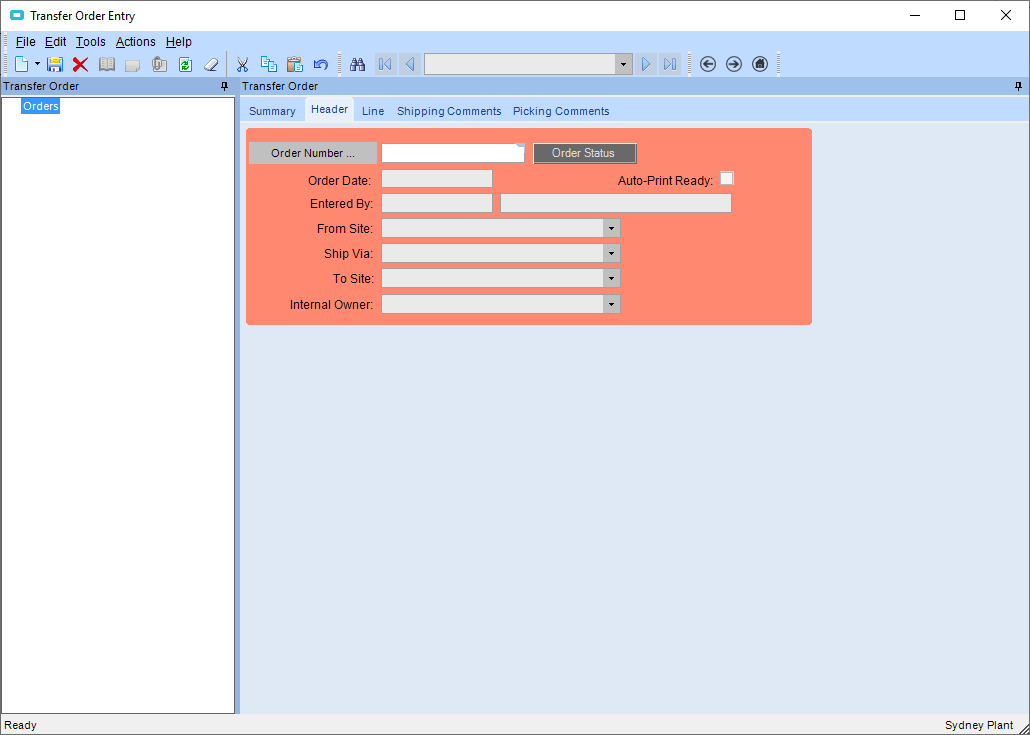
- Press the NEW icon
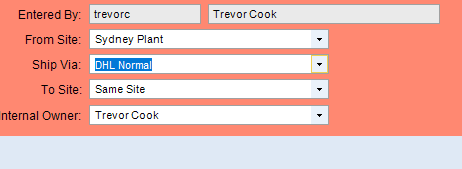
- Select the
- FROM SITE
- SHIP VIA
- COPE for finished goods
- DHL NORMAL for spare parts
- CUSTOMER PICK UP for own pickup method
- TO SITE
- Press the SAVE icon
- Click on the LINE tab
- Press the NEW icon
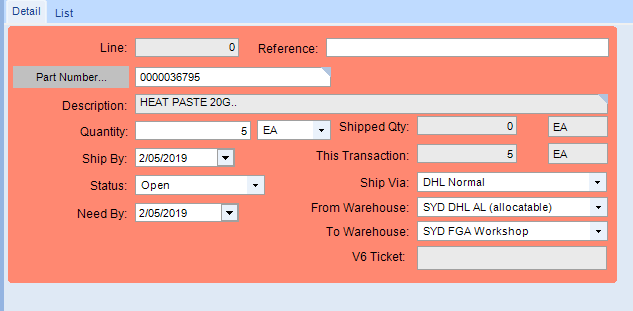
- Enter in
- a part number in the PART NUMBER field and press TAB on the keyboard
- Enter in a QUANTITY in the QUANTITY field and press TAB
- The SHIP BY date
- The NEED BY date
- FROM WAREHOUSE (where the item is coming from)
- TO WAREHOUSE (where you want the item to go)
- Press the SAVE icon
- Press the NEW icon if you wish to enter more part on the transfer and follow the same steps as above for each new item
- Go to ACTIONS>TRANSFER ORDER FULFILMENT WORKBENCH or press F5 on the keyboard
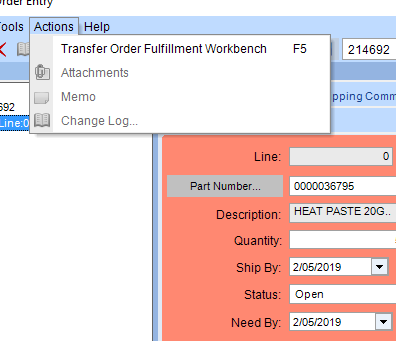
- The FULFILMENT WORKBENCH will appear
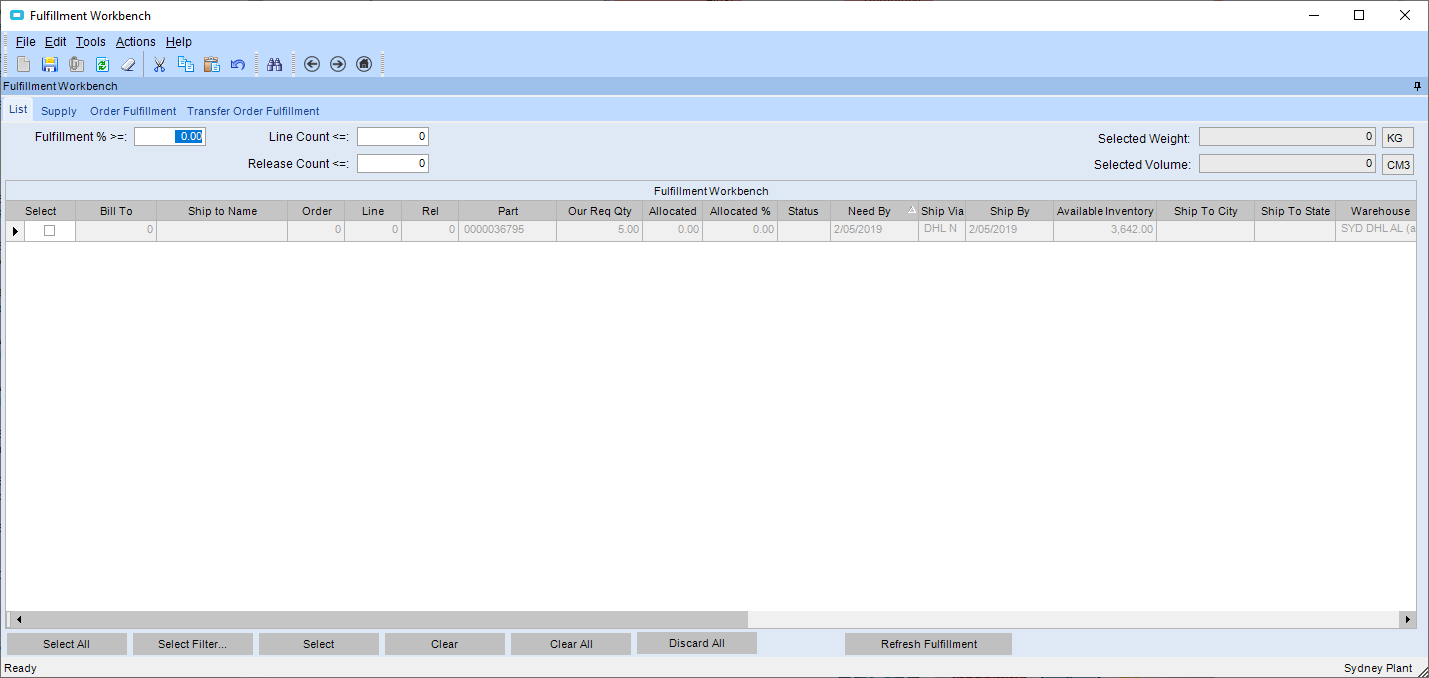
- Select the lines you would like to release
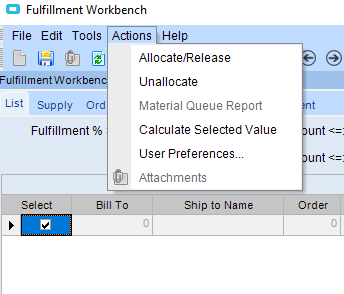
- Once selected go to ACTIONS>ALLOCATE/RELEASE
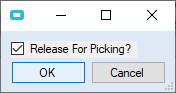
- Tick the RELEASE FOR PICKING button and press OK
- System will generate a confirmation box. Once the confirmation box is generated, the FULFILMENT WORKBENCH can be closed
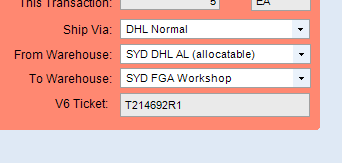
- Once the TRANSFER ORDER ENTRY screen is refreshed, a V6 TICKET number will be produced
See SHIPPING A TRANSFER ORDER to learn how to ship the items
See RECEIVING A TRANSFER ORDER to learn how to receive the created transfer