
General Assist Technical Reference
ROM Writer Instructions - K10BS / K10AY Outdoor Unit Series
FM-ONE MCU firmware writing, verification and final marking procedure
This procedure explains how to write or update the main printed wiring board firmware using the Hokuto Electronic FM-ONE on-board programmer. Correct wiring, firmware-folder selection and verification are essential to prevent incorrect programming or board damage.
Qualified service personnel only: This work involves mains voltage, exposed electrical components and direct connection to the outdoor unit control board. Isolate the power supply before making or removing connections and follow ESD precautions whenever handling a PWB.
1. Required equipment
| Item | Purpose |
|---|---|
| FM-ONE MCU writer | Programs the outdoor unit main PWB. |
| Writing cable | Connects the FM-ONE writer to CN5 (MAIN-FLASH). |
| Inner dummy / checker jig | Provides the inspection and verification interface. |
| Breaker and AC supply | Safely energises and isolates the test arrangement. |
| Connection cables A and B | Connect the breaker, checker and outdoor unit terminal block. |
| E BOX, terminal box and checker PWB | Forms the inner dummy inspection assembly. |
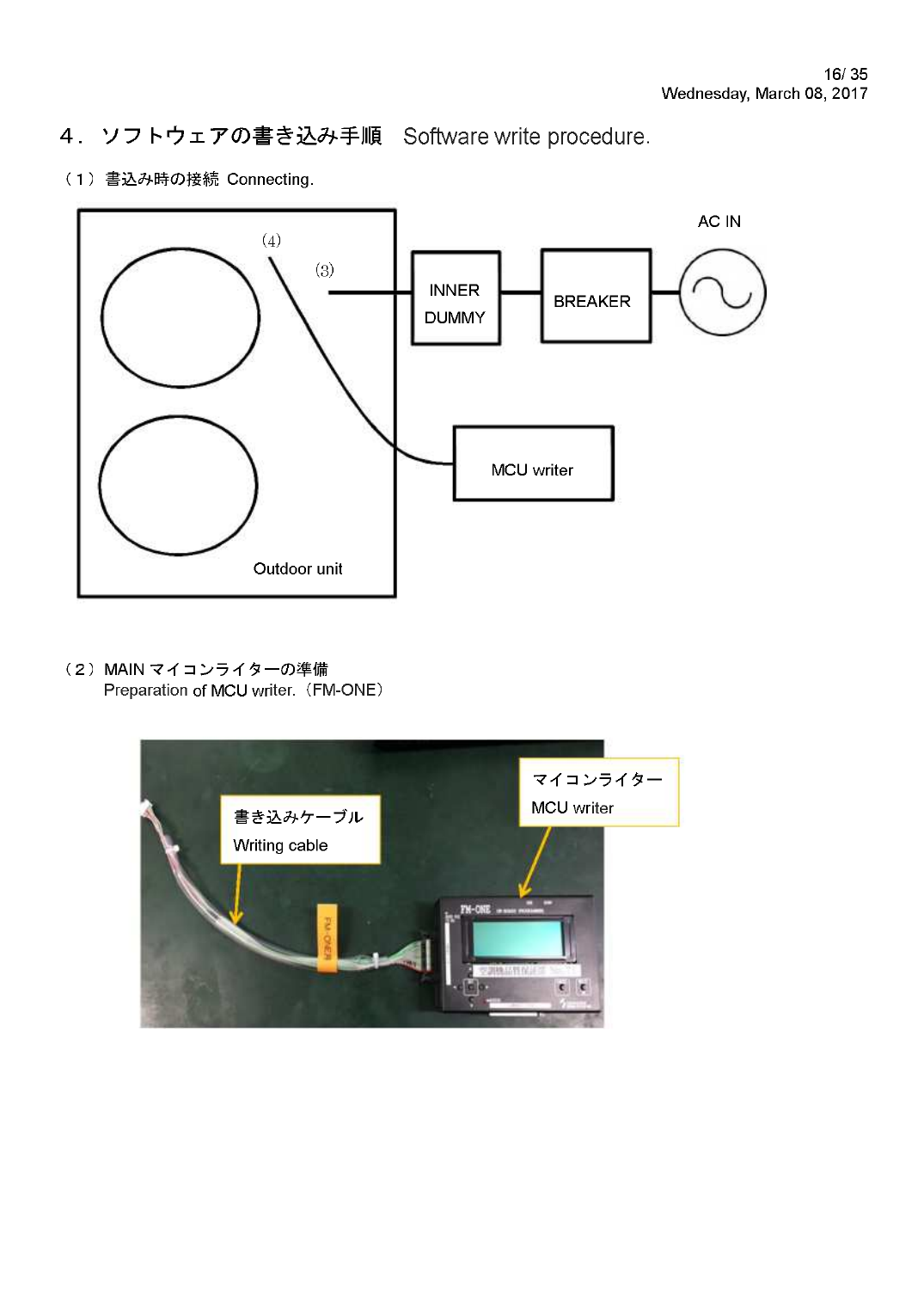
Connection overview between the outdoor unit, inner dummy, breaker and FM-ONE writer.
2. Wiring and connection procedure
- Confirm the breaker and AC supply are OFF.
- Assemble the inner dummy/checker arrangement and connect cables A, B, C and D as shown in the source instructions.
- Connect cable B to the outdoor unit terminal block, confirming the correct terminals and conductor identification.
- Connect the FM-ONE writing cable to CN5 (WHITE) on the K10BS main PWB. CN5 is labelled MAIN-FLASH.
- Confirm the connector is inserted in the orientation shown in the diagram. Do not force the connector.
Connection warning: Never insert, remove or reverse the CN5 writing cable while the outdoor unit is energised. An incorrect connection may damage the main PWB or programmer.
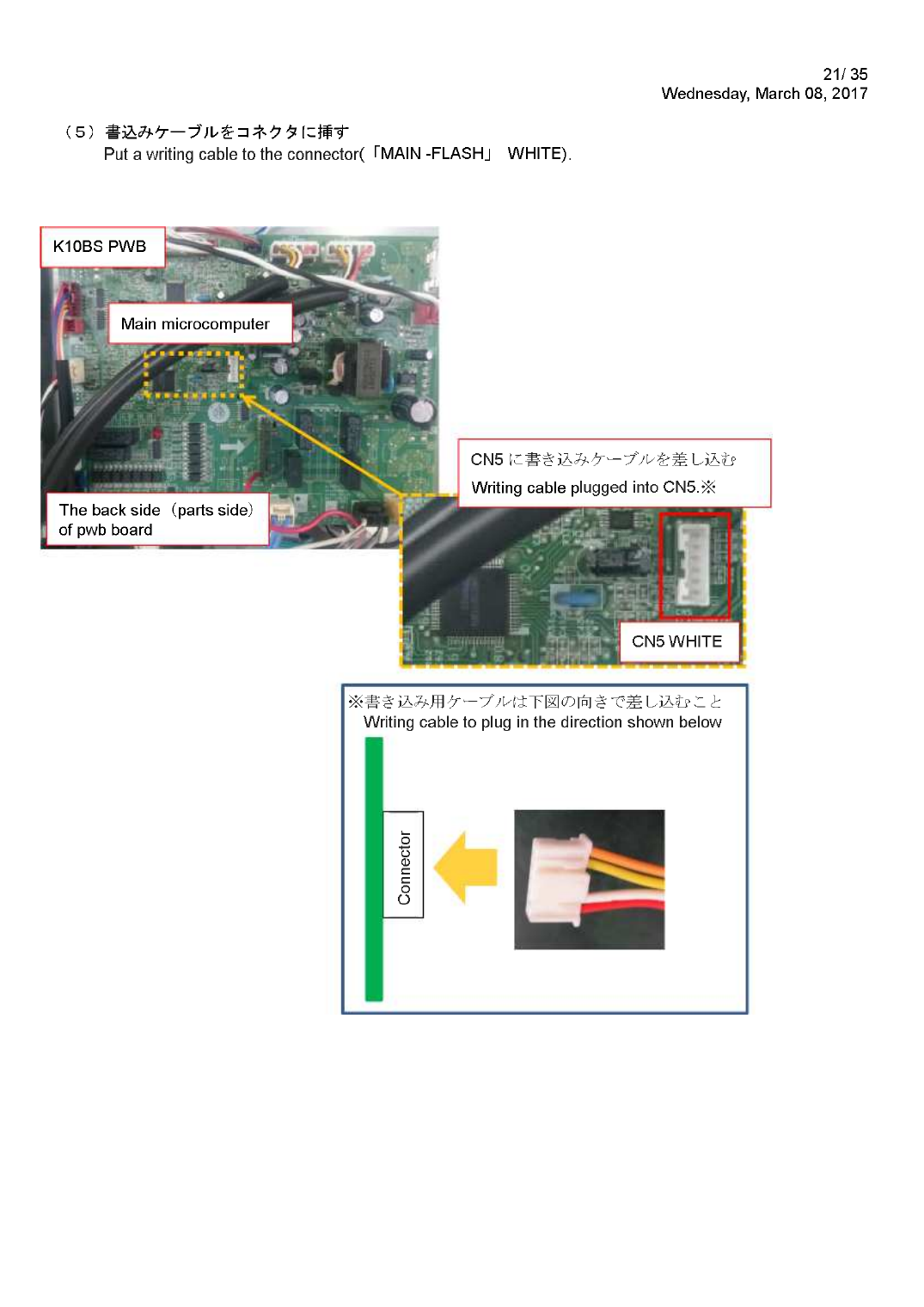
CN5 (WHITE) MAIN-FLASH connector and required cable orientation.
3. Select the correct firmware folder
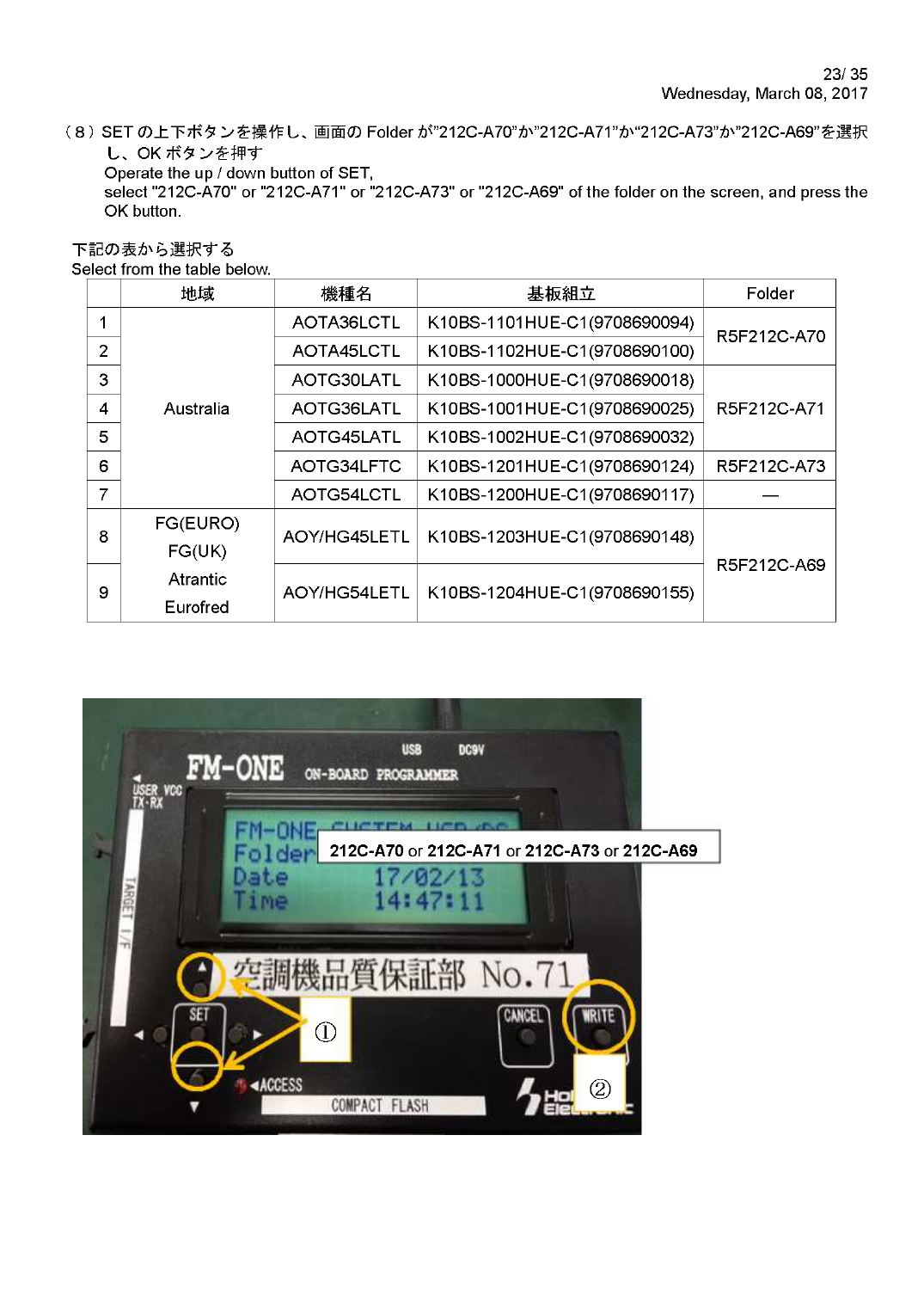
After all wiring has been checked, turn on the outdoor unit. Confirm the FM-ONE display starts normally, then use the arrow keys to select the folder that matches the exact model and PWB.
| Region | Model | PWB | Folder |
|---|---|---|---|
| Australia | AOTA36LCTL | K10BS-1101HUE-C1 | RF5212C-A70 |
| AOTA45LCTL | K10BS-1102HUE-C1 | ||
| AOTG30LATL | K10BS-1000HUE-C1 | RF5212C-A71 | |
| AOTG36LATL | K10BS-1001HUE-C1 | ||
| AOTG45LATL | K10BS-1002HUE-C1 | RF5212C-A73 | |
| AOTG54LFTC | K10BS-1201HUE-C1 | ||
| AOTG54LCTL | K10BS-1200HUE-C1 | ||
| FG Europe / UK / Atlantic / Eurofred | AOY/HG45LET and AOY/HG54LETL | K10BS-1203HUE-C1 or K10BS-1204HUE-C1 | RF5212C-A69 |
Critical: Do not select a folder based only on outdoor-unit capacity. Confirm the exact model and PWB identification before programming. Writing the wrong software may cause incorrect control operation or communication faults.
4. Write the software
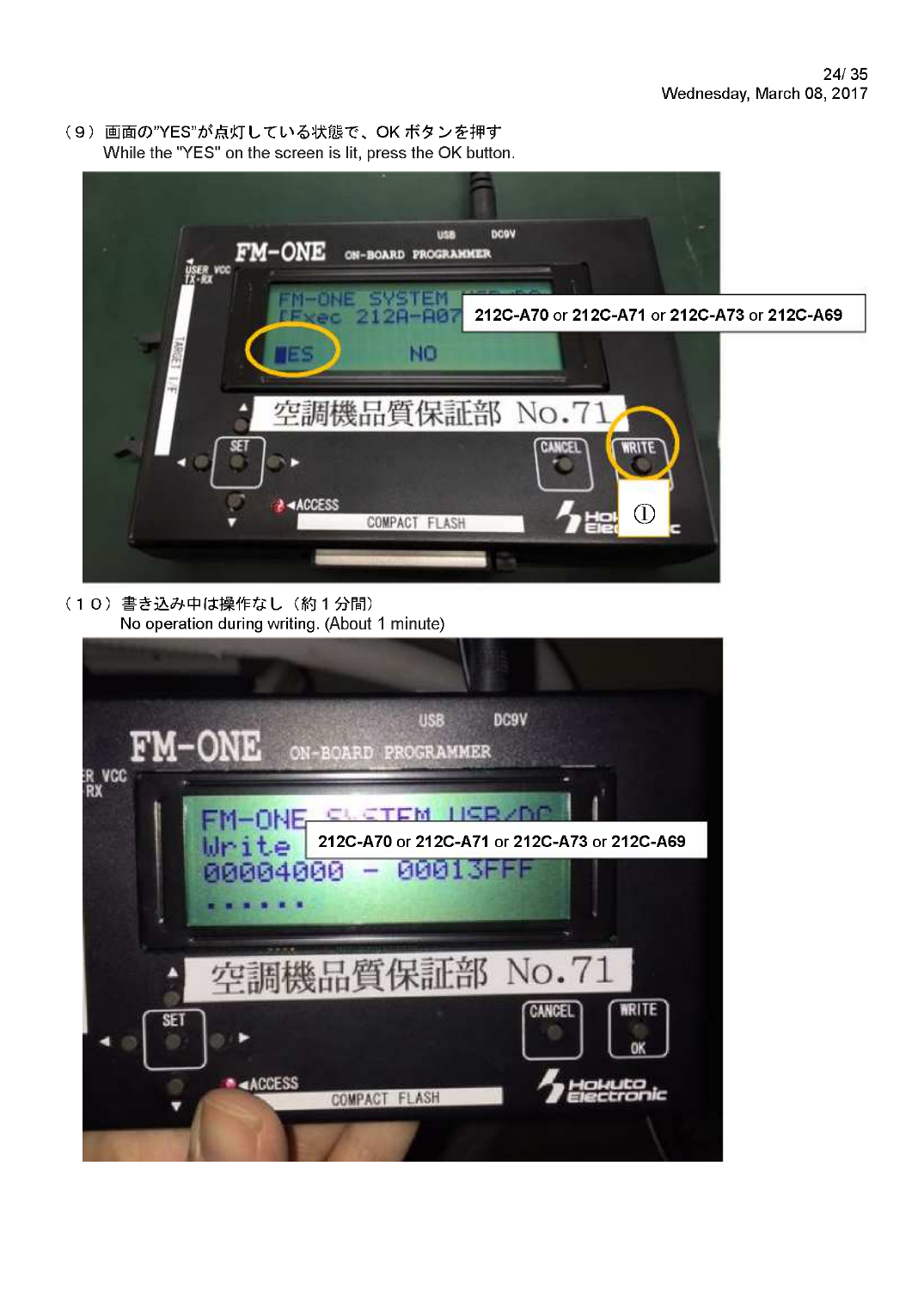
- With the required folder highlighted, press OK.
- When the display shows YES / NO, select YES.
- Press WRITE to begin programming.
- Allow approximately one minute for completion. Do not press buttons, disconnect cables or interrupt power during writing.
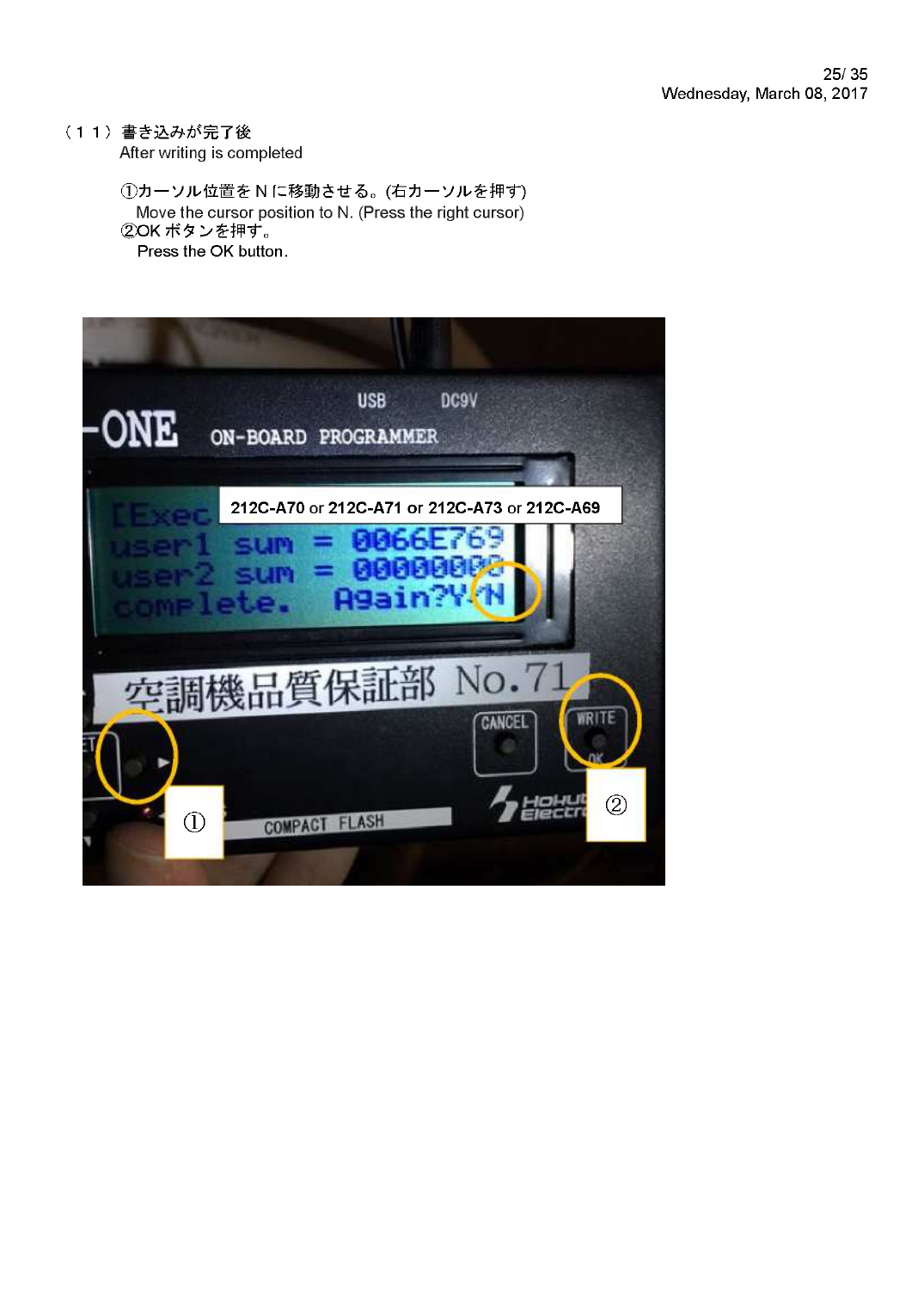
- At completion, confirm the display shows the checksum result and complete. Again? Y/N.
- Move the cursor to N and press OK.
- Turn the outdoor unit power off. Wait until the FM-ONE LCD is fully blank before removing the writing cable from CN5.
5. Firmware label marking
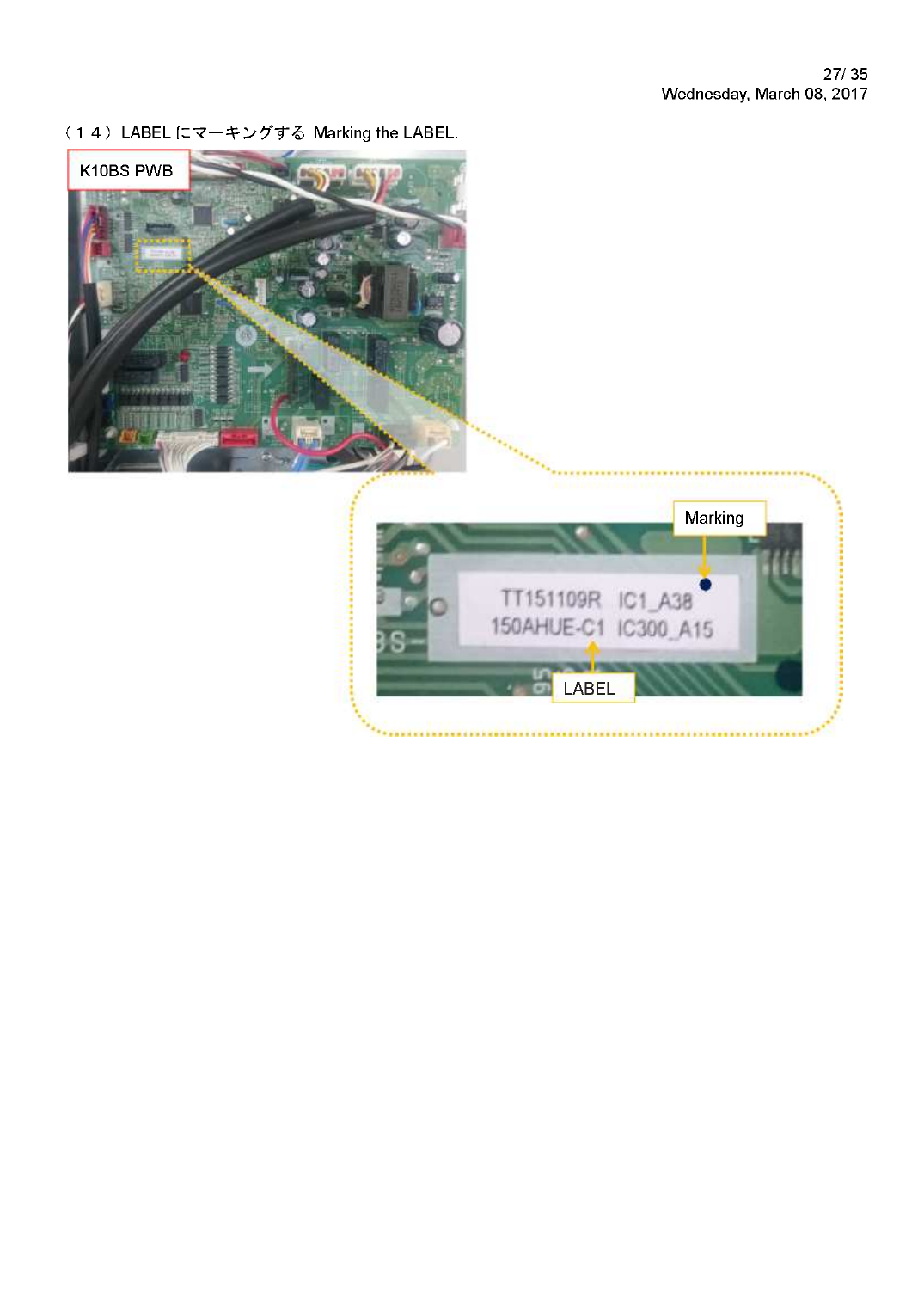
After successful programming, mark or apply the required firmware identification label to the main PWB. The marking must identify the programmed software version in accordance with the service instruction.
6. Verification procedure
- Reconnect the required test wiring and re-energise the outdoor unit.
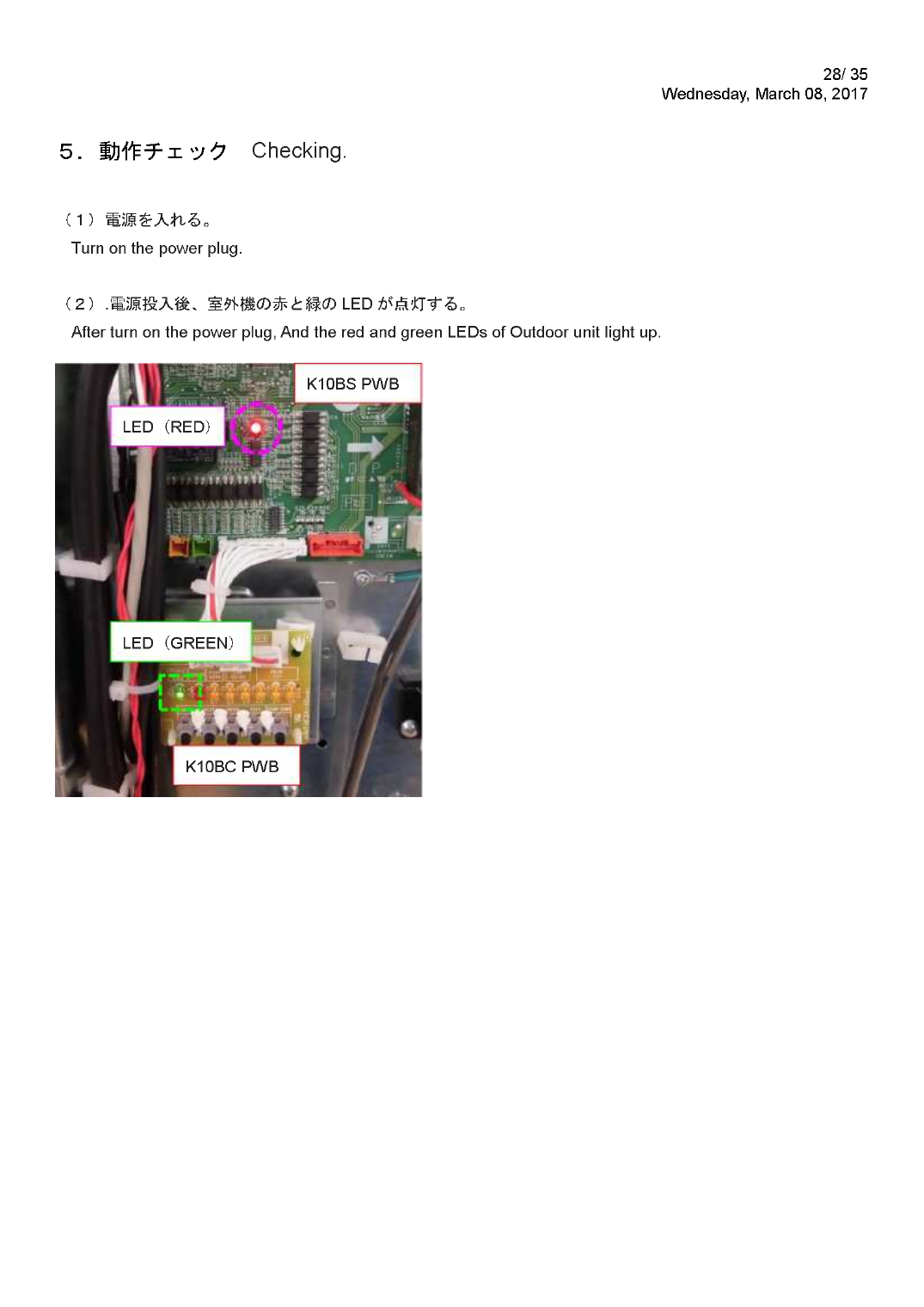
- Confirm the specified red and green LEDs on the outdoor-unit boards illuminate.
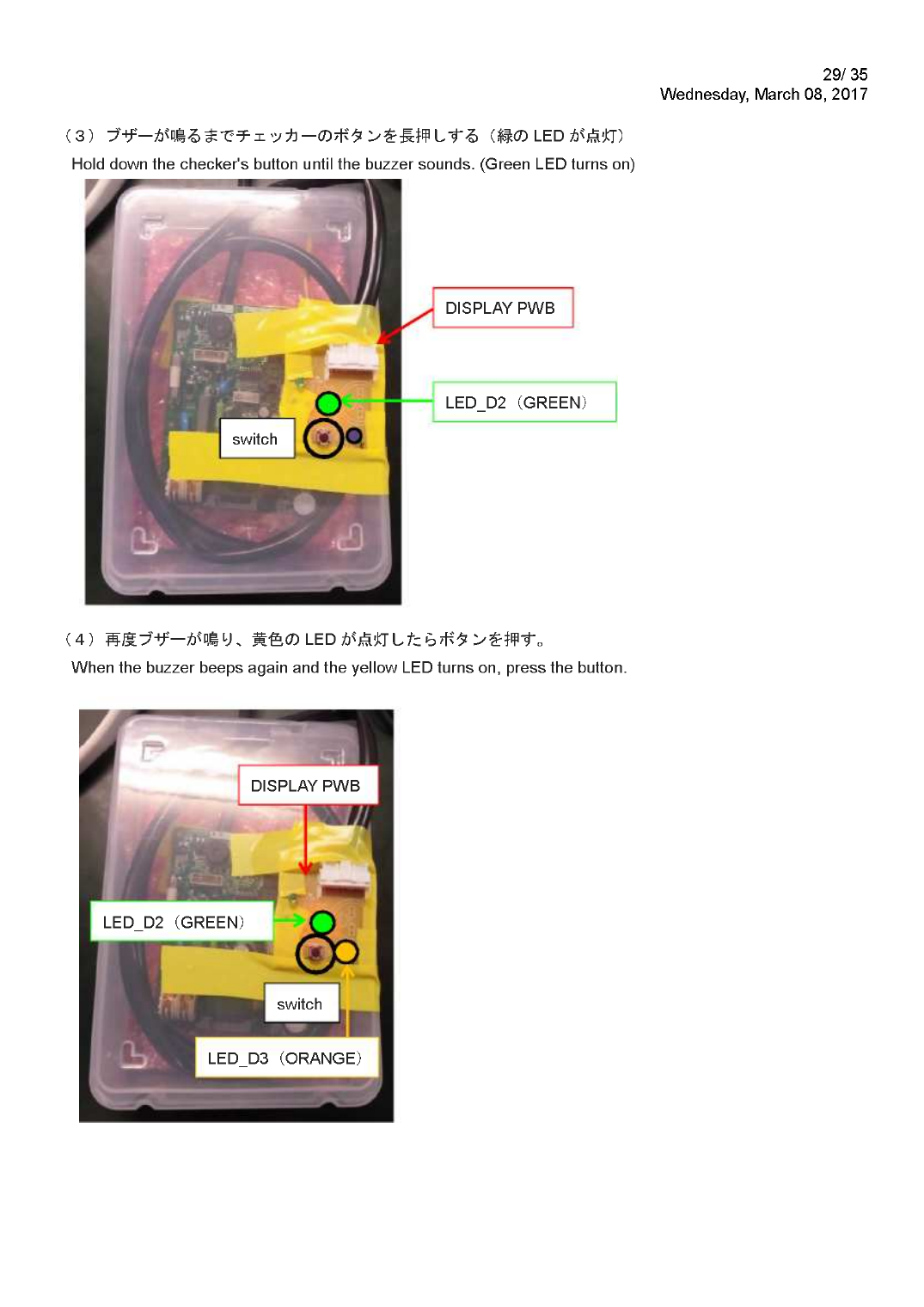
- On the checker, press and hold the switch until the buzzer sounds and LED_D2 (green) illuminates.
- When the buzzer sounds again and LED_D3 (orange) illuminates, press the switch as instructed.
- Confirm all required LED and buzzer indications are correct. If they are not, isolate power and recheck the selected folder, cable connections and programming sequence.
7. Final reassembly
- Turn off and isolate all power.
- Remove the checker, inner dummy and all temporary cables.
- Close and secure the INV CASE MAIN ASSY without trapping any wiring.
- Refit the INV cover, terminal cover and service panel.
- Confirm firmware/PWB marking and product serial identification before return to service or dispatch.
Completion criteria: The correct firmware folder has been written, the completion checksum is displayed, the PWB is marked, the red/green board LEDs operate correctly and the checker completes its buzzer/LED verification sequence.