AIRSTAGE Technical Reference
UTY-RVNYN Indoor Unit Function Settings
How to access and change indoor unit function settings from the wired remote controller
Use this procedure to select an indoor unit address, function number and setting value.
Indoor unit function settings can be configured directly through the UTY-RVNYN wired remote controller. Refer to the Design & Technical Manual for the applicable indoor unit model before changing any values.
Important: Confirm the correct remote controller address, function number and setting value before saving. Incorrect settings may affect system operation.
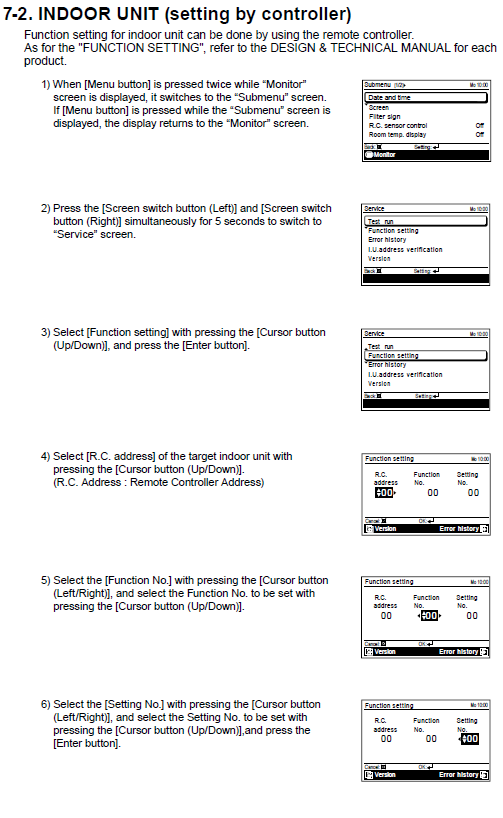
1. Access the Service menu
Step 1 - Open the Submenu screen
- From the Monitor screen, press the [Menu] button twice.
- The display will change to the Submenu screen.
Step 2 - Enter Service mode
- If the Submenu screen is already active, press [Menu] once to return to the Monitor screen, then open the Submenu again.
- Press and hold the [Left] and [Right] screen-switch buttons at the same time for 5 seconds.
- The display will change from Submenu to Service mode.
2. Enter Function Setting mode
- Use the [Up/Down Cursor] buttons to highlight Function Setting.
- Press [Enter].
- The Function Setting screen will be displayed.
3. Select the indoor unit address
- Use the [Up/Down Cursor] buttons to select the R.C. Address for the target indoor unit.
- Confirm the displayed address matches the indoor unit that requires configuration.
Address check: Selecting the wrong R.C. Address may apply the setting to a different connected indoor unit.
4. Select the function and setting values
| Stage | Controller buttons | Action |
|---|---|---|
| Function No. | [Left/Right Cursor] | Move the selection to the Function No. field. |
| Select function | [Up/Down Cursor] | Scroll to the required function number. Example: Function No. 400. |
| Setting No. | [Left/Right Cursor] | Move the selection to the Setting No. field. |
| Select value | [Up/Down Cursor] | Choose the required setting value. |
| Save | [Enter] | Save the selected configuration. |
Reference requirement: Function numbers and setting values vary by indoor unit model. Use the applicable Design & Technical Manual to confirm the correct values.
5. Important notes
- Always confirm the correct R.C. Address before applying a setting.
- The controller stores the configuration after the value is entered and confirmed.
- Available function numbers and setting values depend on the connected indoor unit model.
- Record any settings changed for future service and commissioning reference.